
GCODE Macros
Save the operator GCODE you run every day as named macros, scoped to the printer models they are safe for, and run them on one printer or a whole rack in a click.
The bed-clearing sequence, the purge line, the home-and-park before maintenance: those live in Printago now. Save each one as a named macro under Printing, then run it on your printers in a click instead of opening a terminal and pasting raw GCODE machine by machine.
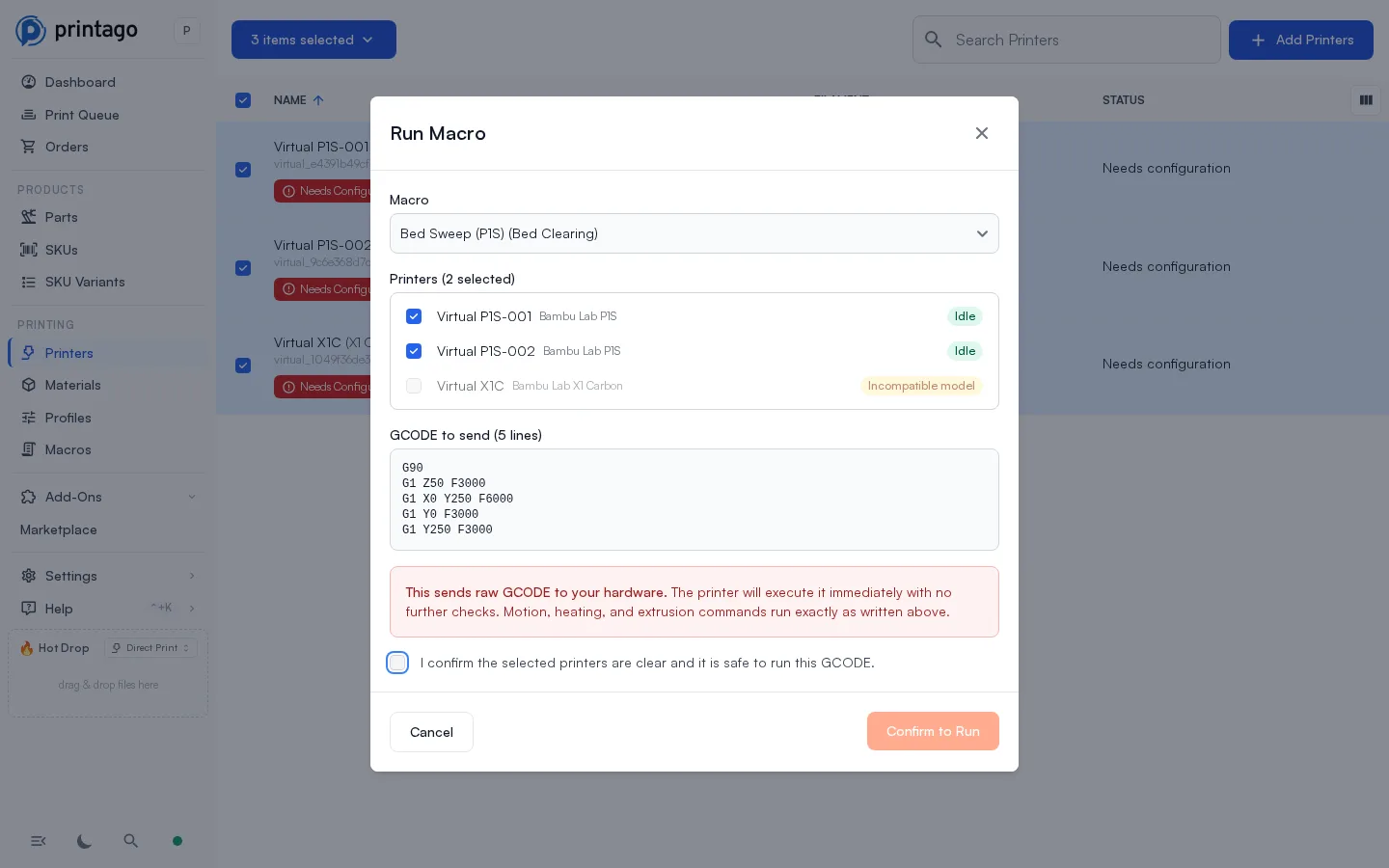
Scoped to the machines you vetted
GCODE is model-specific, and a bed sweep written for one machine can drive the toolhead into a part on another. Every macro carries the list of printer models it is compatible with and only ever reaches those. A macro that lists no models will not run anywhere.
Run it from anywhere, on any number of printers
Run a macro from its row in the library, from the editor, from the ⋮ menu on a printer's page, or on a whole group at once by selecting printers on the printers list and choosing Run Macro.
Before anything is sent, the dialog shows the full GCODE and where each printer stands: idle, printing, offline, an incompatible model, or a connection that cannot carry raw GCODE. Eligible printers run it, the rest are skipped, and you get a result for each one. Operators who run macros all day can pre-check the confirmation in Settings, Account, General Settings.
Macros work on Bambu Lab, Klipper, and OctoPrint connections. PrusaLink, Elegoo Centauri, and Anycubic LAN connections carry print control only, so those machines cannot take one, and the app flags them in both the model picker and the run dialog.
See the GCODE Macros documentation for the full compatibility tables.
Sign up for free today
No credit card required. Connect unlimited printers and get production automation running in minutes.