
Fleet Command - 3D Print Farm Fleet Management
Fleet Management for 3D Print Farms
Fleet management for 3D print farms. Manage hundreds of printers like one. Bulk operations, capability-aware printer tags, and fleet-wide controls across your entire mixed-fleet operation.
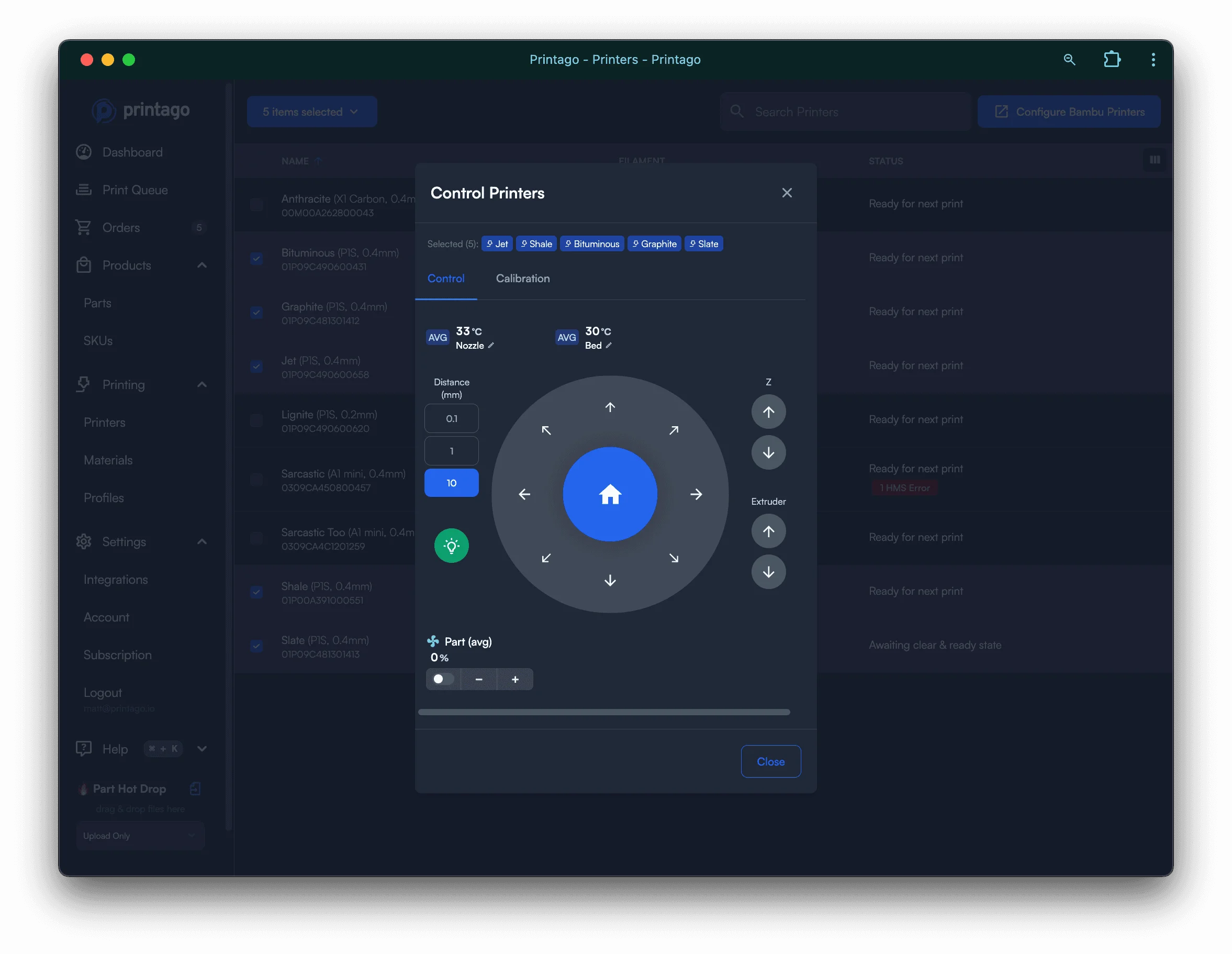
Manage hundreds of printers like they're one. Fleet Command gives you bulk operations, capability-aware printer tags, and fleet-wide updates in seconds, so a single operator can run a mixed-fleet print farm at scale.
Bulk Actions Across Your Fleet
Select multiple printers using checkboxes, then access powerful bulk operations through the Actions menu. Set multiple printers as Clear and Ready with one click, skipping any that are currently printing. Enable or disable FabMatic continuous printing across selected machines. Open multi-printer control panels for simultaneous calibration and maintenance. Apply slicer configurations to all printers of the same model instantly.
Keyboard Shortcuts for Speed
Work faster with production-focused shortcuts. Press A to toggle select all printers. Press G to automatically select all printers matching the first selected model and nozzle. Press R to mark selected printers ready. Press U to set printers as not ready. Press P for control panel access. Press C for configuration. Press M for materials management. Press T to edit tags across multiple printers.
Smart Printer Tags
Create dynamic printer groups with user-defined tags. Organize by physical location like SHELF1 or DESK4. Group by capability with tags like PEI_BED or HIGH_DETAIL. Assign by purpose using CUSTOMER_ORDERS or PROTOTYPES. Tags work in real-time - add or remove tags while jobs are queued and Printago automatically adjusts routing. Jobs wait for printers with matching tags to become available.
Multi-Printer Configuration
Configure multiple printers simultaneously through the bulk configuration dialog. Set machine profiles and process profiles for entire printer groups. Apply settings to all printers of the same model with Save to All Similar Printers. Perfect for standardizing settings after adding new filaments or updating profiles. Sync changes from Bambu Studio or Orca Slicer across your entire fleet.
Material Management at Scale
Bulk assign materials to multiple printers at once. Set up new filament types across your entire fleet in seconds. RFID-tagged Bambu filaments auto-detect and can be quickly added to your material library. Assign generic material types like Any PLA for maximum flexibility or specific variants for exact color matching. See all materials across all printers in one view.
Printer Control Panel
Access hardware controls for multiple printers simultaneously. Run bed leveling, vibration compensation, and motor noise cancellation across selected machines. Set temperatures, control fans, and home axes on multiple printers. Execute calibration routines during downtime. Monitor and control selected printers from one interface.
Temperature Presets
Apply quick temperature presets to multiple printers. Set bed and nozzle temperatures across your fleet for material changes. Cool down all printers at end of day. Preheat machines before starting production. Perfect for managing energy usage and maintaining consistent operating conditions.
FabMatic Fleet Management
Enable continuous printing across multiple printers with one action. Configure bed-clearing profiles for different printer models. Monitor which printers have FabMatic active. Automatically disables on HMS errors or external printer use. Bulk enable or disable based on production needs.
Frequently Asked Questions
How many printers can I control at once?
Fleet Command is built to handle hundreds of printers simultaneously. The control panel interface supports direct hardware control across selected printers, while bulk actions for tagging, readying, and configuration apply across your entire connected fleet at once.
Does Fleet Command work with mixed printer brands?
Yes. Printago is built for mixed fleets, not a single vendor. The same dashboard, queue, routing engine, and bulk controls work across Bambu Lab, Creality, Prusa, Snapmaker, Elegoo, and more, including any printer running Klipper or Moonraker, with hundreds of models across dozens of brands in the printer compatibility matrix. Bulk actions, smart tags, and material-aware routing operate across every brand at once, so one operator runs the whole floor regardless of who made each machine.
Can different team members have different access levels?
Yes. Printago supports role-based permissions for team members. Built-in roles cover store owners, admins, operators, part managers, and viewers, so each person can get access appropriate to their work.
What keyboard shortcuts are available in Fleet Command?
The main shortcuts are: A to toggle select all, G to select all printers matching the first selected model and nozzle, R to mark selected printers ready, U to set printers as not ready, P to open the control panel, C for configuration, M for materials management, and T to edit tags.
Do I need special hardware to manage my fleet?
No proprietary hardware is required. Cloud-connected Bambu Lab printers connect directly with nothing to install. Every other printer, including Creality, Prusa, Snapmaker, and Elegoo machines, connects through the free, lightweight Printago Fuse bridge that runs on a Windows PC, Mac, or Docker host you already own, including a Raspberry Pi or NAS. Once connected, any computer, tablet, or phone with a browser manages your entire fleet.
Popular printers Printago runs
Printago connects to 370+ models across 60+ brands. A few of the most popular:
Browse the full printer compatibility list.
See also
Sign up for free today
No credit card required. Connect unlimited printers and get production automation running in minutes.