
How to Change Nozzle Size and Type in Anycubic Slicer
June 19, 2026
Tell Anycubic Slicer Next which nozzle you have installed: diameter (0.4, 0.6, 0.8) and material (brass vs hardened steel). Where the setting is and why it must match your hardware.
"Changing the nozzle" in Anycubic Slicer Next covers two separate things: the diameter (0.4, 0.6, 0.8 mm) and the material (brass vs hardened steel for abrasive filaments). They are handled differently, and getting the diameter right is one of the few settings that affects every line of the print.
Nozzle diameter
Diameter is part of the printer configuration, not a per-print toggle. The currently selected diameter is shown next to the printer (for example "0.4 nozzle") and is baked into the process preset name, which reads something like 0.20mm Standard ... 0.4 nozzle. To change it, open the printer settings (the edit icon next to the printer), go to the Extruder tab, and set Nozzle diameter under Size to match the physical nozzle on the machine.
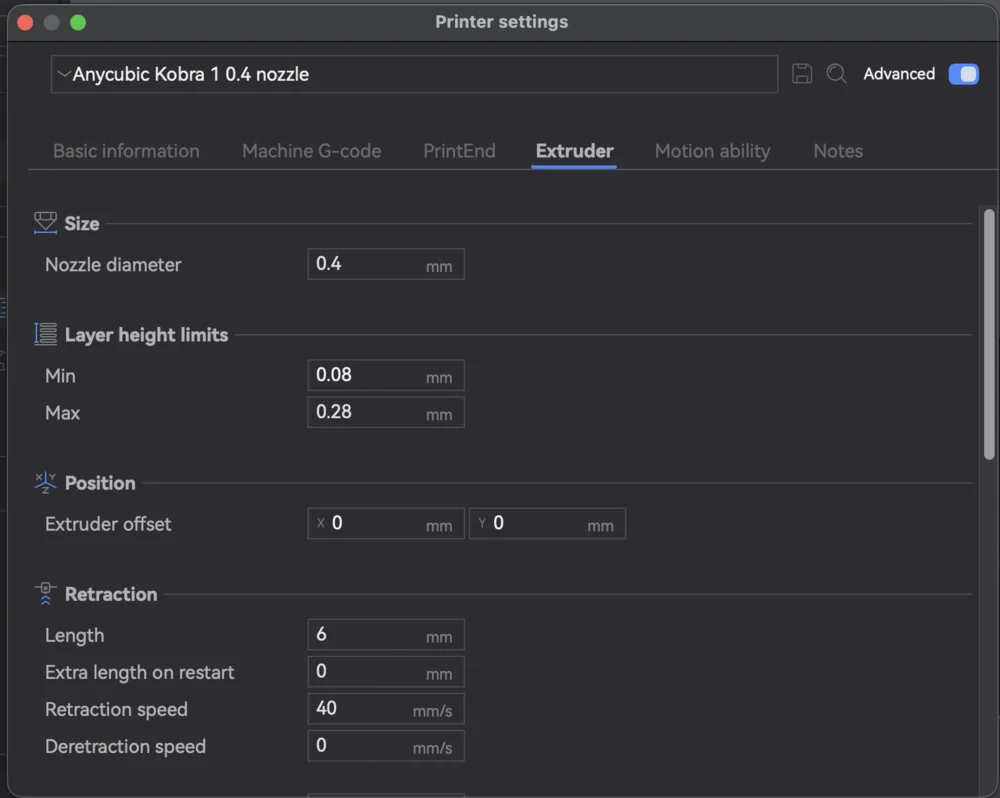
This matters because the slicer derives line widths, extrusion flow, and pressure advance from the diameter. A 0.6 mm nozzle lays down wider lines and moves more plastic than a 0.4. If the number in the slicer does not match the hardware, the entire print is over- or under-extruded. So whenever you physically change to a different size, change it here too, and reselect or re-tune the process profile for that diameter.
Nozzle type (brass vs hardened)
If you switched to a hardened steel or other wear-resistant nozzle to print abrasive filaments (carbon fiber, glow-in-the-dark, glitter), update the nozzle type/material in the printer settings as well. As long as the diameter is unchanged, this does not alter the toolpaths; it keeps the slicer's record of your hardware accurate and is good hygiene if you share or version profiles. The actual protection from abrasive filament comes from the physical nozzle, not a slicer setting.
Match the slicer to the hardware
The rule is simple: the nozzle in the slicer must describe the nozzle on the printer. Diameter changes require updating the slicer (and your profile); a same-diameter material swap does not change slicing but is worth recording.
Across a farm
In a farm, mixed nozzle sizes across machines are a common source of bad prints when a job lands on the wrong printer. Printago tracks each printer's nozzle configuration and slices in the cloud with the same OrcaSlicer engine Anycubic Slicer Next is built on, so a job is sliced for the diameter actually installed on the machine that runs it. See cloud slicer and the Anycubic Slicer overview.
More Anycubic Slicer guides
Read the Anycubic Slicer overview, or browse all slicer guides.
Frequently asked questions
Sign up for free today
No credit card required. Connect unlimited printers and get production automation running in minutes.