
Filament Inventory and Spool Tracking
Know what filament is on the shelf, what each roll has left, and what every print cost, whether you count by the kilo or by the roll.
Know what filament you have, without counting it
Running out of a color mid-week, or finding three half rolls of it after you already reordered, comes from guessing what is on the shelf. Filament Inventory keeps the count for you. Tell Printago what you have once, record deliveries as they arrive, and every finished print takes what it used off that color's stock. The Materials list shows what you have on hand, what it is worth, and what your prints used this month.
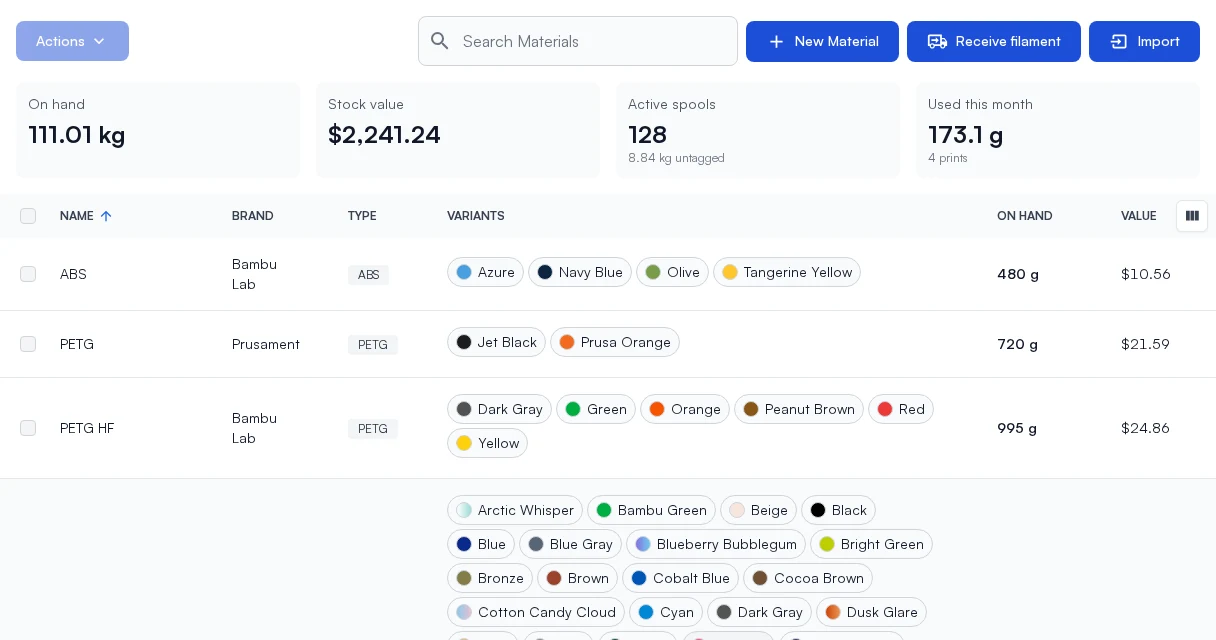
Filament Inventory and Spool Tracking are free while in preview, and you can turn them on yourself. Open Add-Ons > Marketplace > Filament Inventory, or click Receive on the Materials page and Printago offers to turn it on first.
Every shop keeps filament a little differently, so it works three ways. Start with the first and move to the others later without redoing anything.
1. Track filament by weight only
For a shop that buys by the box and never labels a roll. Stock is kept as a weight per color: receive six kilograms of Jade White and its row says six kilograms, with no spool records to manage. Use Adjust bulk weight to set what is on the shelf, and Receive filament when a delivery comes in. The Activity tab names the print behind every drop, so any change can be traced back to a job.
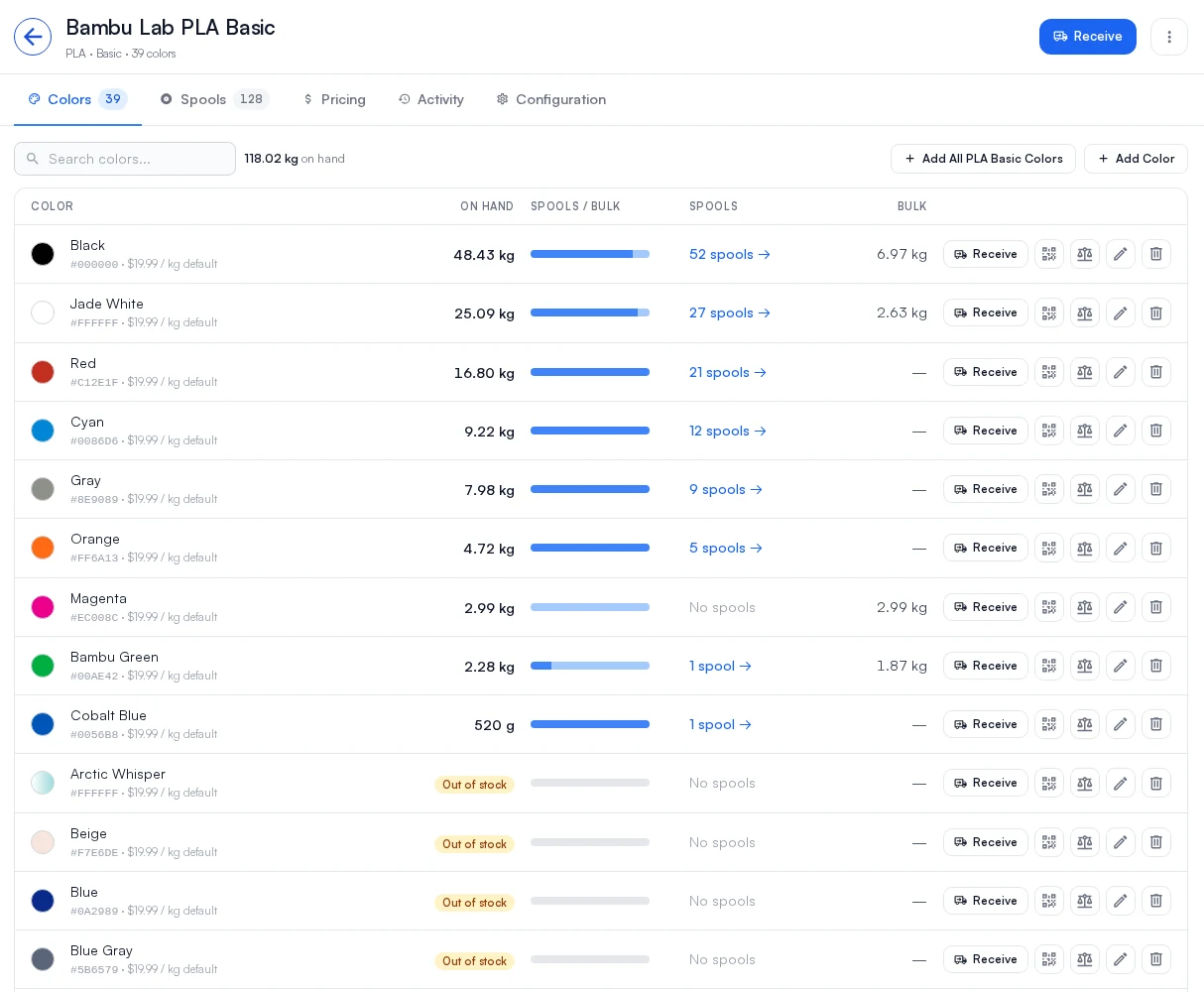
2. Receive into bulk, make spools when you open them
For a shop that buys by the box but wants to follow each roll once it is in use. Deliveries land in a color's bulk stock, the same as above. When you open rolls, Convert to spools on the Spools tab takes them out of bulk and gives each one its own record and a label to print, so bulk and spools never count the same filament twice.
With RFID-tagged rolls you don't even have to convert by hand. When a tagged roll goes into a printer, Printago adds a spool for it at the printer's reading and takes that weight out of the color's bulk.
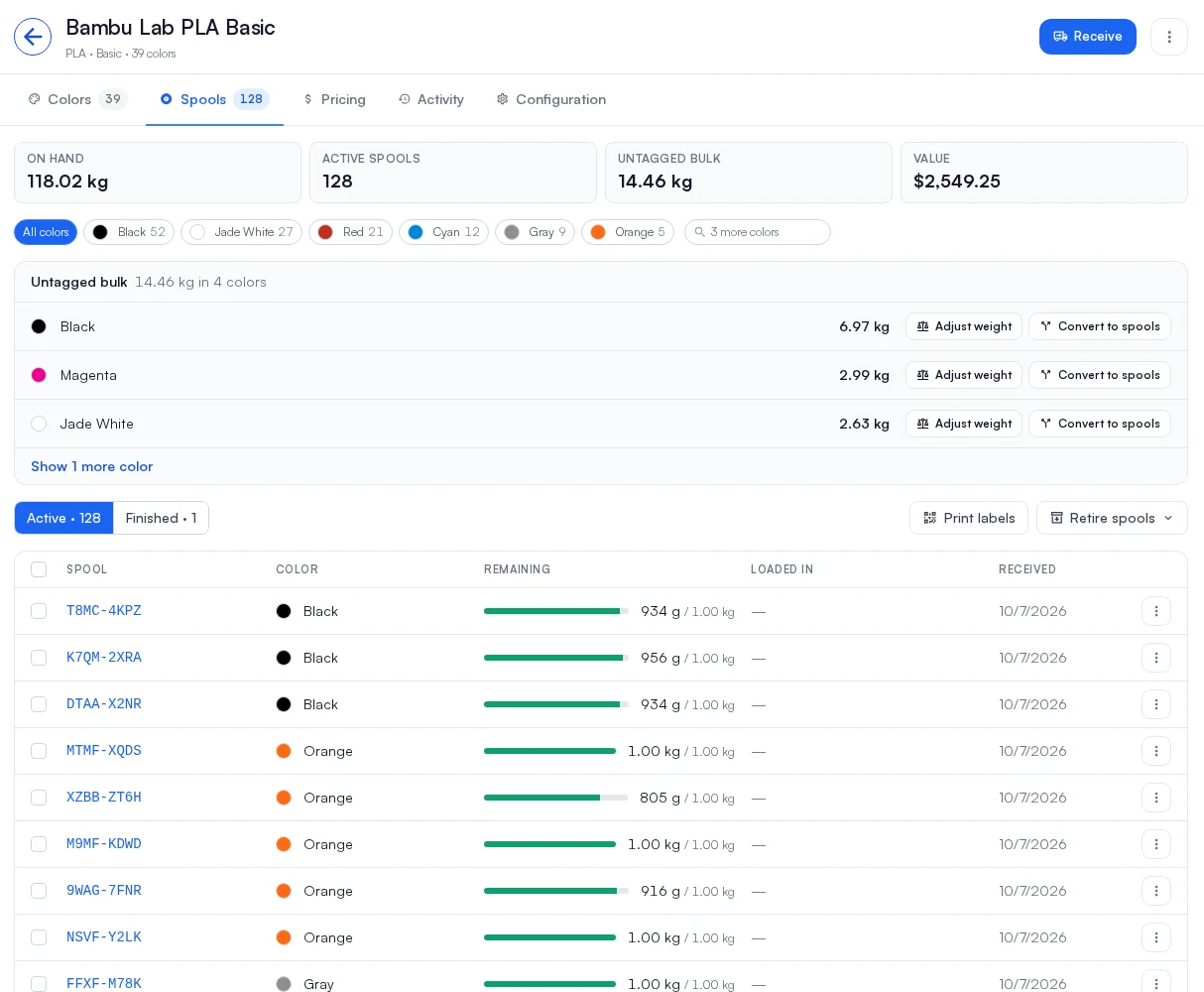
3. Track every roll from the day it arrives
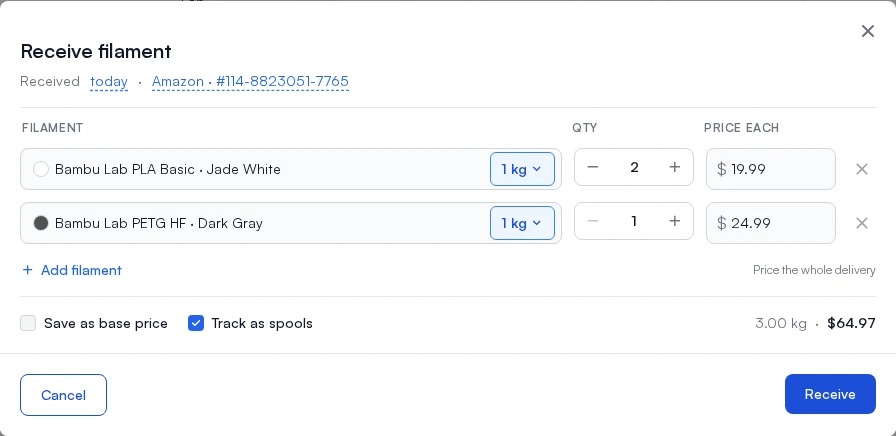
For a shop that wants each roll on record from the start. Tick Track as spools in Receive filament and every roll becomes a spool with the price you paid, the supplier and the order number. Print the labels, then scan one to load the roll into a printer slot.
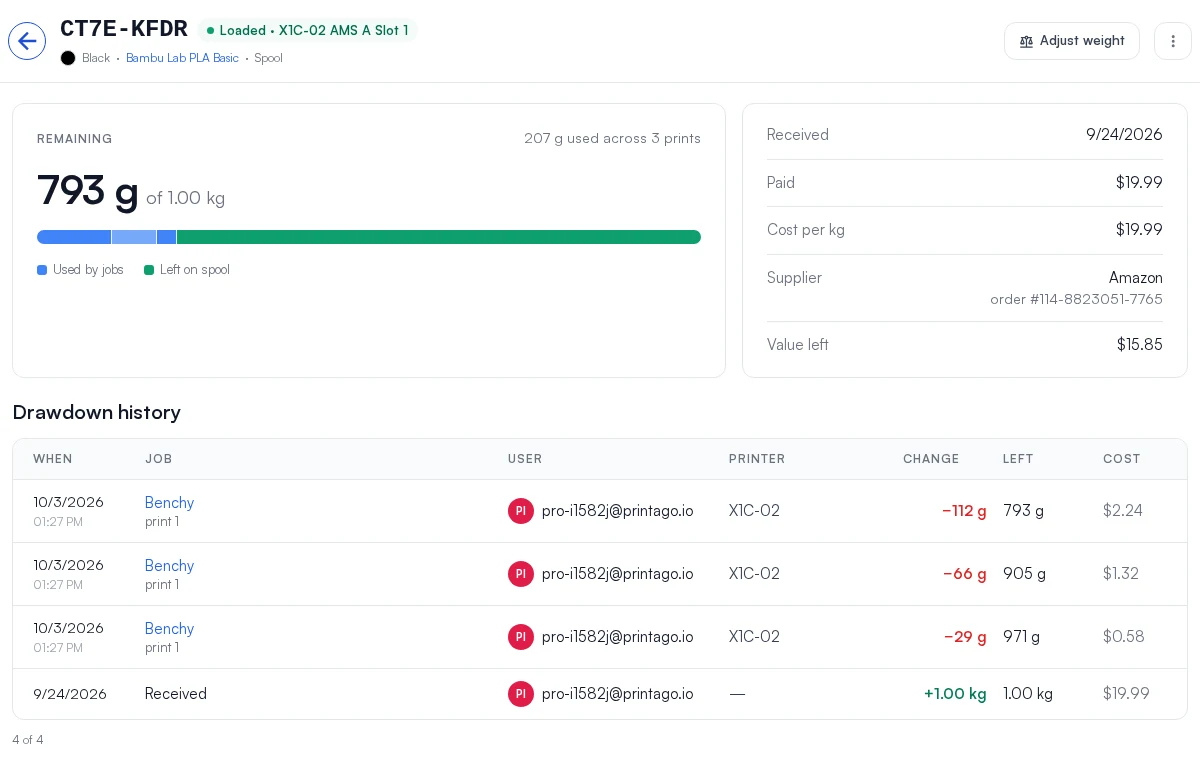
Each spool gets its own page: what is left on it, what it cost, and every print that drew from it, with who queued it and on which printer.
What every print cost
Every finished print now records what its filament cost, slot by slot, at the price you paid: the roll's own price, then the delivery it came in on, then the color's, then the material's. Failed and canceled prints keep the cost of what they used. The cost is saved with the print, so repricing a material later no longer rewrites last month's spend in the Materials and Profit reports. On a job's page, the Material used table has a Drawn from column showing which spool, or bulk, each slot drew from.
Before you turn it on
If you use Fuse, update every Fuse client to 1.4.11 first. Older clients don't send the roll ID a tagged roll is tracked by, and the Marketplace page names any client that still needs the update.
See Filament Inventory for a getting-started guide to each way of working.
Flashforge printers
A farm that grew with a mix of brands no longer has to run its Flashforge machines by hand. With Fuse 1.4.11, the Adventurer 3 and 4 series, Artemis, Adventurer 5M, 5M Pro and AD5X connect to Printago and take jobs from the queue like your other printers.
On the AD5X, the four-slot material station shows what is loaded in each slot, multi-color jobs go to the slots you assigned, and you can load and unload from Printago. Filament runout and other printer faults show in Printago with Flashforge's own wording and the slot to fix.
Flashforge support is new. The AD5X is verified on real hardware, and the other models are marked experimental until they are. Fuse can run diagnostics on your printer and share a report with us, which is the fastest way to get your model verified. See Flashforge Integration.
Plate previews on gcode printers
Jobs sent through Fuse to the Centauri Carbon, Snapmaker U1, other Klipper printers, Prusa and OctoPrint now carry the plate picture, so the printer's screen and Mainsail or Fluidd show the same preview as a file sliced on your desktop. Requires Fuse 1.4.11.
Fixes
- Plates after the first in a multi-plate 3MF now slice on a printer whose bed is a different size from the one the project was made on, instead of failing with "One of the plate is empty" or landing in the corner of the bed.
- TikTok Shop orders keep syncing after the first week. The access token now refreshes before it expires, so syncs no longer fail with "Expired credentials".
- On Klipper, Prusa, OctoPrint and Elegoo printers, a job started while the printer still showed its previous file keeps its link to the Printago job. On Elegoo printers this could also cancel the print that was actually running. Requires Fuse 1.4.11.
- A CANVAS job can no longer silently print from the first tray when it was assigned to the external spool. Requires Fuse 1.4.11.
- The Bambu Lab color catalog adds PETG Matte, PLA Pure and missing colors across PETG Basic, PLA Lite, TPU and PLA Silk. Clear spools are no longer named Black, and gradient colors are recognized in either order.
Sign up for free today
No credit card required. Connect unlimited printers and get production automation running in minutes.