
Plate Merging - Fill Every Build Plate Automatically
Fuller Plates, Fewer Plate Changes
Plate Merging combines compatible queued jobs onto one build plate, so a printer runs a full bed instead of one small part at a time. Merge by hand from the queue, let Printago fill plates automatically, or pack a multi-copy run onto as few full plates as the part allows the moment you print. Every job keeps its own order tracking.
A printer that runs one small part at a time spends most of its day heating up, purging, printing for twenty minutes, cooling down, and waiting for someone to clear the bed. Plate Merging ends that cycle. It combines compatible queued jobs onto a single build plate, so one printer runs a full bed in one go. You merge jobs yourself from the queue, let Printago fill plates automatically as jobs are matched to printers, or pack a large run onto as few plates as possible the moment you print. Either way, each original job keeps its own identity, its own status, and its own link back to its order.
Only Jobs That Will Print Correctly Together
Printago never guesses. A group of jobs is offered for merging only when every check passes:
- One filament prints them all. Jobs match when their material requirements line up. A job that needs a specific variant can share a plate with jobs that accept any color of that material, any PLA, or nothing in particular. The merged plate takes on the strictest requirement, so it only routes to printers that could have printed the pickiest job on it.
- Same printer tags. All jobs require exactly the same tags, so the plate can route to any printer the individual jobs could.
- Single color. Each job on the plate uses one filament.
- Everything fits. All parts fit on one plate with your spacing between parts and margin from the edge. Some printers reserve a keep-out corner of the bed; parts are placed around it automatically.
Pre-sliced G-code files, multi-color jobs, and parts that don't fit the plate on their own stay as normal jobs. Jobs from multi-plate project files merge fine: each plate queues as its own job, and merging places just that plate's objects alongside the others. If you queued a job with some objects skipped, only the objects you kept land on the merged plate.
Merge by Hand from the Queue
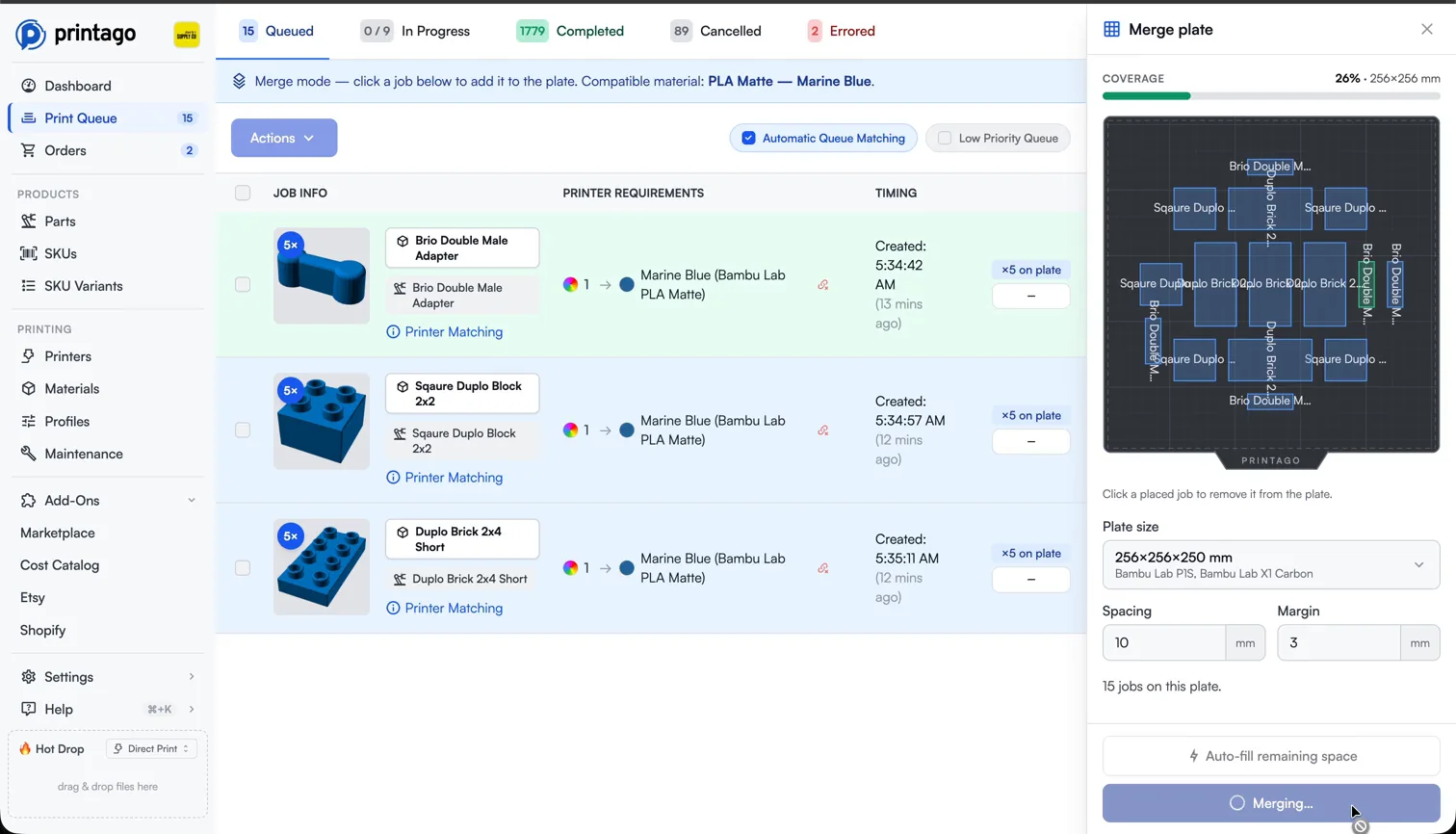
Open any queued job's menu and choose Merge. The queue enters merge mode: jobs that can't join collapse out of the way, and a compatible-jobs list shows everything that can. Click jobs to add them and watch a top-down preview of the plate fill in, with a live coverage percentage. The list re-filters as you go, so it only ever shows jobs that still fit in the remaining space. Pick a plate size from every distinct bed in your fleet, adjust spacing and margin for just this plate when the parts need extra clearance, and hit Auto-fill remaining space to let Printago pack the rest. One click commits the plate.
Merged Plates Look Like Plates
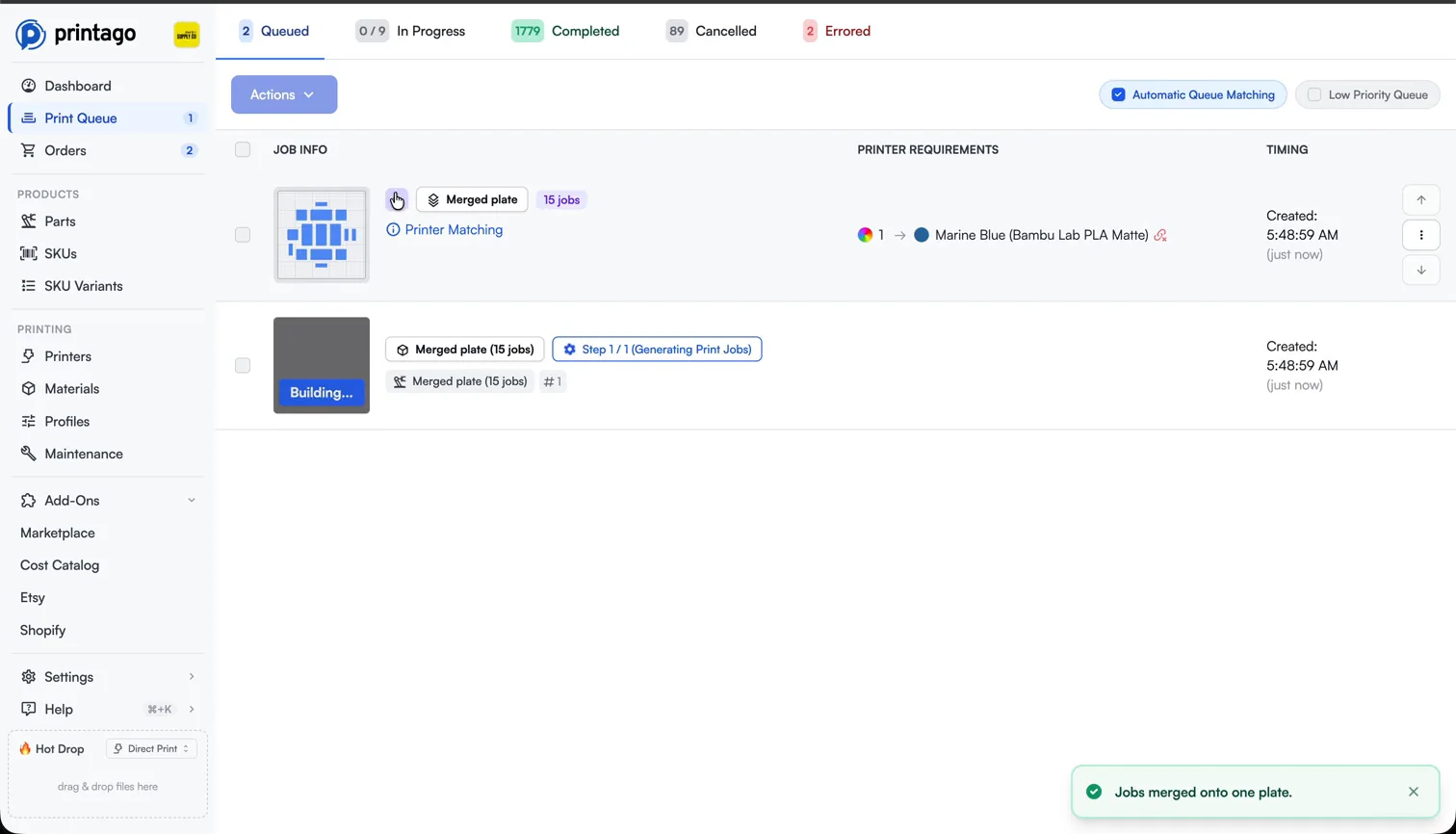
A merged plate appears in the queue as a single row with a job-count pill and a live top-down thumbnail of the layout, so it is easy to spot at a glance. The original jobs sit collapsed beneath it, one click away. They ride along with the plate until it prints, and they can't be matched or actioned independently while merged. Changed your mind? Unmerge returns every job to the queue in its original position, any time before slicing starts.
Sliced as One Plate, Tracked as Many Jobs
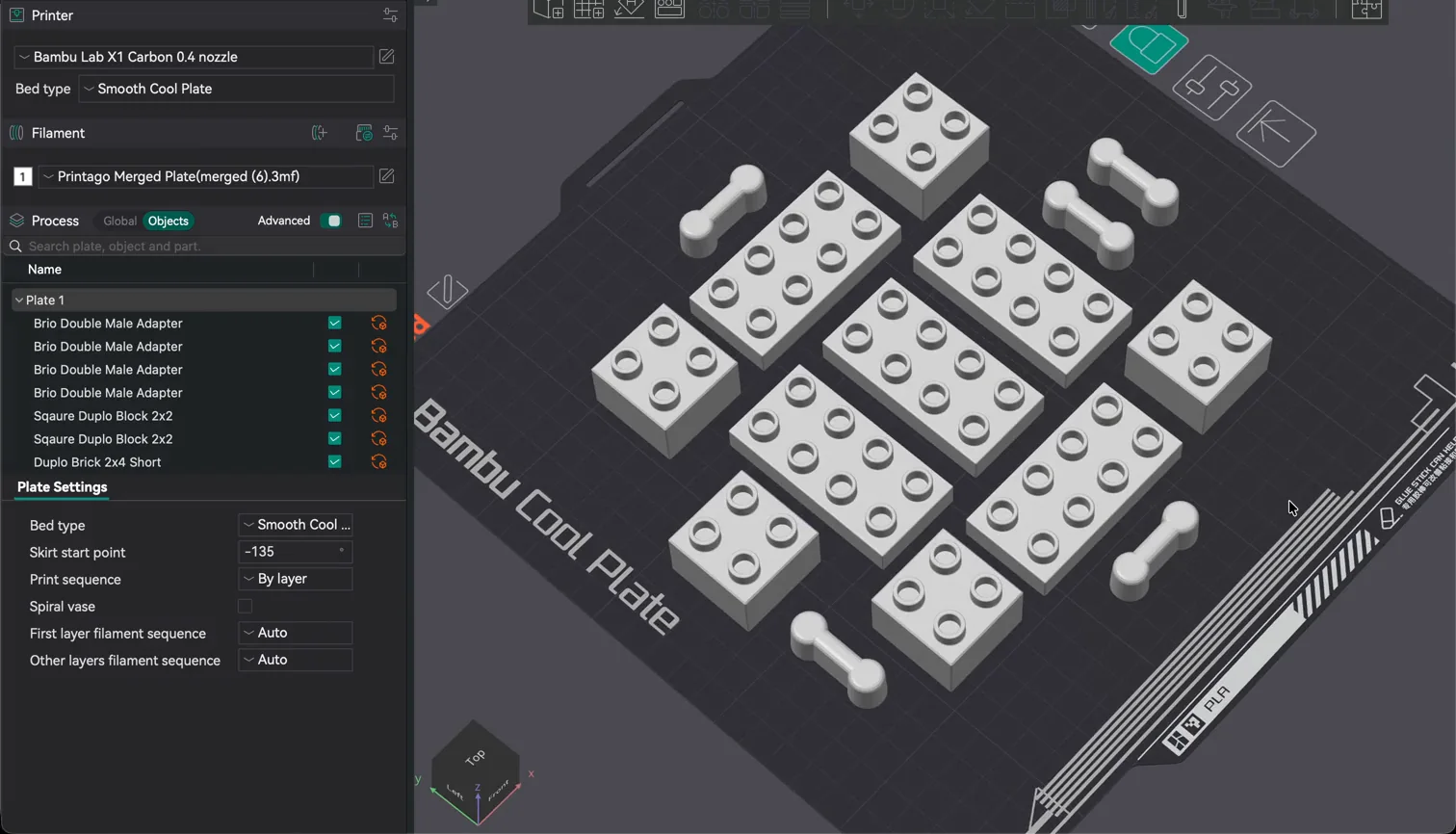
The merged plate is sliced once, as a single plate, on the slicer you choose. The result is exactly the plate you previewed: every part where you placed it, with the spacing you asked for.
Merging never blurs order tracking. When the plate starts printing, each member job shows as printing on its own order; when the plate completes, each shows as completed. Order pages and fulfillment read status from their own jobs, so they stay correct even though the physical print was shared.
Let Printago Fill Plates for You
Switch on Automatically merge compatible jobs and Printago fills plates on its own. Whenever the queue matches a job to a printer, it looks for other compatible queued jobs and adds as many as fit onto that printer's actual bed, in queue order. Choose a merge scope to decide how far it may reach: keep each plate tied to one customer order, or combine any compatible jobs for maximum plate utilization.
On a quiet farm, ten small orders arriving a few minutes apart would normally claim ten printers before merging ever gets a chance. The batching hold fixes that. Newly queued jobs wait briefly for companions, and release early the moment waiting stops paying off: when the plate is full enough, when it hits the parts limit, or when a job can't merge anyway. A rush order is one click away with Send to or Match queue now, which bypass every hold. Fewer print starts also means fewer bed heat-ups, purge sequences, and plate changes, so less energy and less operator time for the same parts.
Consolidate a Copy Run onto Full Plates
Printing a large run of one part? You don't want every copy marching through the queue one plate swap at a time. Turn on Consolidate onto plates in the print dialog and Printago packs the copies onto as few full plates as the part allows, right when you print. However many fit per plate, that's how the run is grouped, so a run becomes a handful of merged plates instead of a queue full of single jobs. Pick the plate size, adjust spacing and margin, and go. Consolidated plates are ordinary merged plates: each copy still tracks back to its own order, and you can unmerge any plate before it slices.
Different Print Profiles, One Plate
Jobs on a merged plate can come from different print profiles, and merging keeps each part printing the way it was set up. Settings the slicer can apply per object, including supports and painted support enforcers, walls, infill, seam, brim, and even layer height, travel with each part. A part that arrived with tree supports keeps them; the part next to it stays support-free.
Settings that apply to the whole plate and can only have one value, such as first layer height, skirt, prime tower, or travel speed, are combined by policies you control under Advanced plate optimization: block the merge when jobs disagree, take the highest or lowest value, or let the printer's profile decide. The defaults are chosen to be safe, so settings that change how the whole print behaves block merging when they differ, speed-like settings take the slowest value, and skirt settings take the most generous one.
Works with Your Slicers
A merged plate is sliced by one slicer, and you decide which. By default, jobs on the same slicer share a plate even when their versions differ, and the plate is sliced on the newest version present. Prefer one engine for everything? Merge any jobs regardless of slicer and slice the plate with your account default. Need exact reproducibility? Require the exact same slicer and version. Plate Merging works with both OrcaSlicer and Bambu Studio running in the Printago cloud slicer.
Built for Production Farms
Plate Merging pairs naturally with the rest of Printago's production stack. Gutenbed routes each merged plate to a printer that holds the right material and carries the right tags. FabMatic starts the next plate the moment the bed clears. SKU Variants and order fulfillment keep every unit on a shared plate tied to the customer who bought it. And it runs identically on the hosted Cloud Platform and the self-hosted edition.
Frequently asked questions
See also
Sign up for free today
No credit card required. Connect unlimited printers and get production automation running in minutes.