
How to Use the Support Blocker in Elegoo Slicer
June 19, 2026
Stop supports from generating where you do not want them in ElegooSlicer. How to use the Support Blocker and Support Enforcer painting tools, and when to use each.
Automatic supports are all-or-nothing: ElegooSlicer looks at the overhang angle and supports everything past the threshold. Often that is too much. It supports a face you can bridge, or a delicate area you do not want scarred. The Support Blocker is how you carve those exceptions out by hand.
Blocker vs Enforcer
ElegooSlicer gives you two complementary brushes:
- Support Blocker marks a region where supports must never be generated, overriding the automatic rules.
- Support Enforcer marks a region that must be supported, even if the automatic rules would skip it.
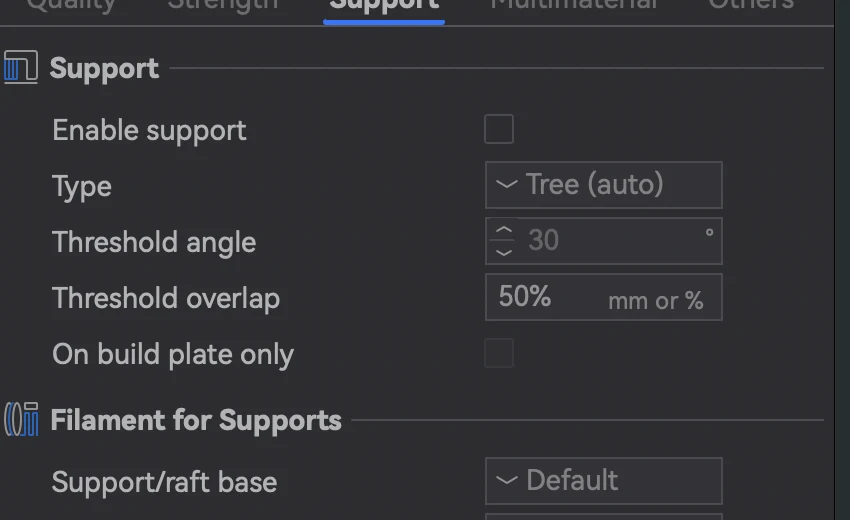
Together they let you keep the convenience of automatic supports while taking manual control of the few spots that matter. The automatic behavior they override is configured on the Support tab:
Method 1: paint it on (Support Painting)
This is the usual way to block or enforce supports.
- Click the model once to select it.
- On the toolbar to the left of the 3D view, click the Support Painting tool.
- In the tool panel, choose the Blocker brush (or Enforcer), set a brush size, and paint directly onto the model surface where you want supports suppressed.
- Adjust the brush size for tight areas, and use clipping to reach internal faces.
Painted regions travel with the model, so once you have dialed a part in, the blockers stay put for every future slice.
Method 2: a placed Support Blocker shape
When you want to block a whole volume rather than a surface patch:
- Right-click the model.
- Choose Add Support Blocker (a cube or other primitive appears as a blocker).
- Move and scale that shape to cover the region where supports should not grow.
The same right-click menu has Add Support Enforcer for the inverse. This method is handy for blocking supports inside a cavity or under a specific feature where painting is awkward.
When to reach for it
- A large flat overhang the printer can bridge cleanly: block it and save the support material and cleanup.
- A show face where support scarring would be visible: block it and reorient instead.
- A small internal ledge the auto rules miss: enforce supports there so it does not sag.
Supports across a farm
Manual blockers are part of getting one model right. When you run that model across many machines, the configuration needs to follow it automatically rather than being re-painted per job. Printago slices in the cloud with the same OrcaSlicer engine ElegooSlicer is built on, so a part's painted blockers and enforcers are applied consistently on whatever printer is free. See cloud slicer and the ElegooSlicer overview.
More ElegooSlicer guides
Read the Elegoo Slicer overview, or browse all slicer guides.
Frequently asked questions
Sign up for free today
No credit card required. Connect unlimited printers and get production automation running in minutes.