
eBay Orders & Farm Reports
Sell on eBay and have paid orders print themselves, read your farm's reliability, throughput, material use and profit in a rebuilt Reports section, and find out exactly why an order's SKU options did not resolve.
eBay orders print themselves
Connect an eBay seller account and paid orders flow into Printago on their own, matched to your SKUs, routed to your printers, and queued the moment a buyer pays if you turn auto-print on. eBay's notifications land in seconds, and a scheduled sync sweeps hourly behind them so nothing depends on a single webhook arriving.
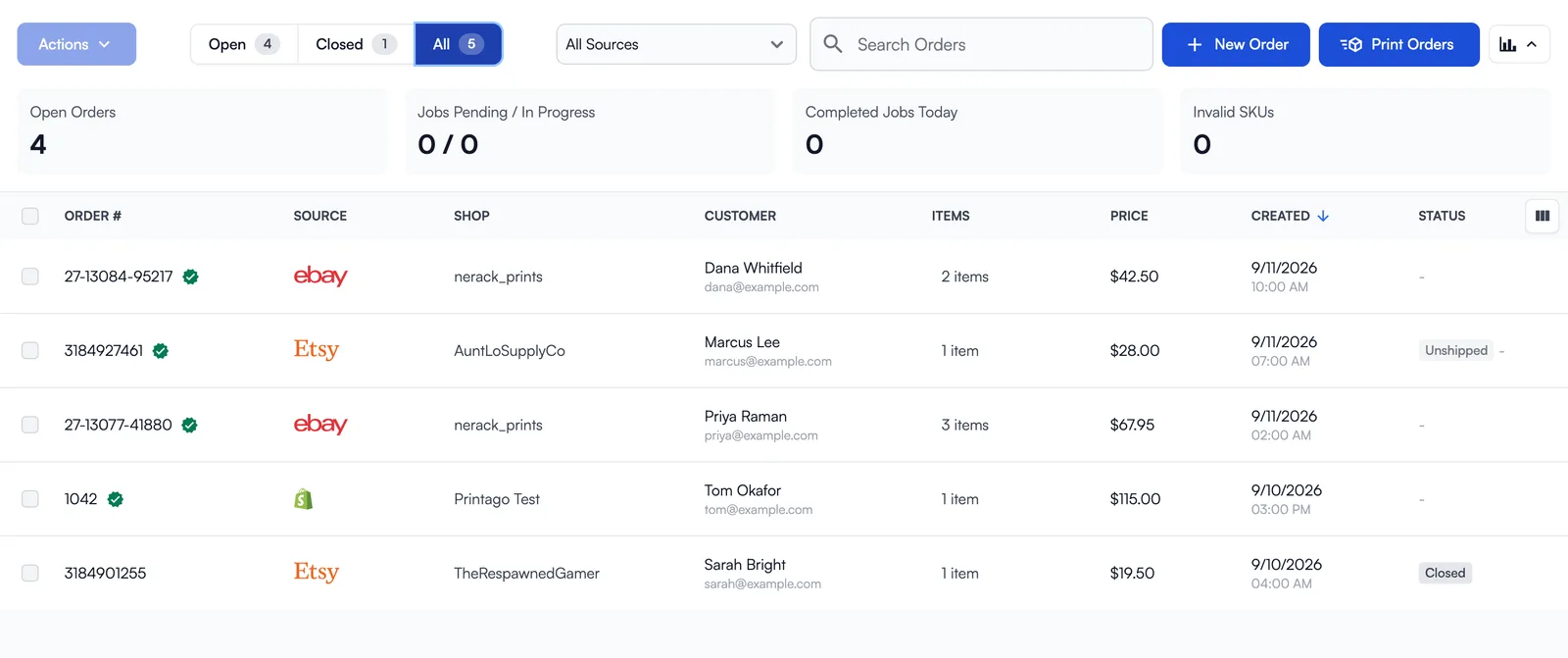
Connect more than one account if you sell under more than one handle. Orders close themselves when they ship or when eBay reports delivery, or stay open until you close them, whichever you pick. Marketplace coverage is US, UK, Germany, Australia, Canada, France, Italy and Spain.
eBay sits beside Etsy and Shopify on the orders list rather than off to one side. The Shop column names the seller account the order came from, and the filter above the list covers every channel you have connected: pick All eBay Accounts, a single account, or the same for your Etsy shops and Shopify stores. It appears as soon as you have more than one shop connected anywhere, so a store with one Etsy shop and one eBay account gets the filter too.
Turn it on yourself: open Marketplace, find eBay, and click Activate. No waitlist and nothing to ask us for. See the eBay integration guide.
Reports for the whole farm
Reports answers the questions a print farm actually runs on: how often prints succeed, what failure is costing you in filament, how long jobs wait, which printers carry the load, what material you are burning through, and what a month actually made. The overview puts the headline numbers up front and hands off to five detailed reports underneath.
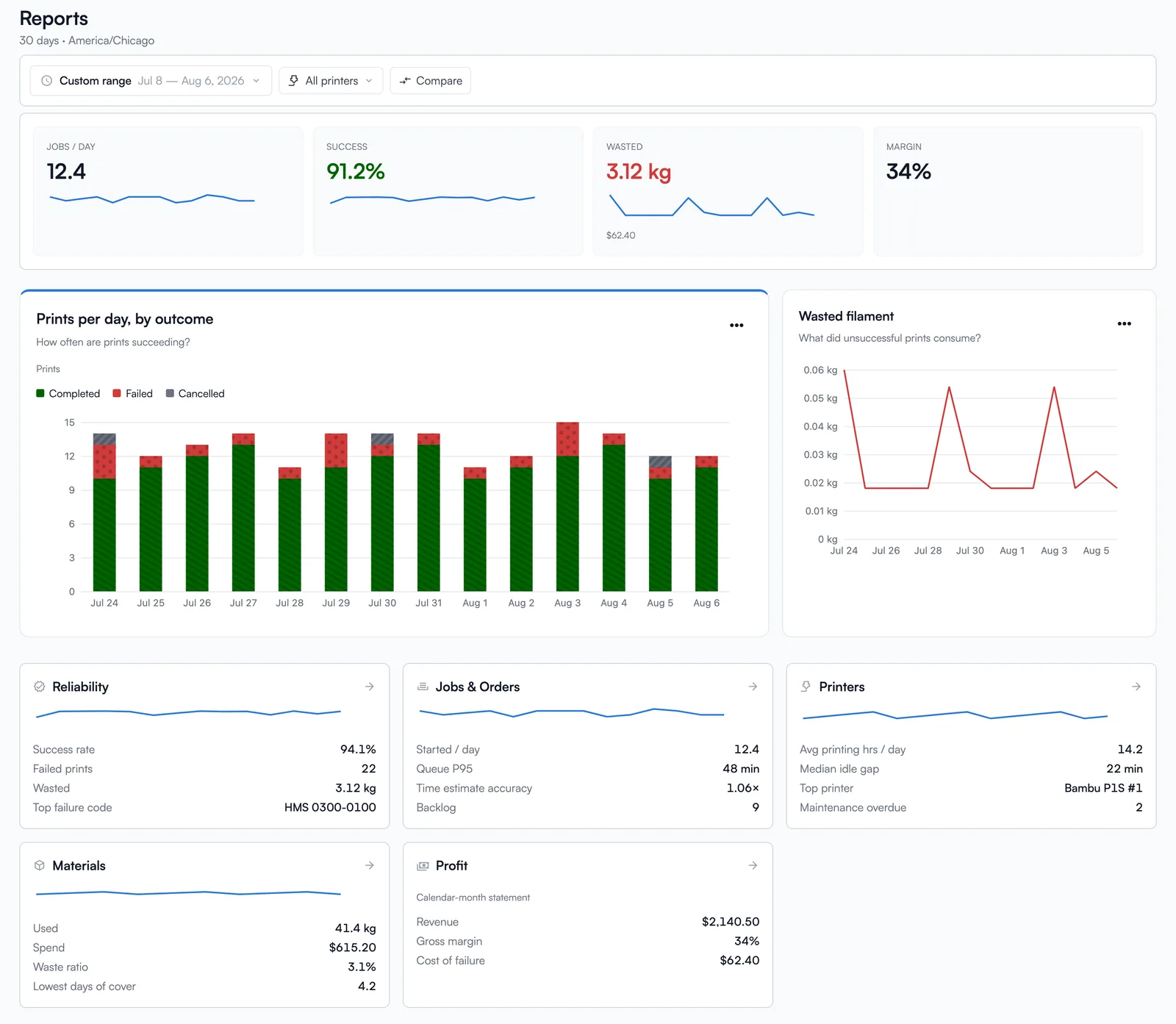
Every chart carries the same set of actions: Expand for a full-screen view, View data for the sortable numbers behind it, Download CSV / PNG / SVG, Copy link, and How this is calculated so the definition of a metric is never a guess. Charts have hover crosshairs, series you can click on and off, and comparison against the previous range where the data supports it.
Filters live in the URL, so a report you are looking at is a report you can send to somebody. The date range is one popover holding presets and a custom range together. Printer scope is its own picker: grouped by model, searchable, with live status dots and Active and Needs attention filters, applying when you close it rather than reloading on every click. Both work on a phone.
Material weights read in kilograms, print counts are called prints, failure codes show their description on hover, and each overview card says when its own group has nothing in the range instead of the whole page emptying out at once.
See the Reports guide.
Why an order's options did not resolve
An order item whose SKU options fail to match used to say only that it contained invalid options. The most common cause, a required option the marketplace never sent, had nothing to point at, so the item showed valid-looking values beside an error about nothing.
Now the fault rides on the value it belongs to: (missing), (unknown), (filtered out), (not on this SKU). A Troubleshoot button in the corner of the Selected Options box opens a window mapping what the SKU expects onto what the line item actually carried.
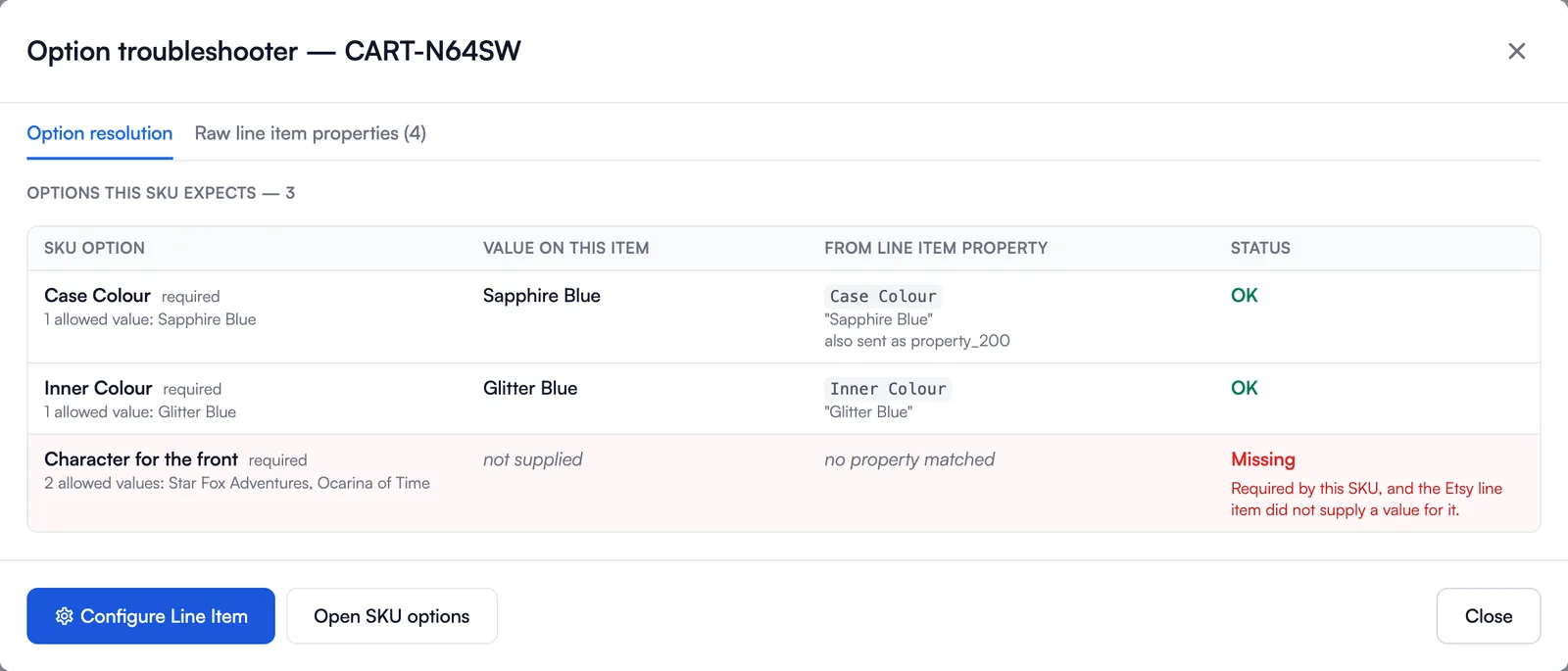
Each row names the option, the value on this item, the line item property it came from, the allowed values, and a status: OK, Missing, Unknown value, Filtered out for this SKU, Not bound, or Option doesn't exist. A second tab holds the raw properties the marketplace sent, annotated with the option each one resolved to, so "what did the channel actually send" has one home. The next step is a button: Configure Line Item when the fix is on the item, Open SKU options when it belongs to the SKU. See SKU Variants.
Additional Updates
- Printing eight of a two-color keychain no longer means eight separate jobs. Multi-color plates now merge with more copies of themselves, packing onto as few plates as your beds allow. Mixing different multi-color parts onto one plate stays excluded, and parts built from one file per color now say so by name instead of quietly merging into a plate that would have printed only the first color. A merged plate also reports every filament it needs. See Plate Merging.
- A plate combining a low-temperature filament (PLA, TPU) with a high-temperature one (ABS, ASA, PC) on a single-nozzle printer now slices instead of failing with a temperature error. The slicer still warns about the spread, it just no longer refuses the job. Applies on OrcaSlicer 2.3.2 and newer and Bambu Studio 2.0.1 and newer.
- Uploads return immediately and file processing runs in the background, resuming where it stopped rather than starting over. A Processing badge on the part row and part page shows how far along it is, Print stays disabled until the part is ready, and a stage that gives up for good turns the badge red and names the reason. The Parts list gets an N parts failed processing button that opens every failed part in one place with Retry All. See Part Management.
- Objects you choose to skip while setting up a SKU now persist on the linked part and apply to every print that SKU produces, whether you print it yourself or an order does. A print-time choice still wins for that one print. See SKU Management.
- The Folder field on a Part or SKU page now offers a button that opens the Parts or SKUs list with that folder already selected. See Folders.
- Assigning a spool that is already loaded in another printer's slot now moves it, clearing the old slot, instead of failing with an error.
- Print jobs your Fuse accepted but could not start no longer go quiet. A second, genuinely different job arriving for a busy printer, or a printer whose connection has dropped, now puts that printer into an error state you can see rather than leaving the job in limbo.
Sign up for free today
No credit card required. Connect unlimited printers and get production automation running in minutes.