
Filament Inventory - Know What Filament You Have Without Counting It
Stop Guessing What Is on the Shelf
Filament Inventory keeps your filament stock by color, takes what every print used off the shelf automatically, and prices it at what you paid. Track by weight, or give every roll its own record, label, and history.
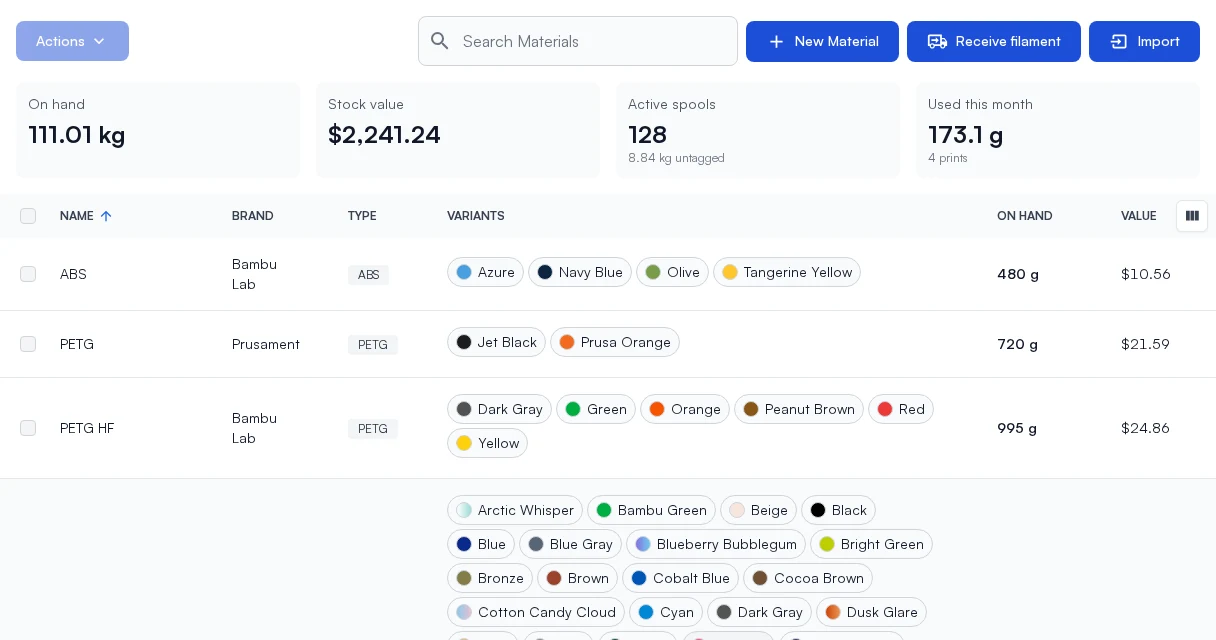
A print farm runs out of a color in the middle of the week, or finds three half rolls of it the day after reordering. Both come from guessing what is on the shelf. Counting by hand eats an afternoon, and the count is wrong again by the next morning because the printers never stopped.
Filament Inventory keeps the count for you. Tell Printago what you have once, record deliveries as they arrive, and every finished print takes what it used off that color's stock. The Materials list shows what you have on hand, what it is worth, and what your prints used this month.
Stock by Color, Drawn Down by Every Print
Stock is kept as a weight per color. The weight each print used is measured from its G-code, slot by slot, and comes off that color when the print finishes. The Activity tab names the print behind every drop, with the part, the printer, and who queued it, so any change traces back to a job.
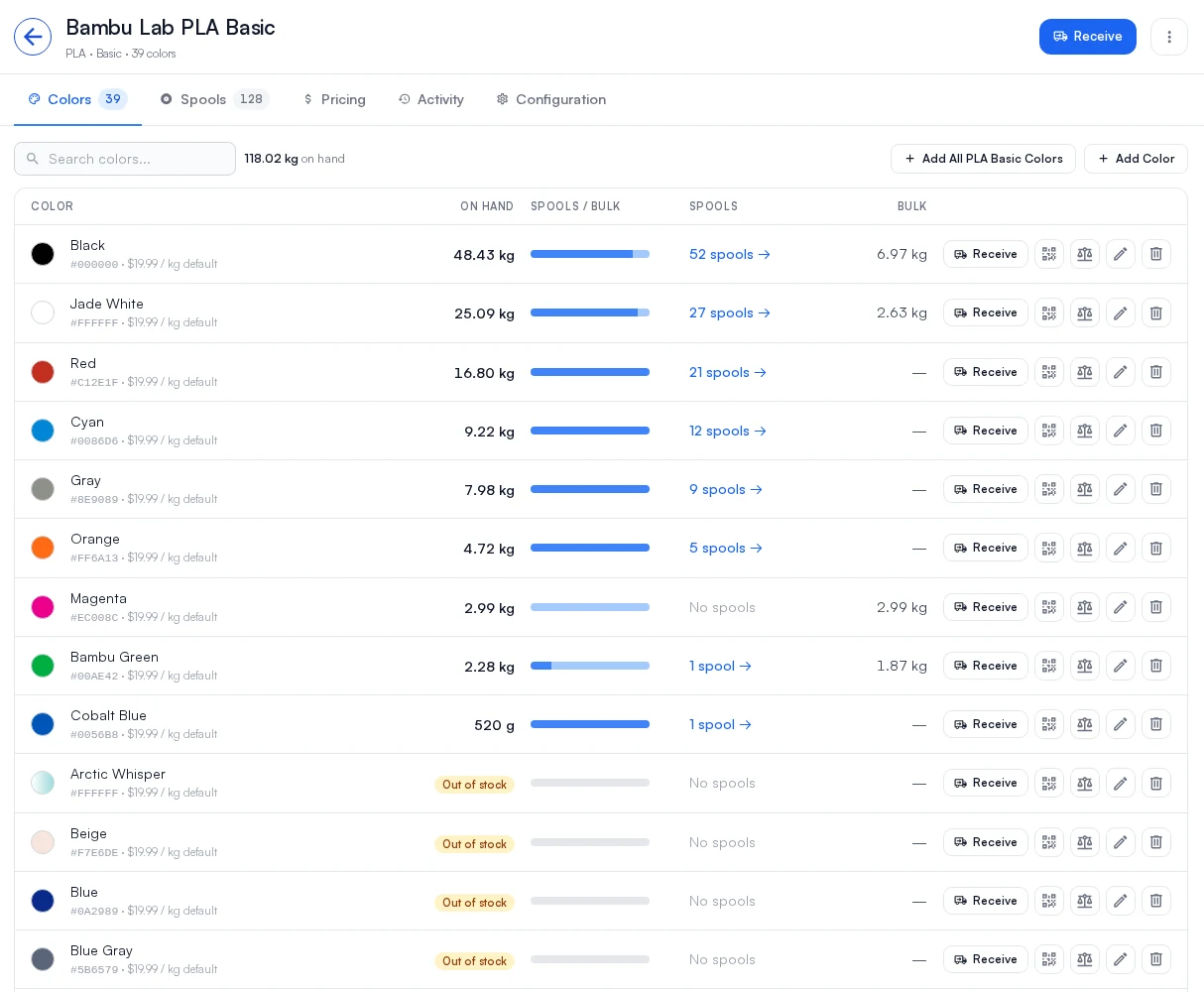
The Colors tab shows what you have of every color, how much is on tracked spools and how much is loose bulk, and a Receive button beside each one. Adjust bulk weight sets a color to what is really on the shelf, and every correction is recorded with a name and a reason.
Record a Delivery in One Dialog
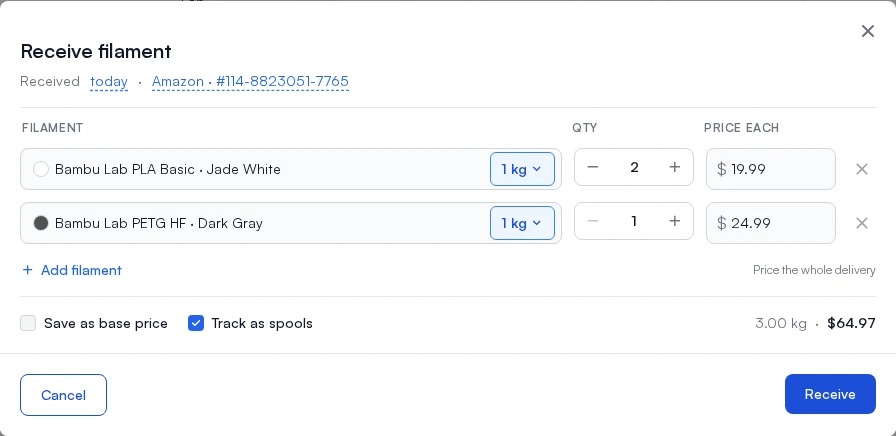
Receive filament records one delivery however many colors it held. Pick each filament, its roll size and how many, and the price each. Add the supplier and order number, backdate the day it arrived, or enter one total for the whole box and let Printago share it out by weight. Tick Save as base price when what you paid should become each color's price.
Follow Every Roll When You Need To
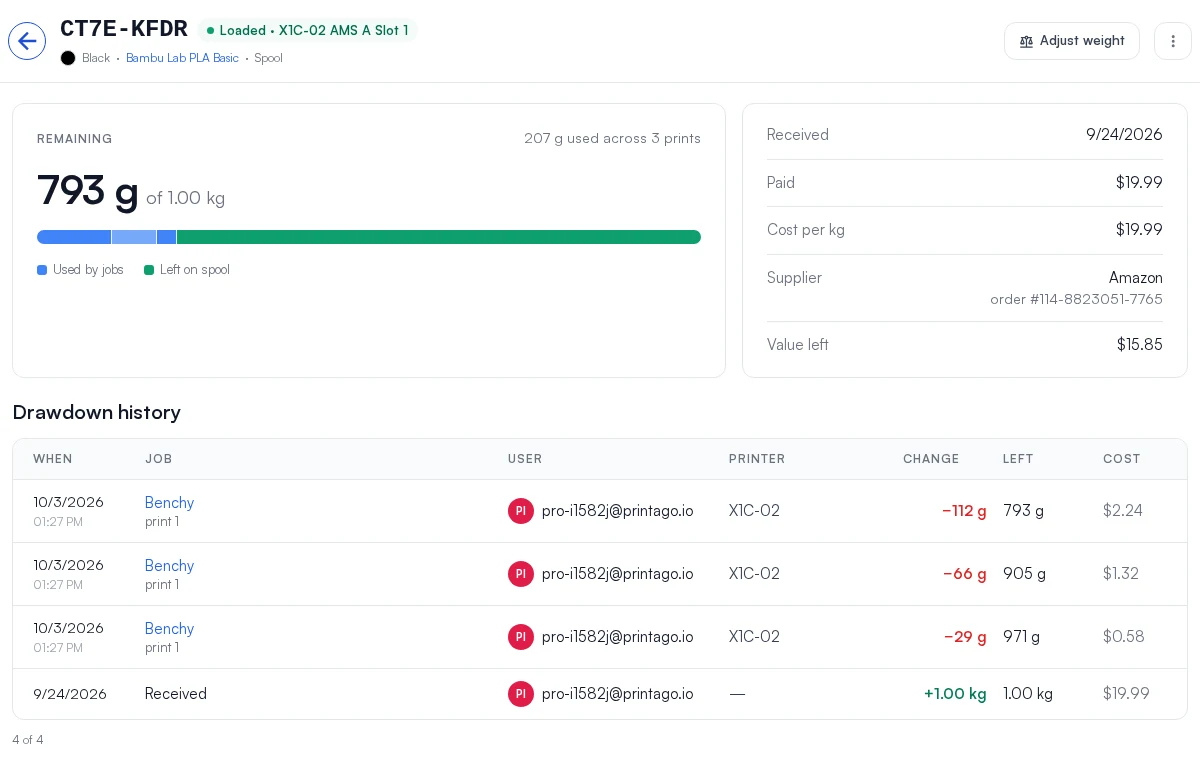
Spool tracking gives a roll its own record, a label code, and a page of its own: what is left on it, what it cost, where it came from, which printer slot it is in, and every print that drew from it.
Work the way your shop already does:
- Weight only. For a shop that buys by the box and never labels a roll.
- Bulk first, spools when opened. Deliveries land in bulk, and Convert to spools gives each opened roll its own record and a label to print.
- Every roll from the day it arrives. Tick Track as spools when you receive, print the labels, and scan one to load the roll into a printer slot.
RFID-tagged rolls do most of this on their own. When a tagged roll goes into a printer, Printago adds a spool for it at the printer's reading and takes that weight out of the color's bulk, so nothing is counted twice.
QR Labels for the Farm Floor
Print QR labels for spools, colors, printers, and their slots, and scan them in the Printago app to load a roll into a slot, move it, or weigh it, without looking anything up first. See QR Workflows.
Know What Every Print Cost
Every finished print records what its filament cost at the price you paid: the roll's own price, then its delivery's, then the color's, then the material's. Failed and canceled prints keep the cost of what they used. The cost is saved with the print, so the Materials and Profit reports stay right after you reprice a material, and you can price products and quote jobs from real filament cost instead of an estimate.
Schools and makerspaces can bill filament back by the gram. Set a billable rate on each material, and the Usage by user report shows what each person printed, the filament they drew, and what to bill, with a CSV export and a PDF statement per person.
Built into Routing and the Queue
Filament Inventory sits on the same material data that Material Intelligence uses to route jobs. The color a job needs, the slot it prints from, and the stock it draws are all the same record, so the queue, the printers, and the shelf agree. It works with Plate Merging, Serial Numbers, and every order source.
Get Started
Turn on Filament Inventory under Add-Ons > Marketplace > Filament Inventory, or click Receive on the Materials page. If you use Fuse, update every client to 1.4.11 first.
See the Filament Inventory docs for a getting-started guide to each way of working.
Frequently asked questions
See also
Sign up for free today
No credit card required. Connect unlimited printers and get production automation running in minutes.