
QR Workflows
Print QR tags for printers, slots, filament colors and spools, then scan them in the Printago app or on the web to confirm a printer ready, assign filament, or load a spool. Every store has it.
Scan the printer instead of finding it
Once a farm has more than a few printers, the person clearing beds spends more time finding each printer in a list than pressing the button. QR Workflows puts a tag on the printer itself. Scan it with a phone and the printer opens with the action it most likely needs as the main button: Confirm ready when it's waiting for the bed to be cleared, Resume when it's paused, and the rest of its actions listed below it.
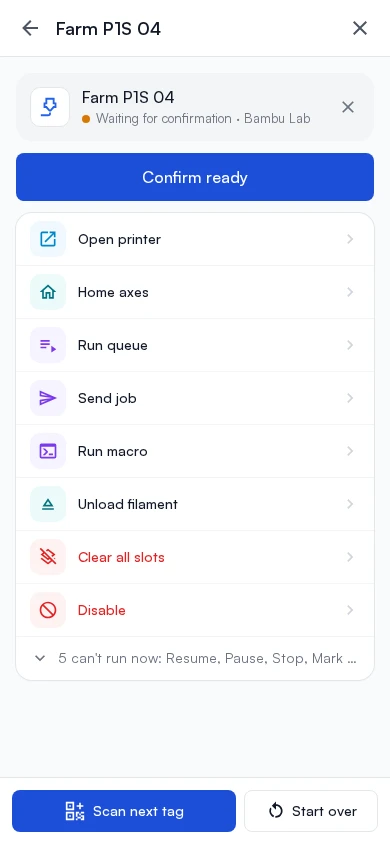
QR Workflows comes with every Printago store. Printing and managing tags needs the qr.manage permission, and scanning needs qr.scan.
Tags for printers, slots, filament and spools
- Printers and slots: select printers on Printers and choose Print QR tags > Printers, Slots or All. Slot tags go on AMS slots and external spool holders.
- Filament colors: Print tag on a material's color, for the shelf or bin it sits in.
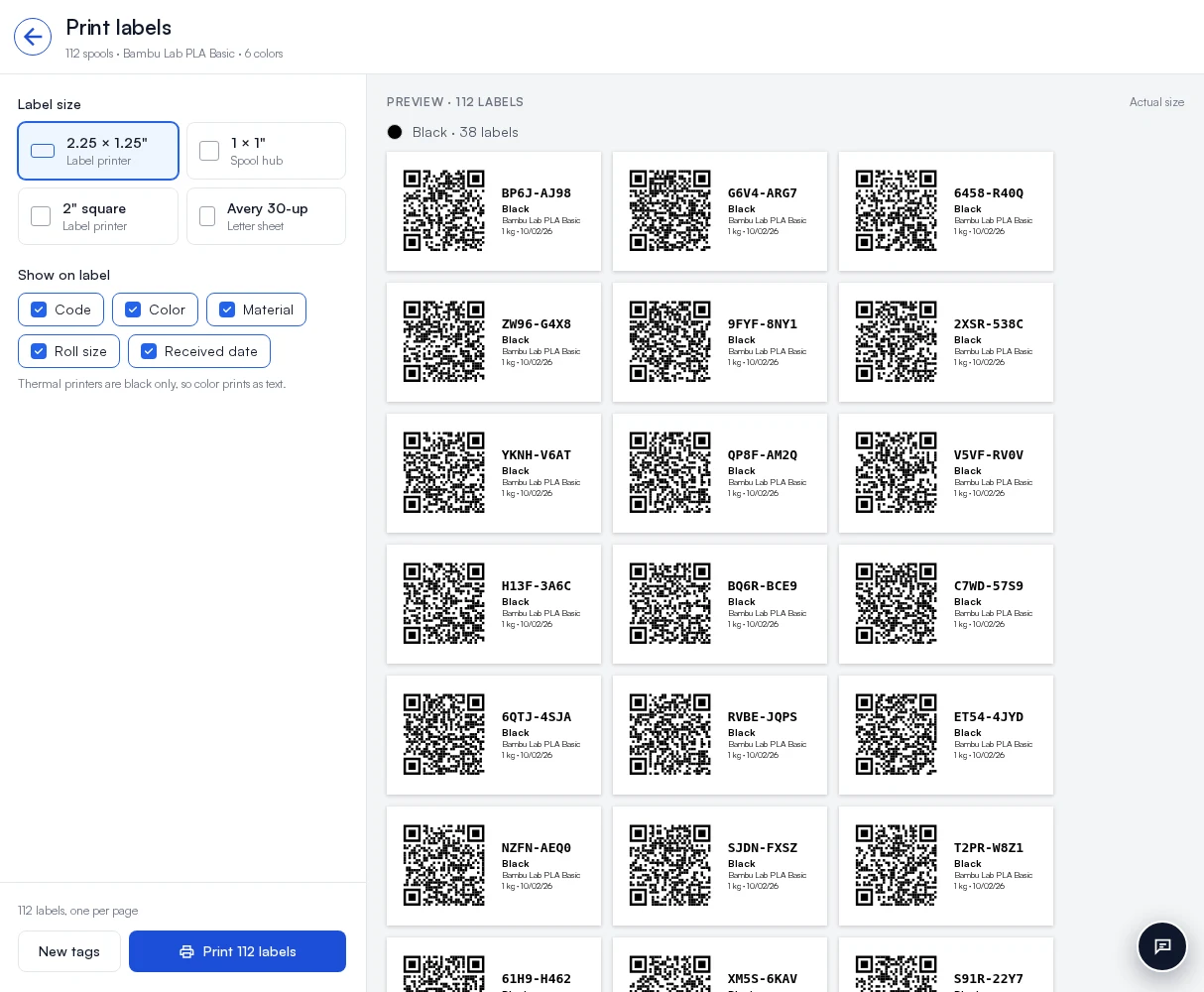
- Spools: Print labels on a material's Spools tab, or right after receiving filament. Spool labels need Filament Inventory with spool tracking.
- Blank tags: print a sheet ahead of time from a material's ⋮ menu, Print blank labels, and set each one up the first time you scan it.
Every Print opens the same Print labels page, with label sizes for thermal label printers and Avery sheets.
Two tags, one action
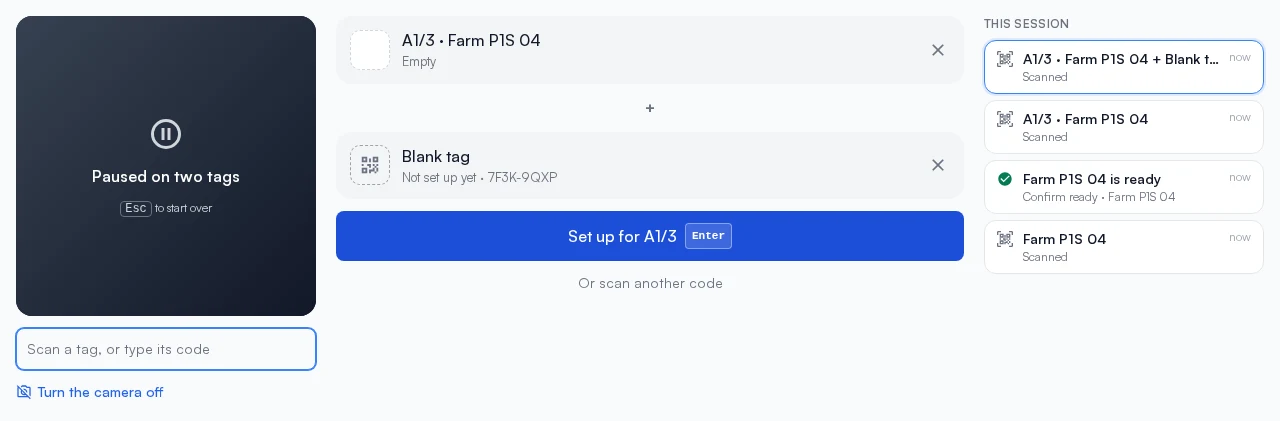
Scan two tags together and the main button names what will happen. A filament and a slot assigns the filament to the slot. Two slots move or swap filament between them. A spool and a printer loads the spool. A blank tag and anything else sets the blank up as that thing's tag.
Scanning on the web
You don't need the app to scan. Scan, at the top right of every page on a phone, opens a full-screen camera. When it reads a tag, the camera turns off and the tag fills the screen with its actions, so a label beside it can't be read by accident. Scan next tag adds a second tag to the first, and Start over goes back to the camera for the next one.
On a computer or a tablet held sideways, the scan page shows the camera and a scan box for a USB or Bluetooth barcode scanner, what you scanned with its actions, and This session: every tag scanned and action run in that tab, so a station working down a row of printers can see which ones it has done. Enter runs the main button and Esc starts over.
Choose what a scan offers
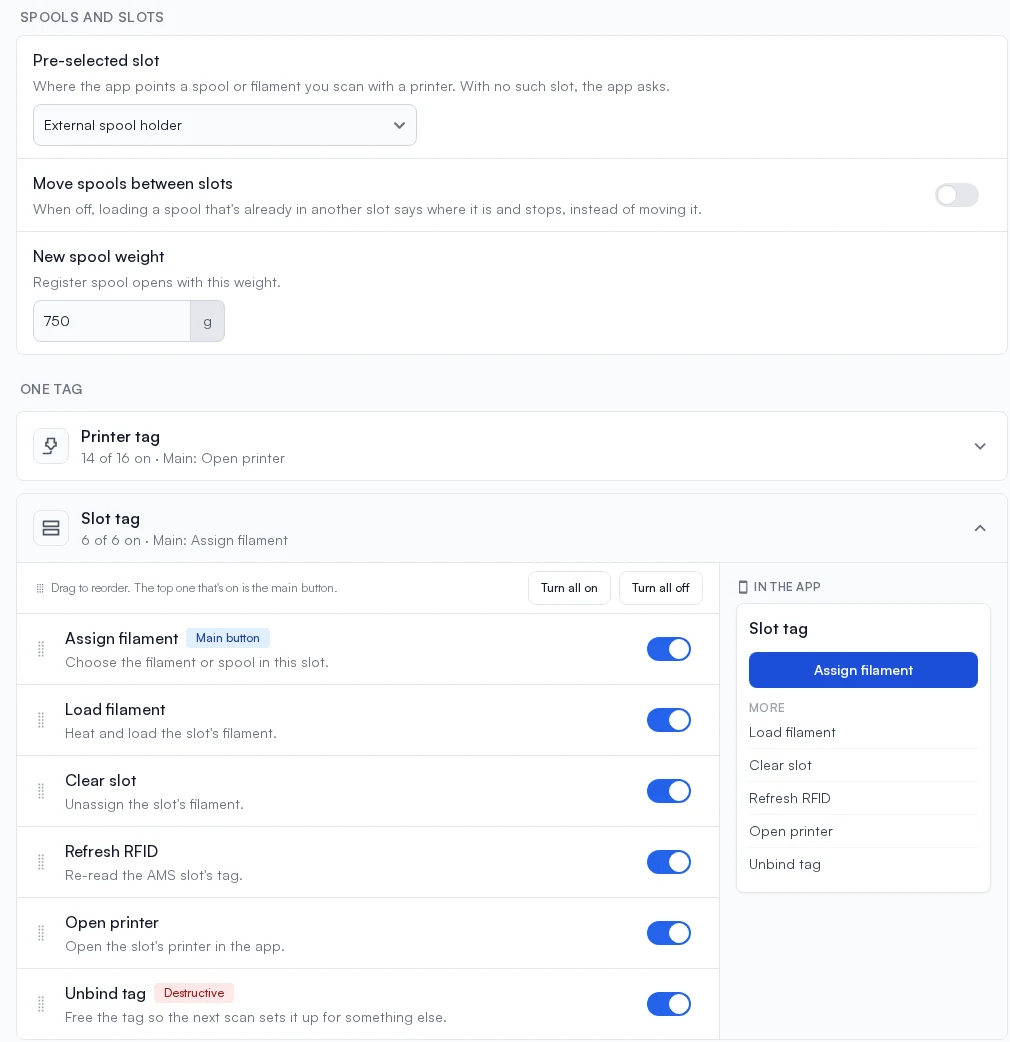
Settings > General > QR workflows lists every tag type and pair of tags with their actions. Switch off the ones your floor shouldn't use, and drag them into the order you want: the top action that's on and can run is the main button. The same page sets which slot a scanned spool goes to, whether a scan may move a spool out of another slot, and the weight a new spool starts with.
See QR Workflows.
Sign up for free today
No credit card required. Connect unlimited printers and get production automation running in minutes.