
PETG Settings for the Creality K1 in Creality Print
June 23, 2026
How to set up PETG on the Creality K1 in Creality Print: pick the right filament preset, set nozzle and bed temperature, and tune speed and retraction for clean PETG prints.
To print PETG on the Creality K1, start from the K1 PETG filament preset rather than editing PLA settings. That preset sets the nozzle to roughly 240 to 250C and the bed to roughly 70 to 80C, then PETG mainly needs slower speeds and good retraction to print cleanly. Creality Print is the official Creality slicer and ships tuned PETG profiles for the K1, so the preset does most of the work.
Pick the right filament preset
In the filament dropdown, choose the PETG preset that matches the spool you actually have loaded:
- Hyper PETG is Creality's high-speed PETG line. Its preset raises speeds, flow, and cooling to use the speed a K1 or K2 is capable of. If you are running a Creality Hyper PETG spool, pick this one, since it is the whole reason to buy the Hyper filament.
- CR-PETG is Creality's standard PETG preset, with more conservative speeds. Use it for regular Creality PETG.
- Generic PETG is for non-Creality spools.
Match the preset to the physical spool rather than defaulting to one. The high-speed Hyper preset on a standard PETG spool can outrun what that filament flows cleanly, and the conservative CR-PETG preset on a Hyper spool just leaves speed on the table.
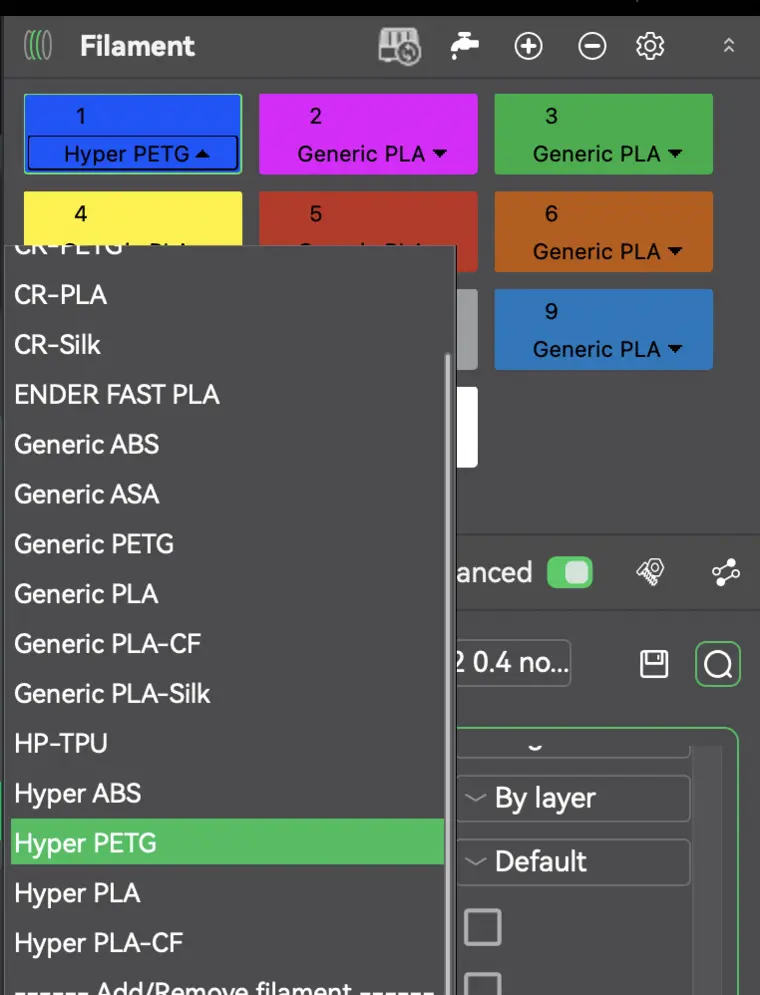 Selecting the correct preset loads tuned temperature, flow, and cooling values for PETG, which is the whole point of starting from a profile instead of hand-editing a PLA one.
Temperature
PETG runs hotter than PLA:
- Nozzle: roughly 240 to 250C. If layers do not bond, nudge it up 5C; if you get heavy stringing, nudge it down 5C.
- Bed: roughly 70 to 80C. PETG sticks aggressively, so use a glue stick or PEI release agent as a barrier on smooth plates, or it can pull chunks out of the surface.
Speed and retraction
PETG is where the K1's high speeds work against you. Slow the print speed down from the PLA defaults, especially outer walls, and keep travel speed reasonable so molten PETG does not drag across the print. Make sure retraction is enabled. PETG strings far more than PLA, so retraction plus slightly lower temperature is the combination that cleans it up.
Dry the filament if it has been open for a while. PETG absorbs moisture, and wet PETG pops, strings, and prints rough no matter how good your settings are.
Supports with PETG
PETG bonds hard to supports, so increase the support top Z distance a little to get clean release. The rest of the support workflow is unchanged: see how to add supports in Creality Print.
Running PETG across a farm
Once PETG is dialed in, the next problem is keeping those settings consistent across every machine running it. Because Creality Print is built on OrcaSlicer, Printago can hold one tuned PETG profile centrally and slice every job the same way in the cloud, routing PETG work only to printers loaded with PETG. See material-aware routing and the Creality Print overview.
More Creality Print guides
Read the Creality Print overview, or browse all slicer guides.
Frequently asked questions
Sign up for free today
No credit card required. Connect unlimited printers and get production automation running in minutes.