
Texture and Fuzzy Skin Options in Creality Print
June 23, 2026
How to add a textured surface in Creality Print with Fuzzy Skin: where the setting lives, what thickness and point distance do, and how to apply texture to one face.
The textured-surface option in Creality Print is called Fuzzy Skin. It lives in the Process settings, and turning it on jitters the outer wall as it prints so the surface comes out rough and matte instead of smooth. Creality Print is an OrcaSlicer fork, so this is the same Fuzzy Skin feature OrcaSlicer and Bambu Studio use, and it is the answer to most "how do I add texture" questions on these slicers.
Where the setting lives
Open the Process panel and look under the Strength or Others section for Fuzzy Skin.
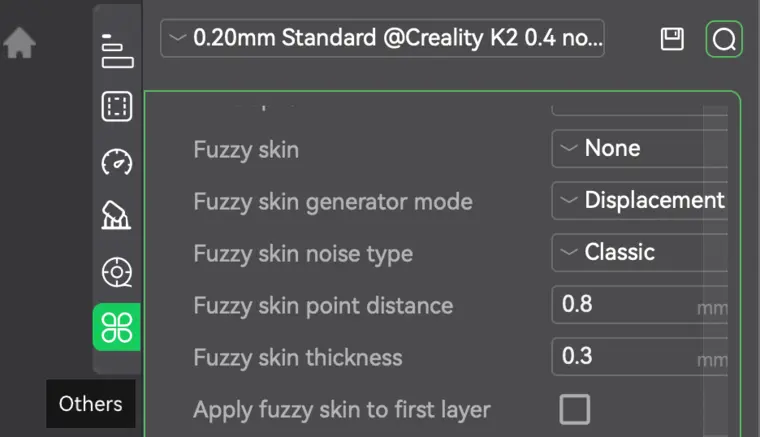 If you do not see it, switch the panel to Advanced mode, since the simplified default view hides it. Change the mode from None to one of the active modes (typically outer wall, or all walls) to turn it on.
What the settings do
- Mode decides where the texture is applied: outer walls only is the usual choice, since that is the visible surface.
- Thickness sets how deep the wall jitters in and out. Around 0.3mm gives a clear texture; larger is rougher and more aggressive.
- Point distance sets how often the jitter happens along the wall. Around 0.8mm is a good default; smaller values give a finer, denser texture.
Fuzzy Skin hides layer lines and fingerprints, which is why it is popular for handles, controller grips, enclosures, and anything you want to feel less like a 3D print.
Texturing one face only
You do not have to apply Fuzzy Skin to the whole model. Use the Fuzzy Skin painting tool to paint the texture onto specific regions, or set Fuzzy Skin as a per-object or per-modifier setting. That keeps the texture on, say, the grip of a part while the rest of the surface stays smooth.
Consistent finishes across a farm
A texture setting is easy to apply once. Keeping it consistent across every machine printing the same product is the harder part. Because Creality Print rides on the OrcaSlicer engine, Printago can store one profile with your Fuzzy Skin settings and slice every job the same way in the cloud, so the finish is identical no matter which printer runs it. See cloud slicer and the Creality Print overview.
More Creality Print guides
Read the Creality Print overview, or browse all slicer guides.
Frequently asked questions
Sign up for free today
No credit card required. Connect unlimited printers and get production automation running in minutes.