
How to Add Supports in Creality Print
June 23, 2026
Enable support generation in Creality Print, tune the type and overhang threshold, and add or block supports by hand before you print on a K1, Ender, or CR machine.
Supports are off by default in Creality Print. To add them, open the Support tab in the Process settings and tick Enable support, then slice. Creality Print is an OrcaSlicer fork, so the support tools are the same ones OrcaSlicer uses, and they work identically on a K1, an Ender, or a CR machine.
Enable support
In the Process panel, click the Support tab and tick Enable support at the top.
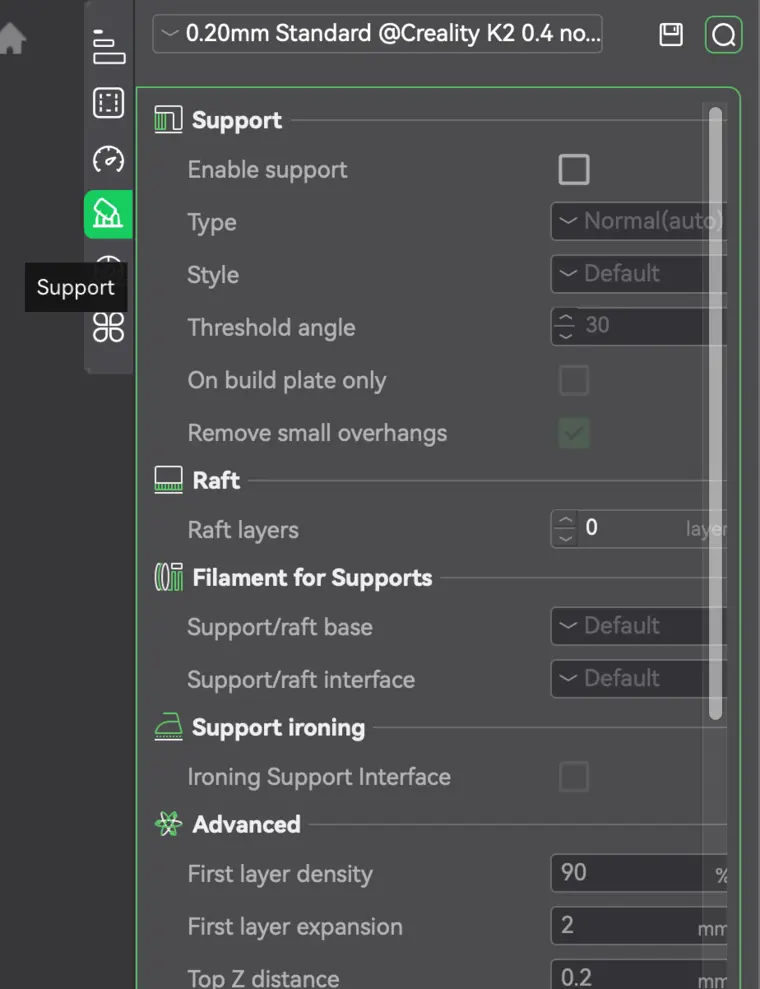 Until that box is checked, every other support setting stays greyed out and nothing is generated. That is the single most common reason a print comes out with no supports when you expected them.
The settings that matter
Once support is enabled, these are the controls worth knowing:
- Type. Tree (auto) builds branching organic supports that use less material and peel off cleaner on figures and curved models. Normal (auto) is the dependable grid that holds up large flat overhangs better.
- Threshold angle. Any overhang steeper than this angle from vertical gets supported. Lower it to support only the most extreme overhangs; raise it to support more aggressively. If supports appear in places you did not expect, this dial is usually why.
- On build plate only. Restricts supports to those that rise from the bed, never from the model surface, so they cannot scar a visible face.
For pattern, density, and interface settings, switch the Process panel to Advanced mode. The simplified default view hides them.
Add or block supports by hand
Automatic supports are all-or-nothing based on the threshold. When you want control over specific spots, use the Support painting tool on the toolbar to the left of the 3D view:
- Support Enforcer forces supports onto a region even if the auto rules would skip it.
- Support Blocker keeps supports off a region you want to protect, like a delicate or hard-to-reach face.
This is the right tool when a model is fine on automatic supports except for one area you want to force or keep clear.
Supports across a farm
Tuning supports per model is part of preparing a print. The friction starts when you are running the same parts across many machines and re-slicing each one by hand. Printago slices in the cloud on the same OrcaSlicer engine Creality Print is built on, so a part's support configuration travels with it to whatever printer is free. See cloud slicer and the Creality Print overview.
More Creality Print guides
Read the Creality Print overview, or browse all slicer guides.
Frequently asked questions
Sign up for free today
No credit card required. Connect unlimited printers and get production automation running in minutes.