
How to Upload and Print a File in Creality Print
June 23, 2026
Import a model into Creality Print, slice it, and send the file to your Creality printer over LAN, Wi-Fi, or USB. A step-by-step guide for Ender, CR, and K series.
To print a file in Creality Print, you import the model, slice it, then either send it to the printer over LAN or Wi-Fi or export the G-code to a USB drive. Creality Print is the official Creality slicer for Ender, CR, and K series machines, and the workflow below is the same on all of them.
Import the model
Drag a model file straight onto the build plate, or use File > Import and choose the file. Creality Print opens STL, OBJ, 3MF, and STEP, so most files you download or export from CAD load directly. Once it is on the plate, position and orient it the way you want it printed.
If nothing happens when you double-click a downloaded file, open Creality Print first and import from inside the app rather than relying on the file association.
Slice it
Pick your printer profile (the factory preset for your exact model), choose a filament preset, and select a quality or process preset. Click Slice. Creality Print generates the toolpath and shows you the print time and the filament estimate. Use the layer preview to scrub through the print and confirm it looks right before you commit.
Send it to the printer
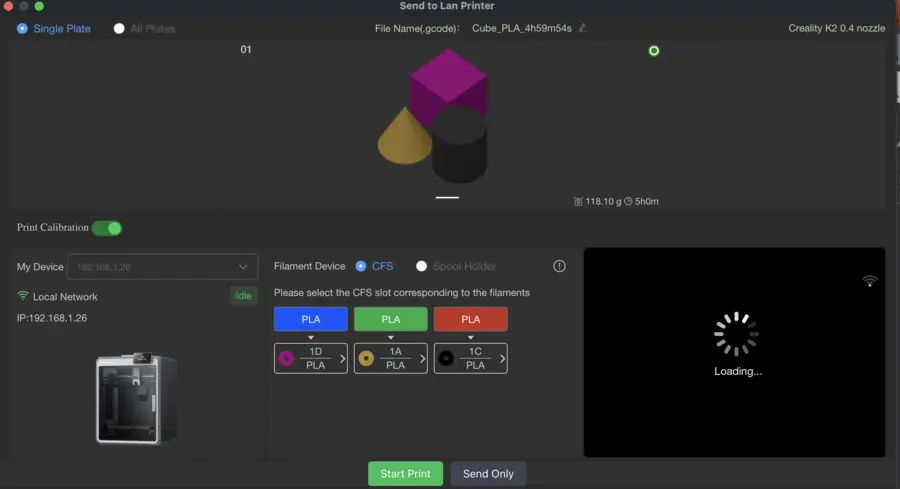
You have three ways to get the sliced file onto the machine:
- LAN or Wi-Fi. Open the device or printer panel, select your printer, and click Print or Send. The printer must be on the same network and reachable. This is the fastest path once it is set up.
- USB drive. Click Export and save the G-code to a USB stick, then start the print from the printer's own screen. This always works, even with no network.
- Creality Cloud. If you are signed into a Creality Cloud account, you can upload and start jobs remotely through it.
If the printer does not show up over the network, that is a connection problem rather than a slicing one: confirm the printer and computer are on the same network, that the printer holds a stable IP, and try LAN before cloud. USB export is always the reliable fallback.
Printing the same file across a farm
Importing, slicing, and sending one file is quick. Doing it for every job across a rack of Enders or K1 units is where it stops scaling. Because Creality Print is built on the OrcaSlicer engine, that slicing can move into the cloud: profiles live in one place and every job is sliced the same way and routed to whichever printer is free. Printago does exactly this for Creality fleets. See cloud slicer and the Creality Print overview.
More Creality Print guides
Read the Creality Print overview, or browse all slicer guides.
Frequently asked questions
Sign up for free today
No credit card required. Connect unlimited printers and get production automation running in minutes.