
AI Slicer Assistant: Tell Printago Studio What You Want Changed
You know what you want. The slicer wants a setting name.
An AI assistant built into a full 3D printing slicer. It looks at your model, changes it, slices it and checks the result, right on your plate. Every change can be undone.
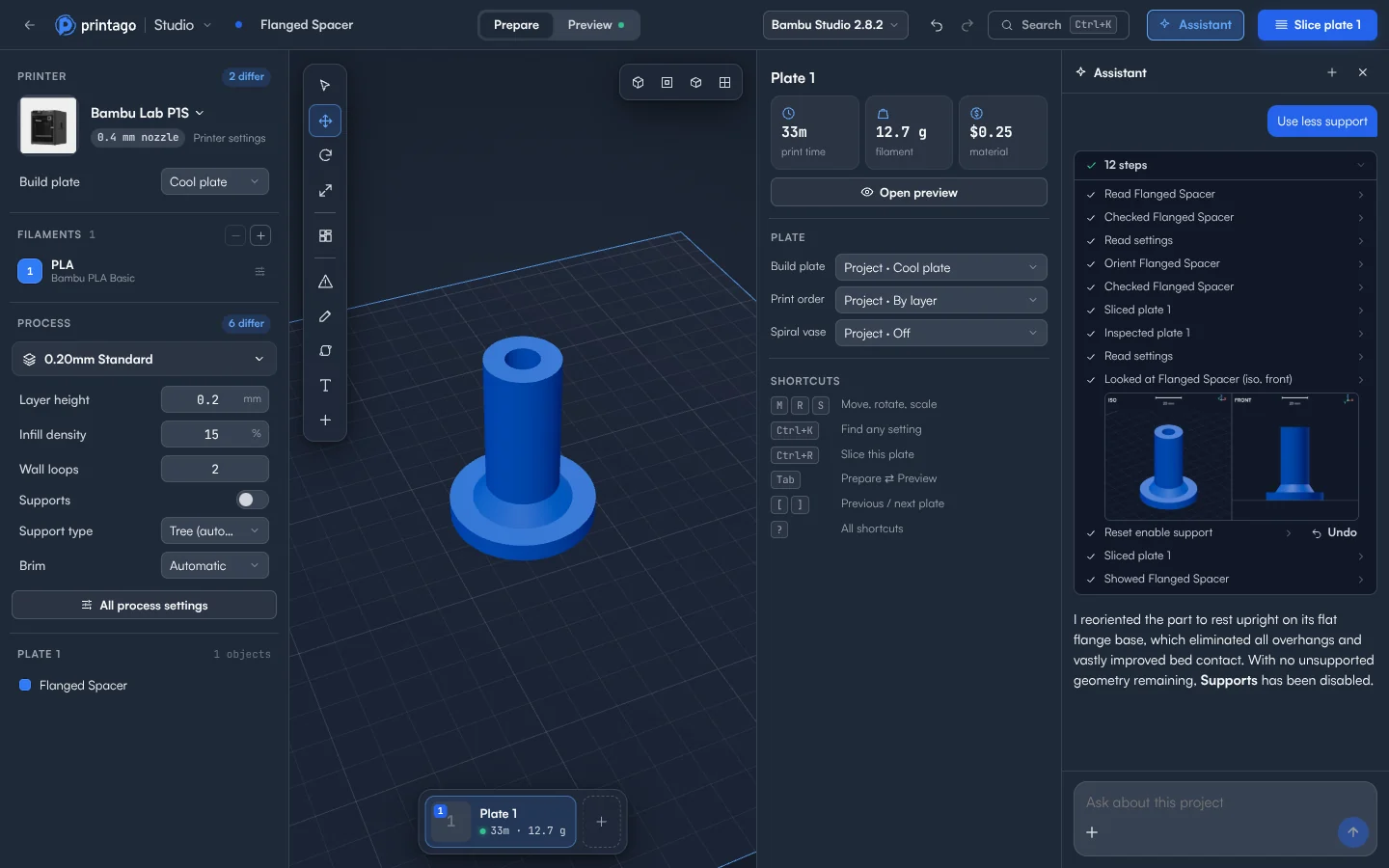
A part needs too much support. A customer wants a name on it. A job has to move to another printer, and you need to know what it does to your price per part. You know the result you're after, but getting there means knowing which settings to change, in what order, and how to check you got it right.
Printago is 3D print farm software that runs production from order to finished print. Printago Studio is its full slicer in your browser, and the assistant is built into it. Tell it what you want in plain words, and it does the work on your plate: it looks at the model, makes the change, slices, and checks the result.
Ten things it can do
These are real runs on our own test parts, shown as they came out. The prompt is what we typed, and the numbers come from the real slice. Wording and results vary from run to run.
Put each customer's name on the part
Add the customer's name to this tag in raised white letters, using filament 2. Show it with the sample name Alex Rivera. It has to change per order in Printago, and longer names should shrink to fit the tag instead of running off the edge. Slice it when you're done.
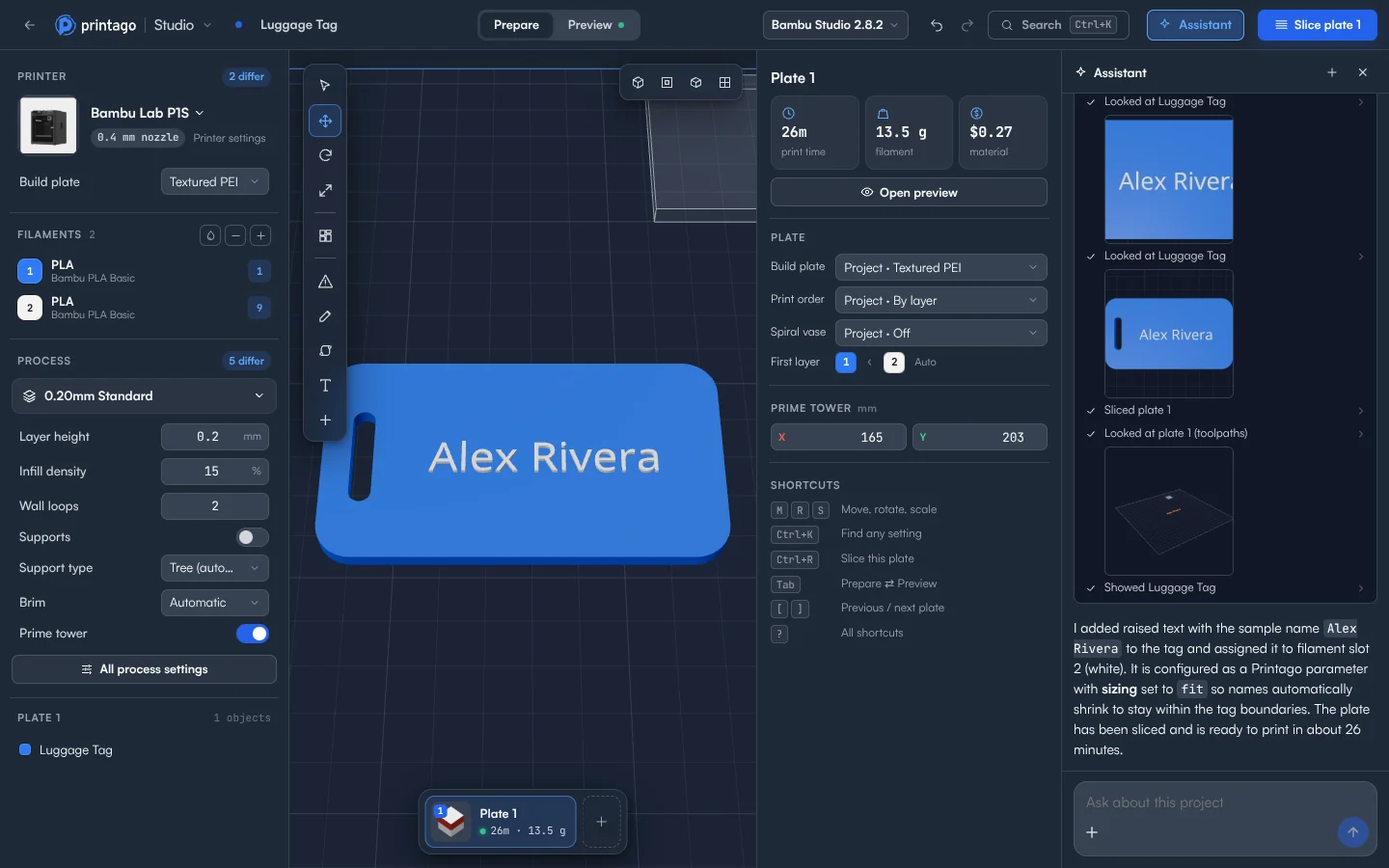
It added the text in the second filament, made it a Printago parameter sized to fit, and sliced the plate. That's a personalized listing where each order carries its own name, with nobody editing a file.
Price a product at every plate size
I need test plates for pricing. Make 10 new plates with 1, 2, 3, 4, 5, 6, 7, 8, 9 and 10 of this clip on them. Slice all of them and give me a table of print time, grams and time per clip for each plate.
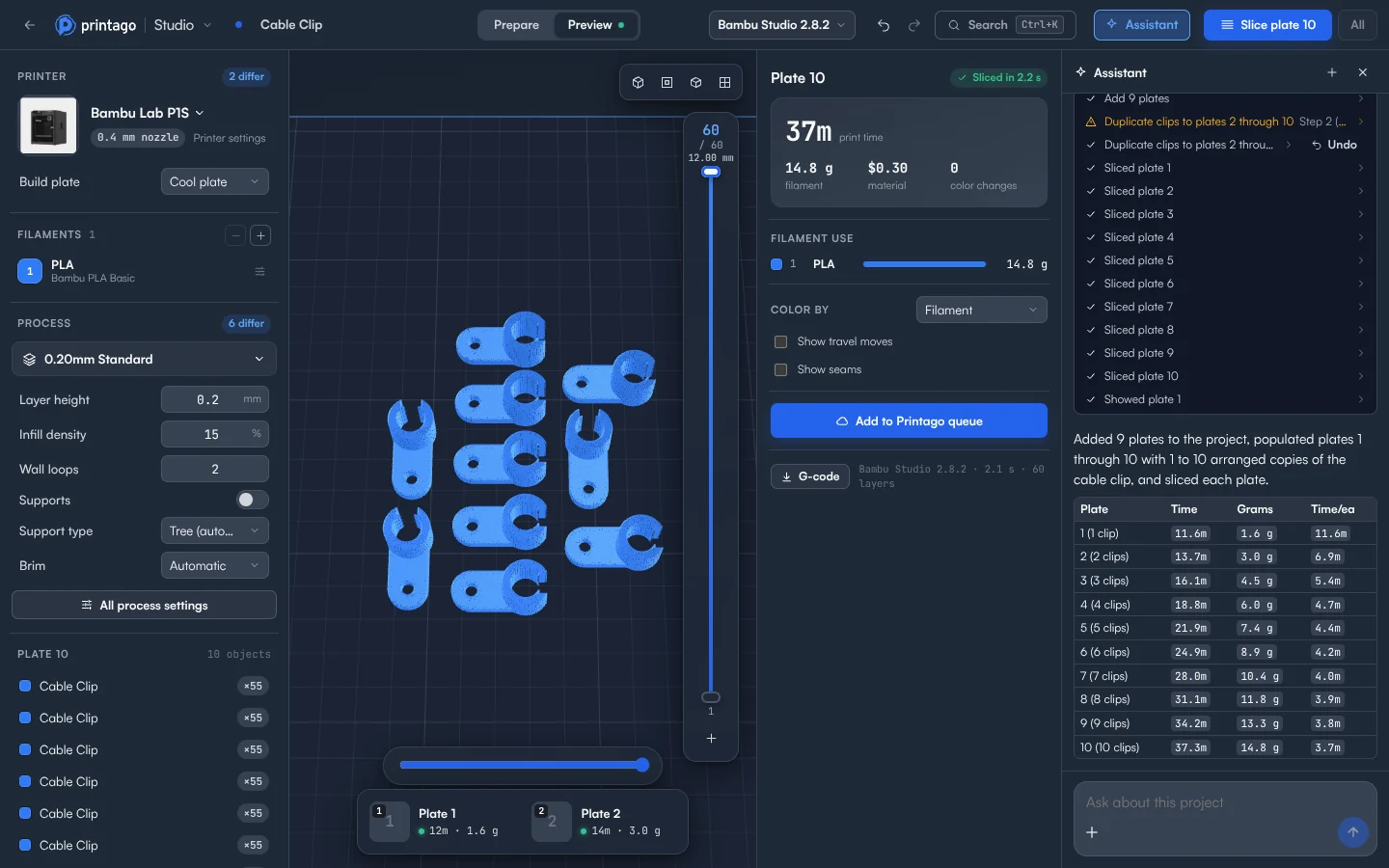
It built and sliced every plate, then reported the table. One clip takes 11.6 minutes on its own and 3.7 minutes each on a plate of ten, which is the number you need to set a price.
Move a job to another printer and see what it does to output
We're moving this job to our A1s running PETG. Switch the printer and filament, fill the plate, slice it, and tell me how many clips I get per plate and per hour.
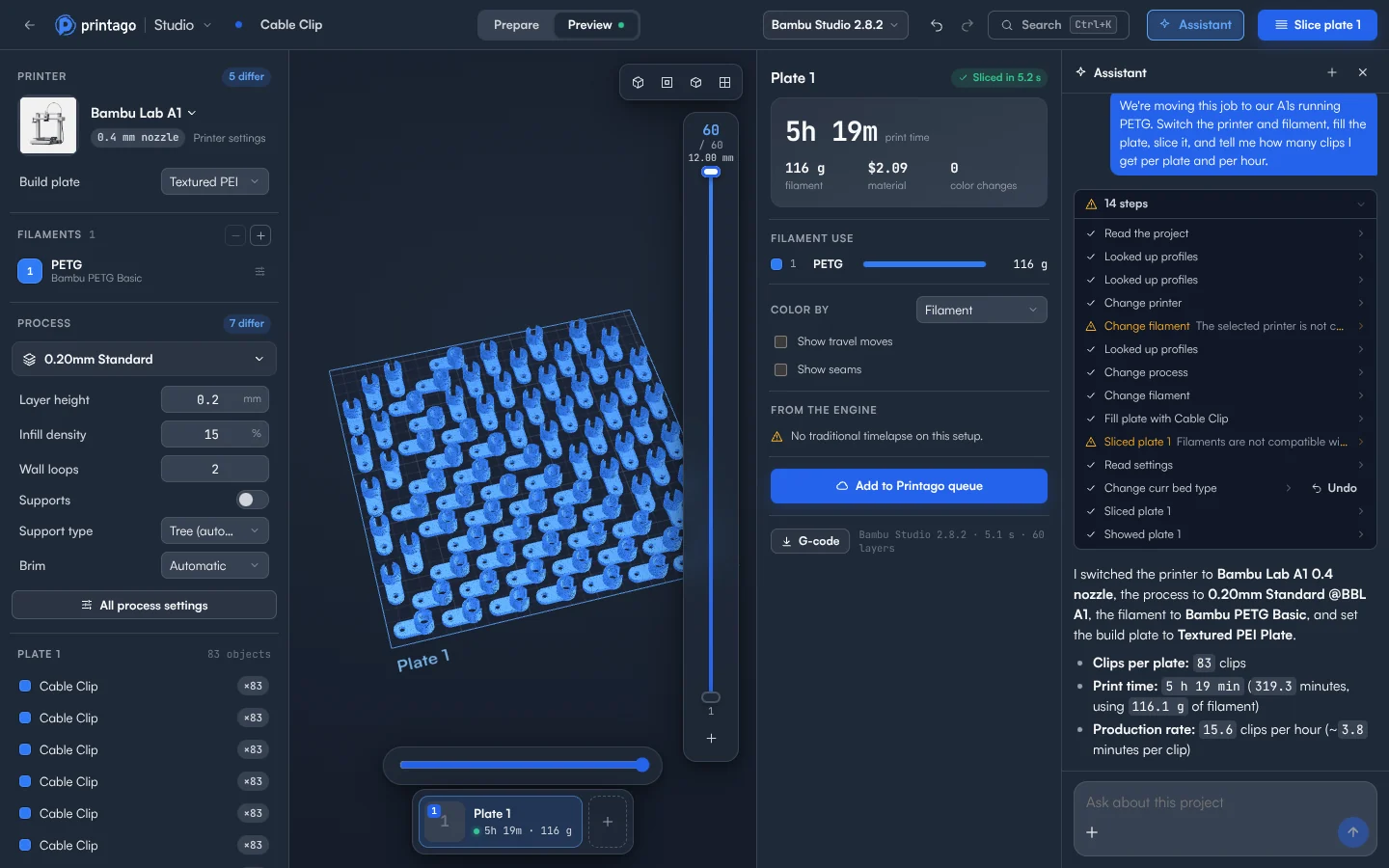
It switched the printer, process, filament and build plate, and filled the plate with 83 clips. It sliced to 5 hours 19 minutes, or 15.6 clips an hour. Along the way it hit two profile errors, shown in amber, and sorted them out itself.
Add a color band at an exact height
Print a white band around this cup from 40 to 50 mm up using filament changes, and blue everywhere else. Slice it and check the changes land in the right place.
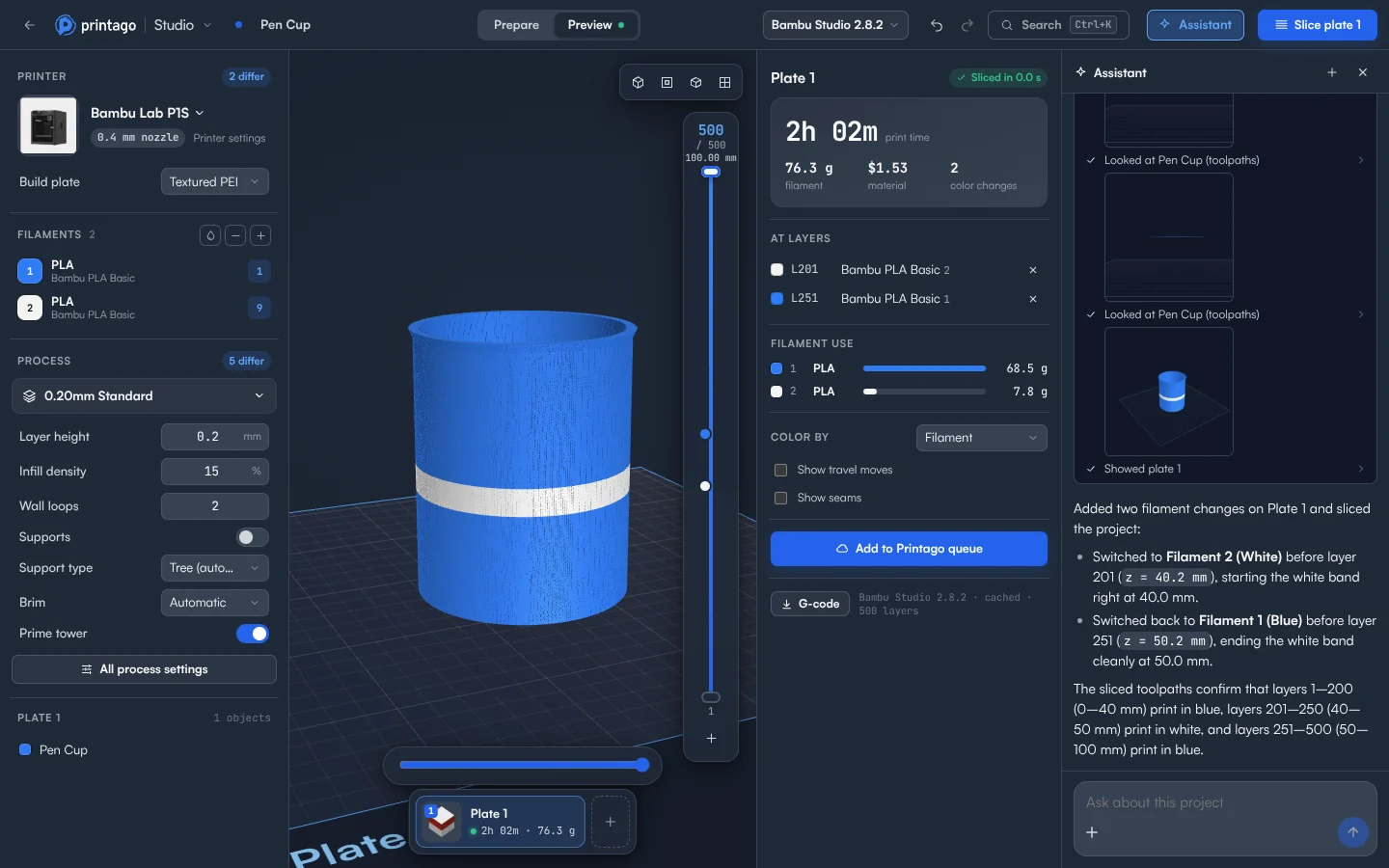
It added both filament changes, sliced, and read the toolpaths to confirm the band runs from 40 to 50 mm. One model becomes a second product, with no change to the file.
Make a part you don't have, then change it
Make a parts box with a slide-on lid and six compartments for M3 screws, about 120 x 80 x 40 mm.
Make it eight compartments instead of six and add a small label recess on the front. Then slice it and tell me the time and grams.
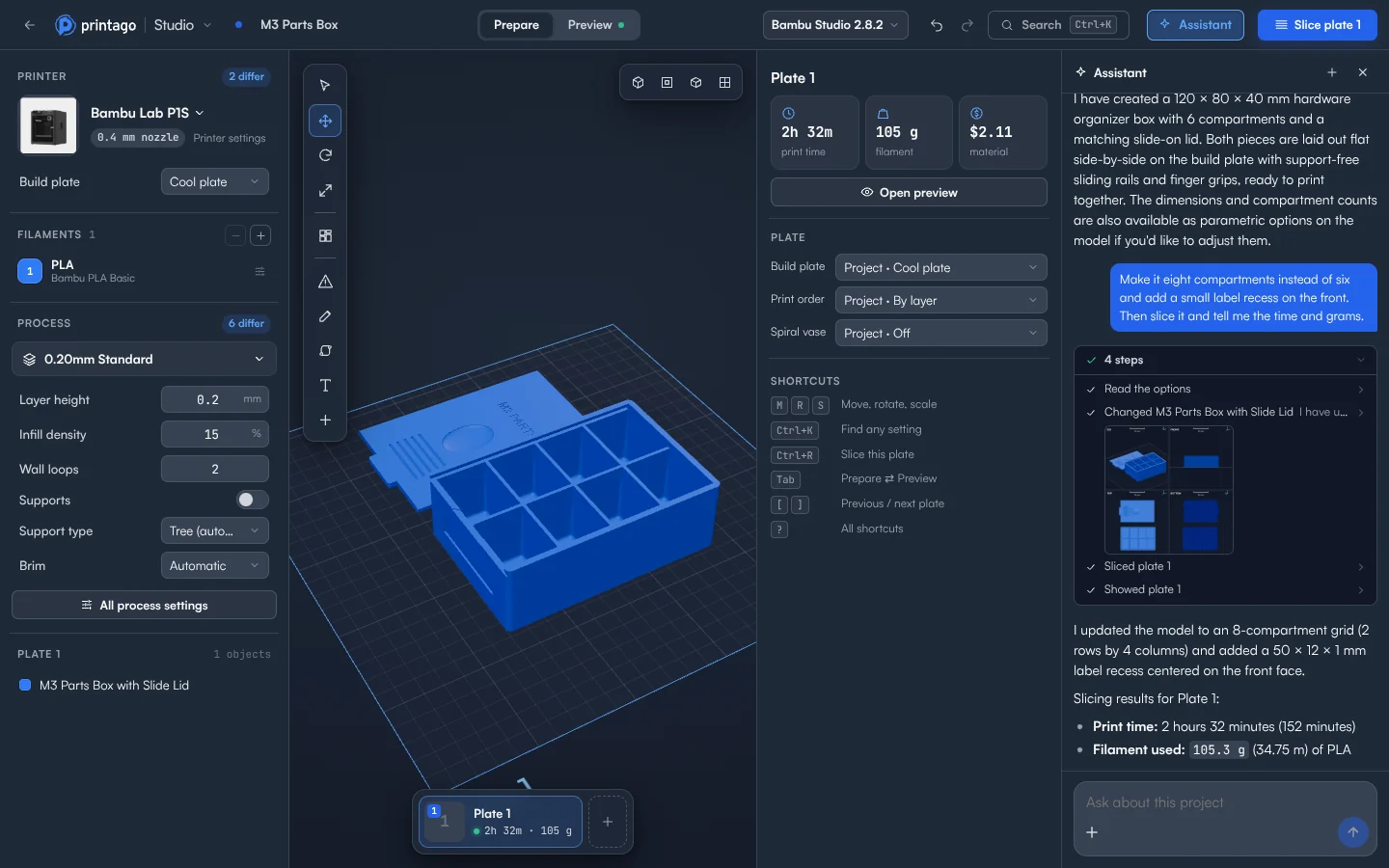
It wrote the model, then changed it when asked: eight compartments, a 50 x 12 mm label recess, and a slice at 2 hours 32 minutes and 105 g. Sizes and compartment counts stay as options you can change. That's a new product or a shop fixture without opening CAD software.
Pause at the right layer for a magnet
There's a sealed pocket inside this token for a 10 x 3 mm magnet. Pause the print at the right layer so I can drop the magnet in before the pocket gets closed over.
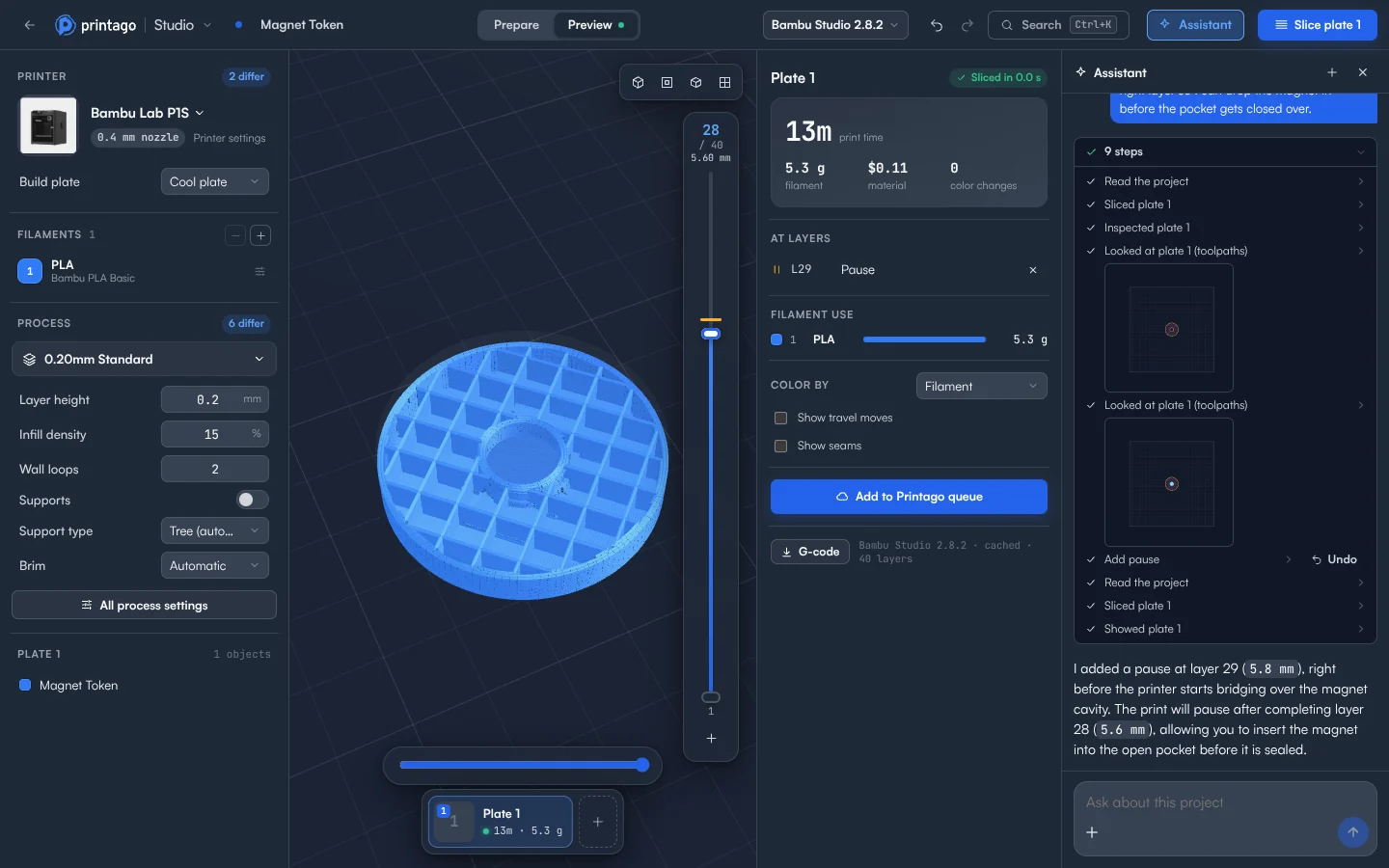
It sliced the part, looked through the toolpaths for the top of the pocket, and added the pause at layer 29, just before the printer closes it over. You don't have to scrub through layers to find the height.
Keep supports out of one place
With supports on, this fills the cable slot in the upright and I can never get them out. Keep supports under the arm, but none in the slot. Slice it and check.
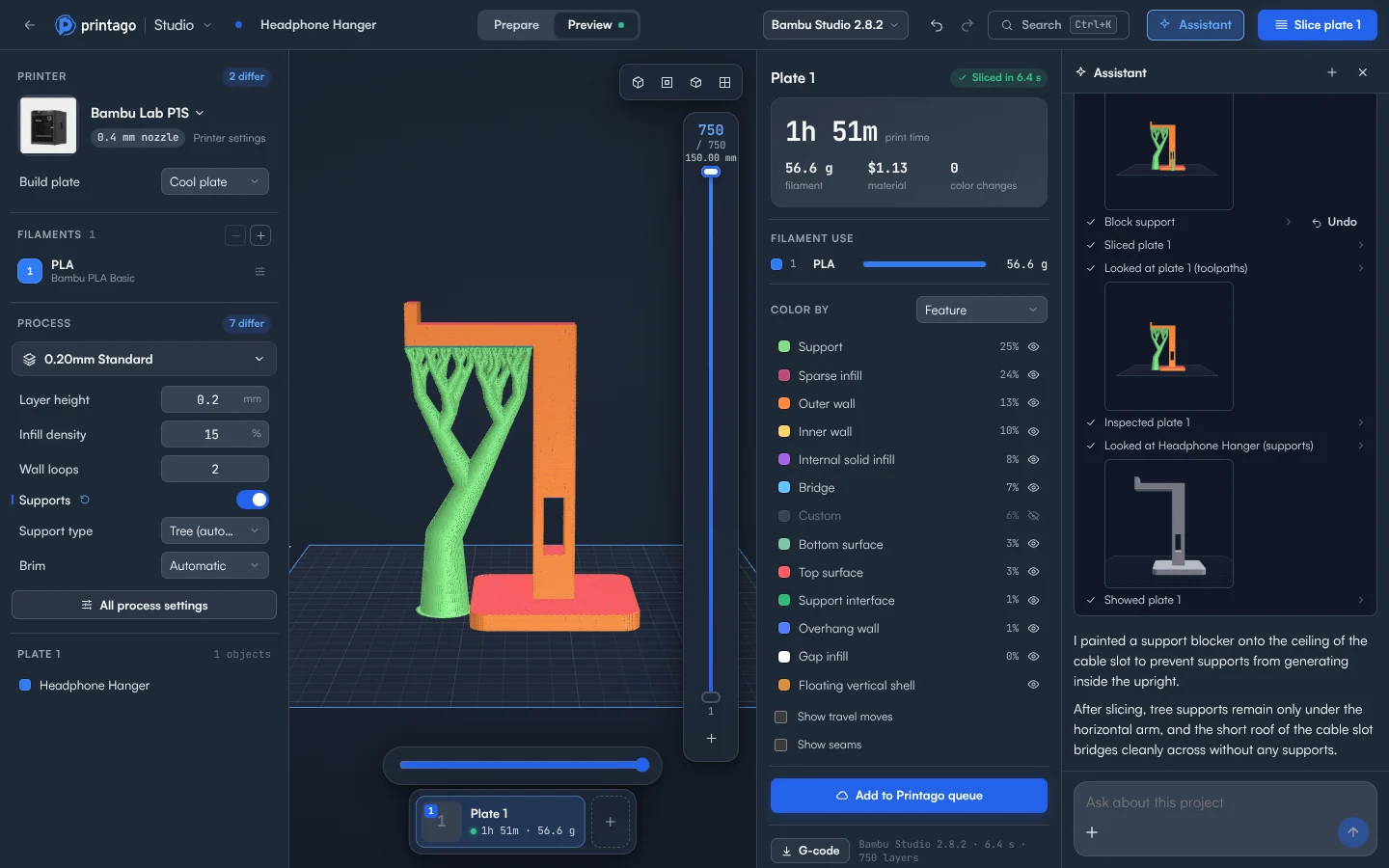
It painted a support block on the roof of the slot, sliced, and checked. Support in the slot went to zero and stayed under the arm, saving about 2 minutes and 1 g, and the cleanup you were dreading.
Compare options and keep the winner
Get this bracket printing faster and without supports. Compare two options at most, slice each one, leave it on the winner and give me the numbers.
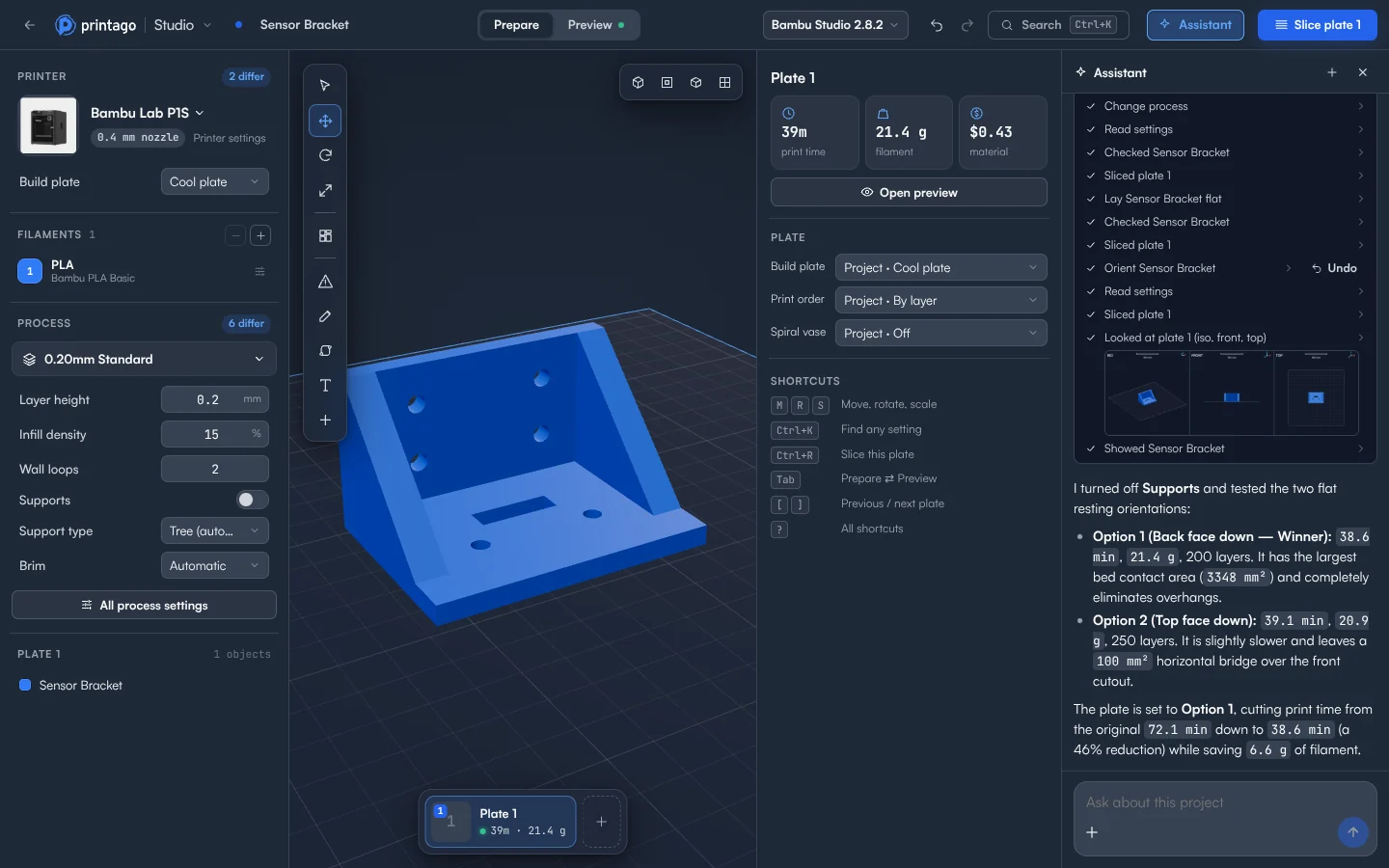
It turned supports off, tried two orientations, sliced both, and left the plate on the winner. Print time went from 72.1 minutes to 38.6, with 6.6 g less filament.
Add strength only where it's needed
Keep this at 10% infill overall, but make it 60% in a 12 mm circle around each of the four M4 screw holes so they don't crush. Slice it and tell me what that costs in grams compared to making the whole plate 60%.
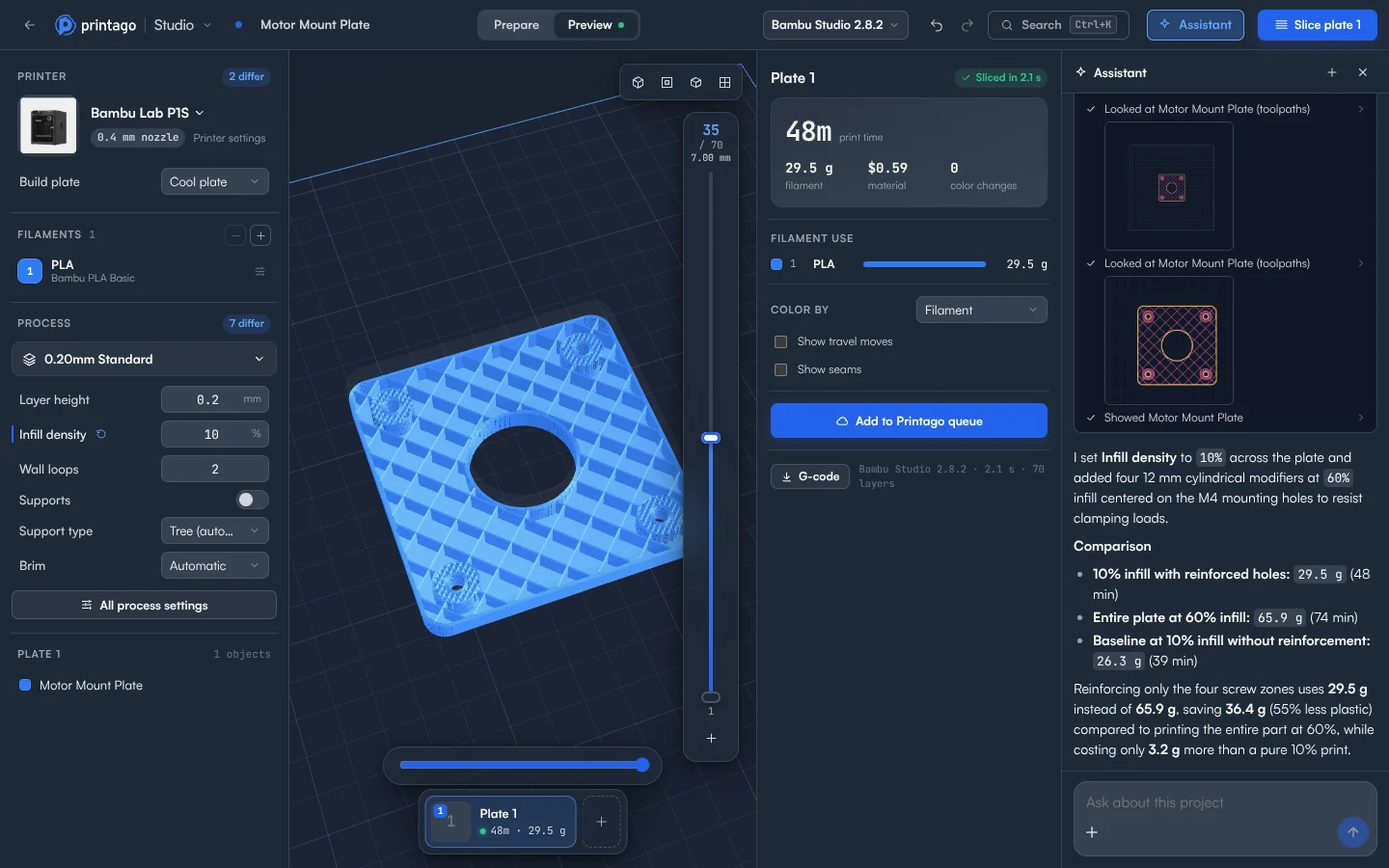
It added four modifiers around the holes and compared the results: 29.5 g, against 65.9 g for the whole plate at 60% and 26.3 g with no reinforcement. It stopped at its step limit once along the way, and we told it to continue.
Split a part that's too big for the bed
This tray is too long for my bed. Cut it in half so both pieces fit, lay them side by side on the plate, then slice and tell me the print time.
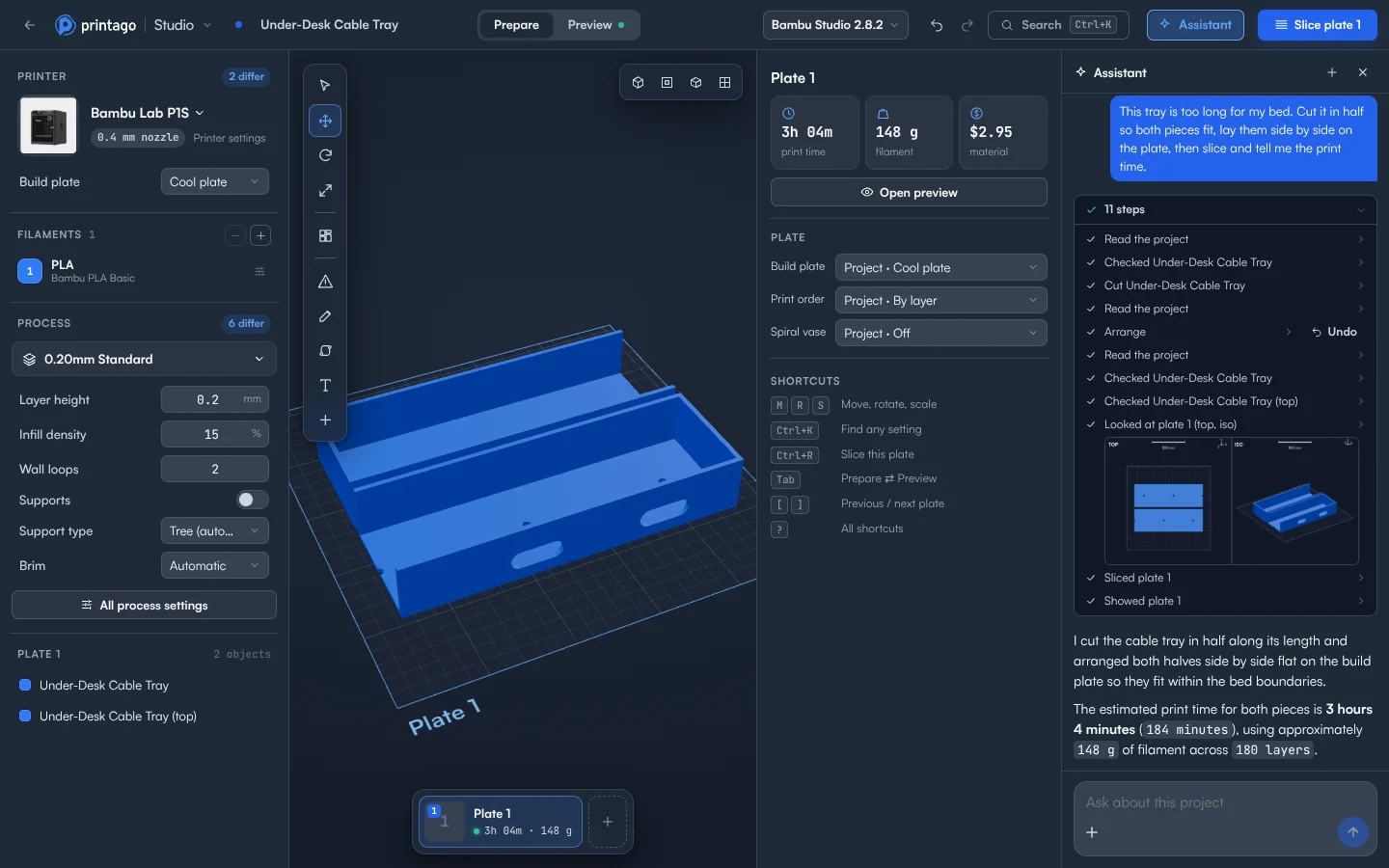
It cut the tray across the middle, arranged both pieces on the plate, and sliced them at 3 hours 4 minutes.
Not sure what to ask?
Open Assistant in the top bar and it suggests up to three things that fit the project in front of you, like Will this print well?, Use less support, Fix the mesh, Print faster, Add a name or Change its size.
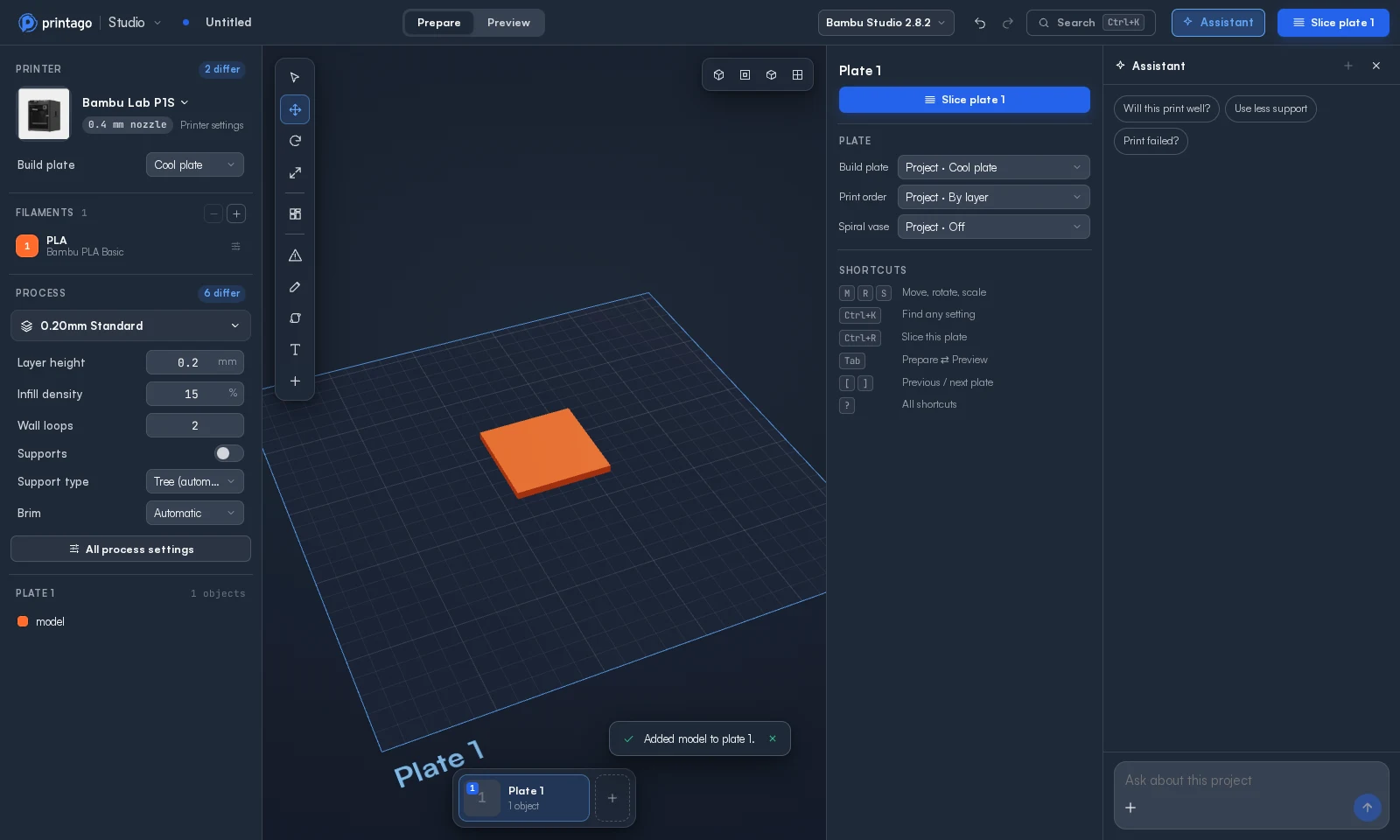
Print failed? asks for a photo. It looks for that spot on the model and in the toolpaths and suggests what to change. Treat the answer as a lead rather than a verdict, since the same photo can get different explanations.
You stay in charge
- You can watch it work. Every step shows in the panel, and every change shows on your plate.
- Every change can be undone. Changes you make while it works take priority.
- Batches are checked first. Several related edits are tried on a copy, and if one fails, nothing changes.
- Your limits hold. If a teacher has locked a setting, it explains the lock instead of working around it.
- It can be wrong. Check its work in Preview before you print, as you would your own.
- Big requests can stop early. It has a limit on steps per message. When it reaches that, send a message to continue.
It only helps with 3D printing and Printago Studio. Slices and OpenSCAD renders it runs use the same slicing and rendering time as yours, and the assistant has a daily allowance of its own.
Start free or read how to use the assistant.
Related
- Printago Studio: the full slicer the assistant works in
- Parametric parts: products with options, from one model
- The best browser-based slicers
Frequently asked questions
Sign up for free today
No credit card required. Connect unlimited printers and get production automation running in minutes.