
Printago Studio: A Web Slicer to Edit and Slice 3D Prints in Your Browser
A full slicer, right where your parts are
Printago Studio is a full slicer in your browser, built into Printago. Open a part, arrange plates, change any setting, add modifiers, slice with the real Bambu Studio and OrcaSlicer engines, check every layer, then send it to your print queue. Free, nothing to install.
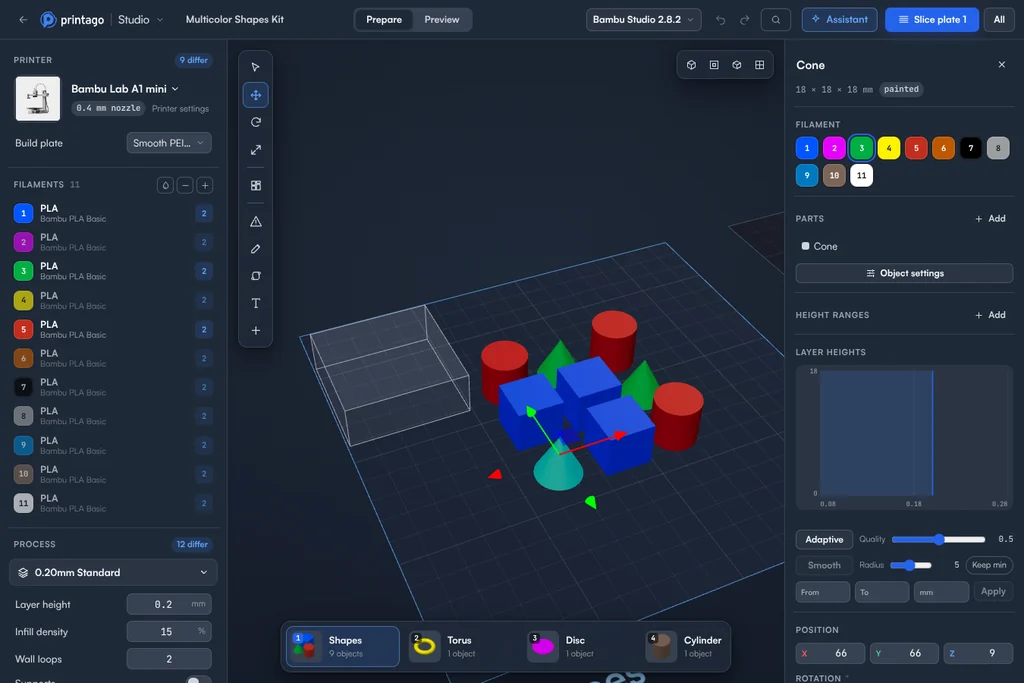
Printago is 3D print farm software that runs production from order to finished print. Printago Studio is a full slicer in your browser, built into it.
Changing a part used to mean downloading the 3MF, opening a desktop slicer on the one computer that has your profiles, making the change, exporting, and uploading the file again. Then you hoped the part's settings and SKU links survived the swap. With Printago Studio, you click Open in Studio on the part, make the change, and save it back. Anyone on your team can do it, from any computer, tablet or phone.
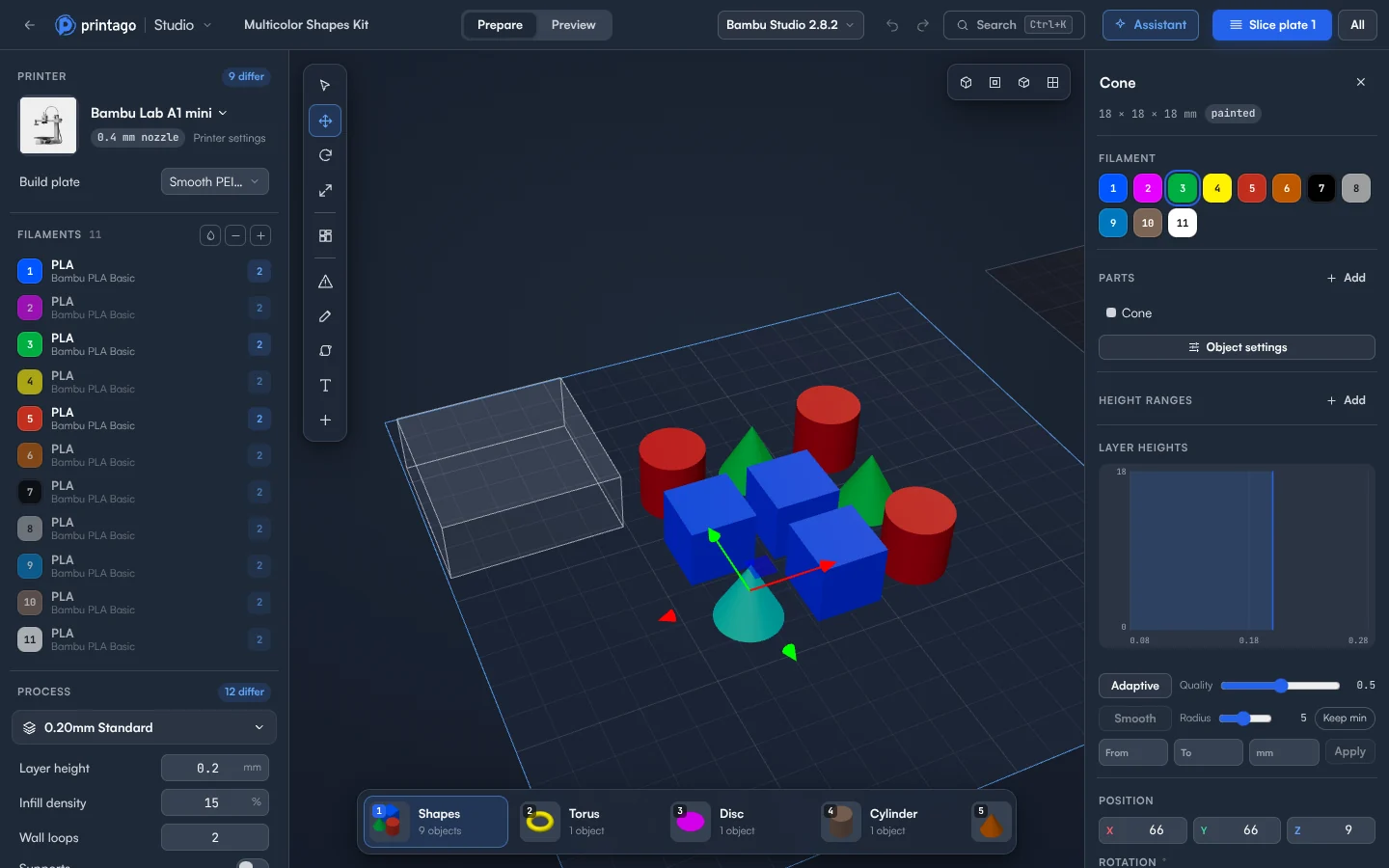
Everything you'd do in a desktop slicer
Printago Studio isn't a viewer with a few knobs. It's the slicer you already use, in a browser tab:
- Arrange plates. Move, rotate and scale objects. Auto-arrange packs a plate and spills what doesn't fit onto new plates.
- Change anything. Switch printers, filaments and process profiles, or change any of the settings in them for the whole plate or a single object. Search finds a setting by name or by the problem you're fixing: type "stringing" and you get retraction.
- Modifiers and negative parts. Add a modifier for denser infill where a screw goes, cut a hole with a negative part, or block supports where you don't want them.
- Multicolor. Painted 3MF projects open with their colors. Assign filaments per object and move the prime tower.
- Your profiles. Your Printago printer, filament and process profiles are listed first, the same ones your queue slices with.
Slice with the real engines, check every layer
Slicing runs the real, unmodified Bambu Studio and OrcaSlicer engines. You get the same G-code the desktop app would make.
Then check it before it costs you filament: print time, grams per color, material cost and color changes, and every layer of toolpaths. Color by feature to see walls, infill and supports, or by filament to check a multicolor plate. Add a pause before a layer to drop in a magnet or a nut.
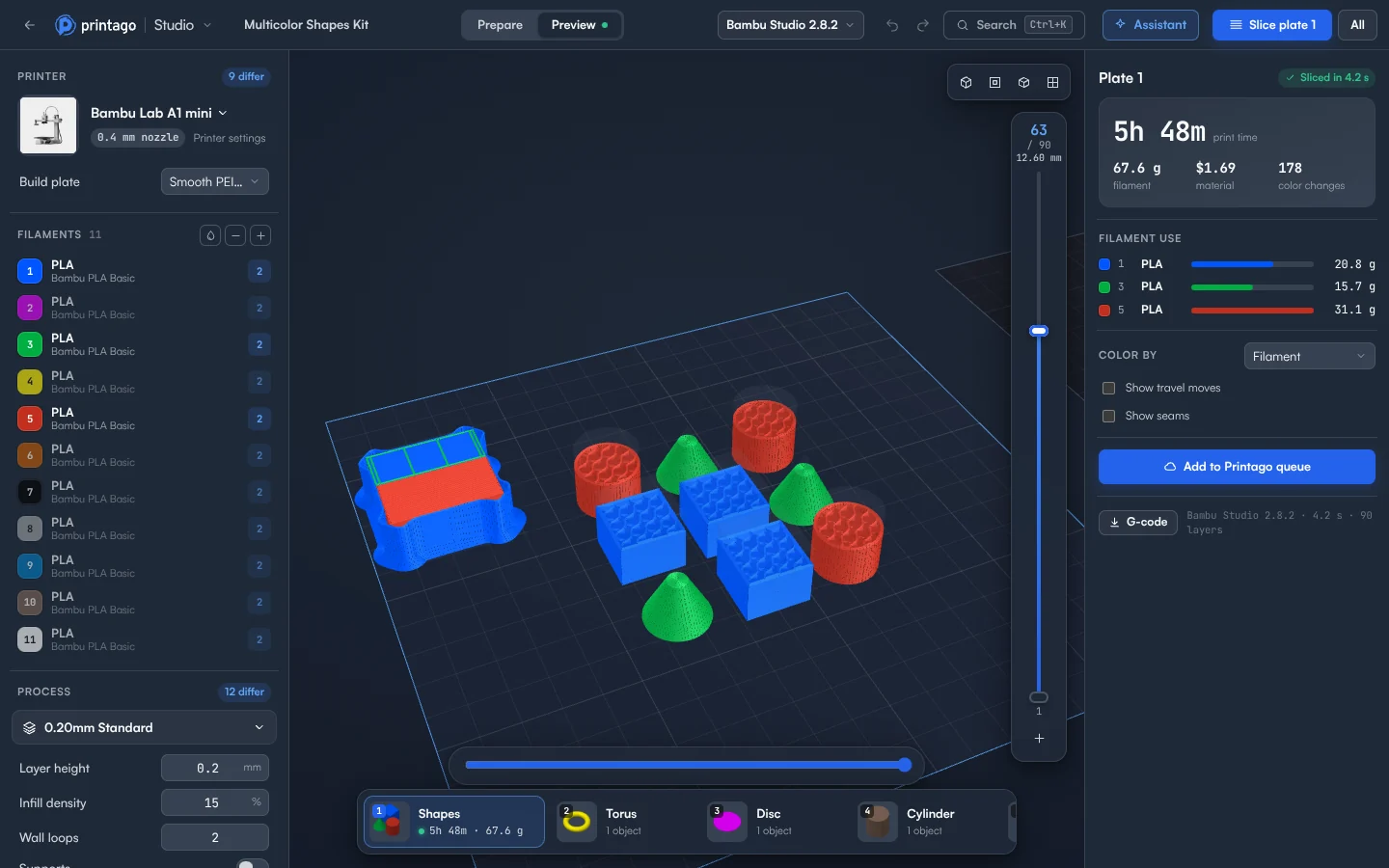
Send it to the queue, exactly as you checked it
When the plate looks right, Add to Printago queue. You pick the material for each filament from what you stock, and Printago Studio suggests the closest color. The job prints the G-code you previewed. Printago doesn't slice it again, so what you checked is what prints.
Or save your changes back to the part, so every future order prints with them. The part keeps its name, settings and SKU links.
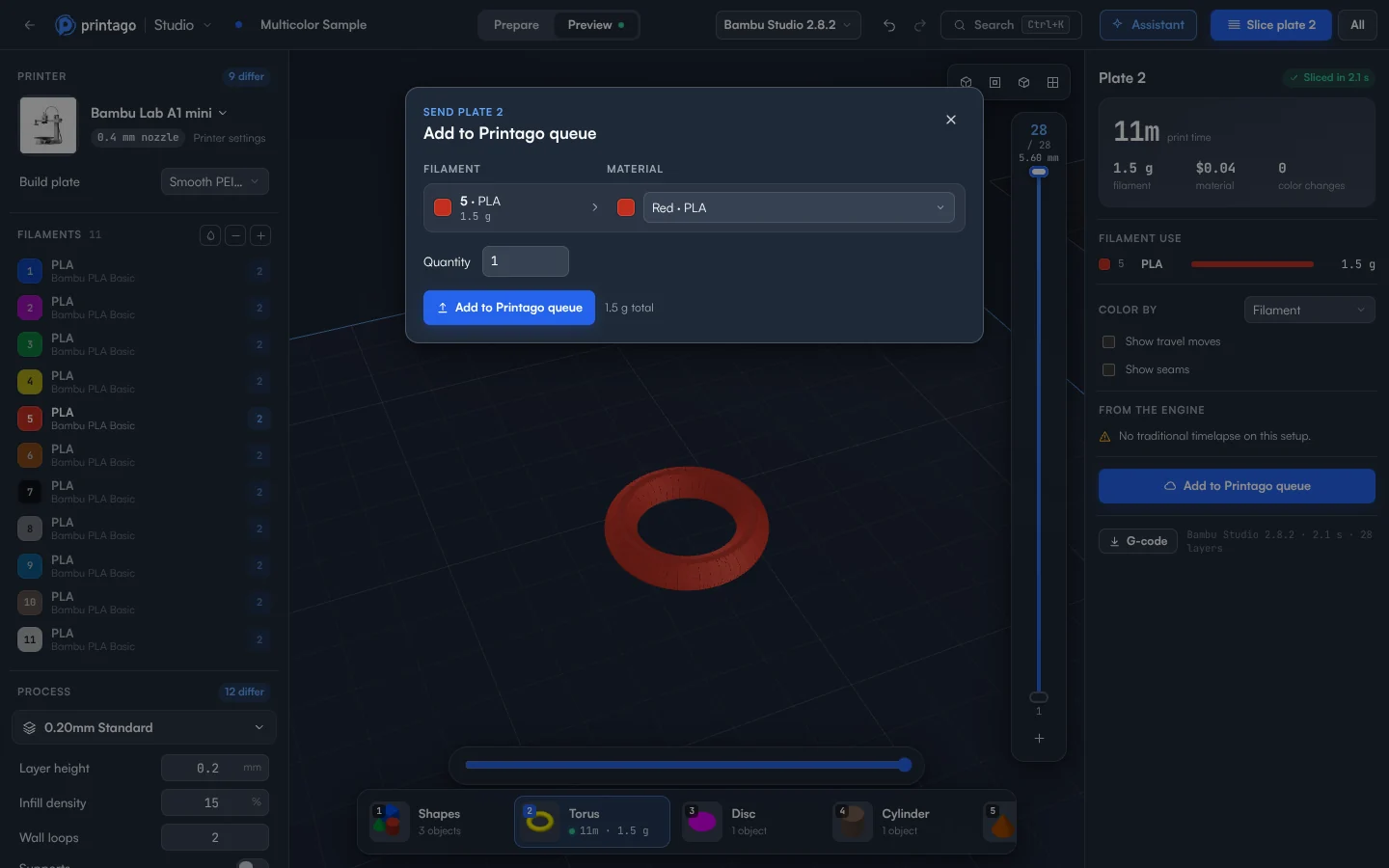
An assistant that works in the slicer
Tell Printago Studio's assistant what you want. Ask it to use less support, make a name customizable, or work out why a print failed from a photo, and it looks at the model, makes the change, slices the plate, and checks the result. Every step can be undone.
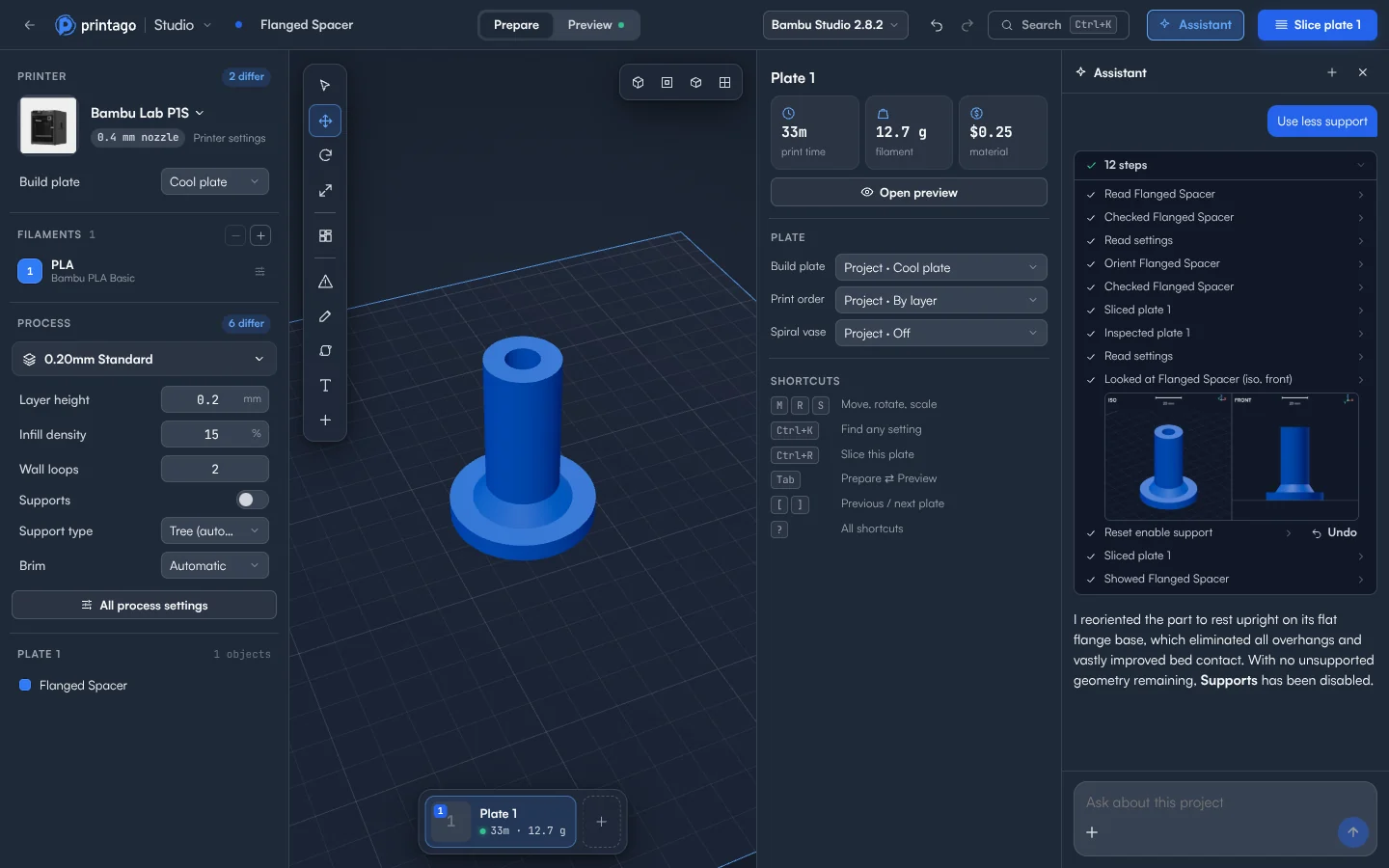
Describe a part you don't have, and it makes the model too, with options you can change.
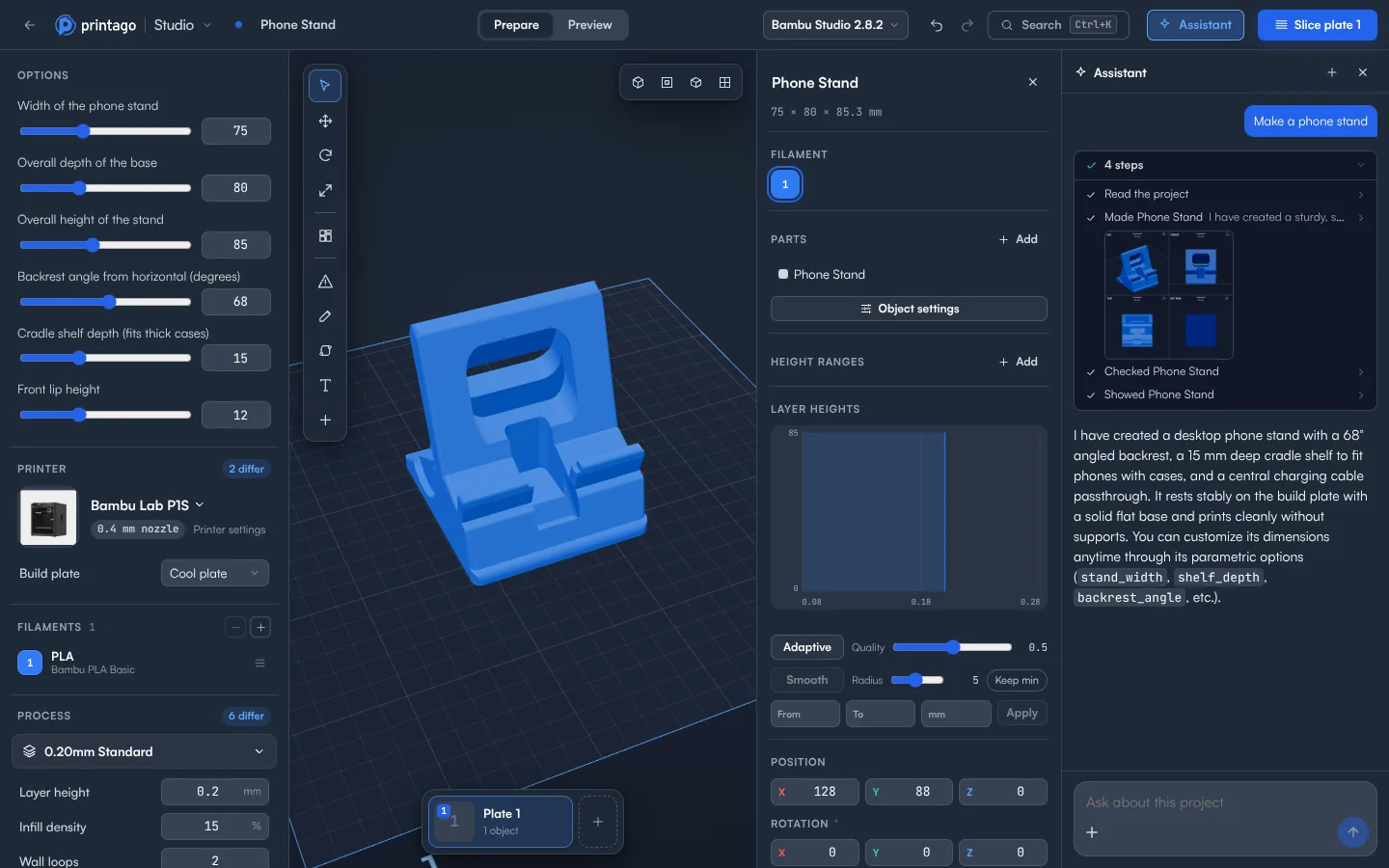
It also suggests what fits the plate in front of you, so you don't have to know what to ask.
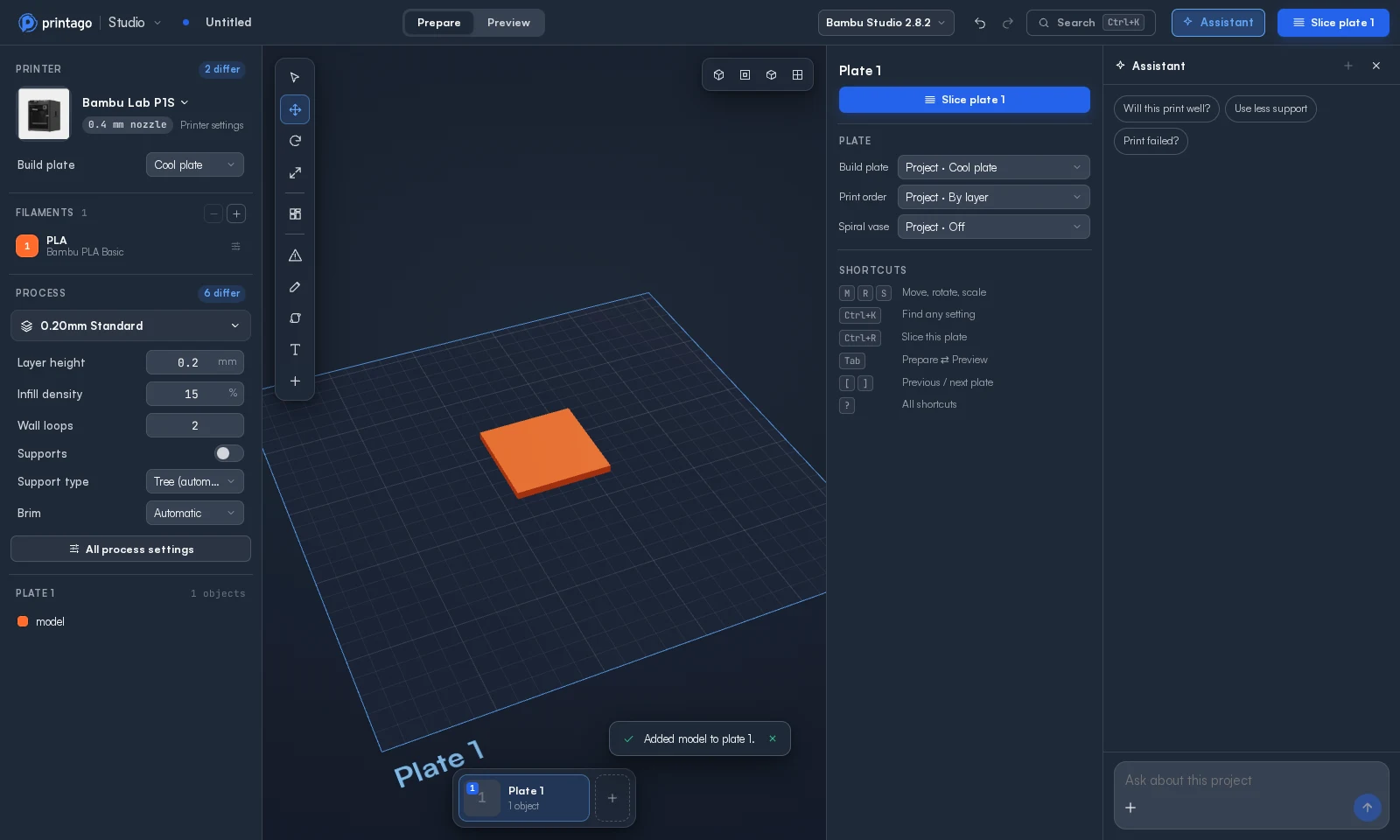
See what the assistant can do.
Personalized parts, previewed before they print
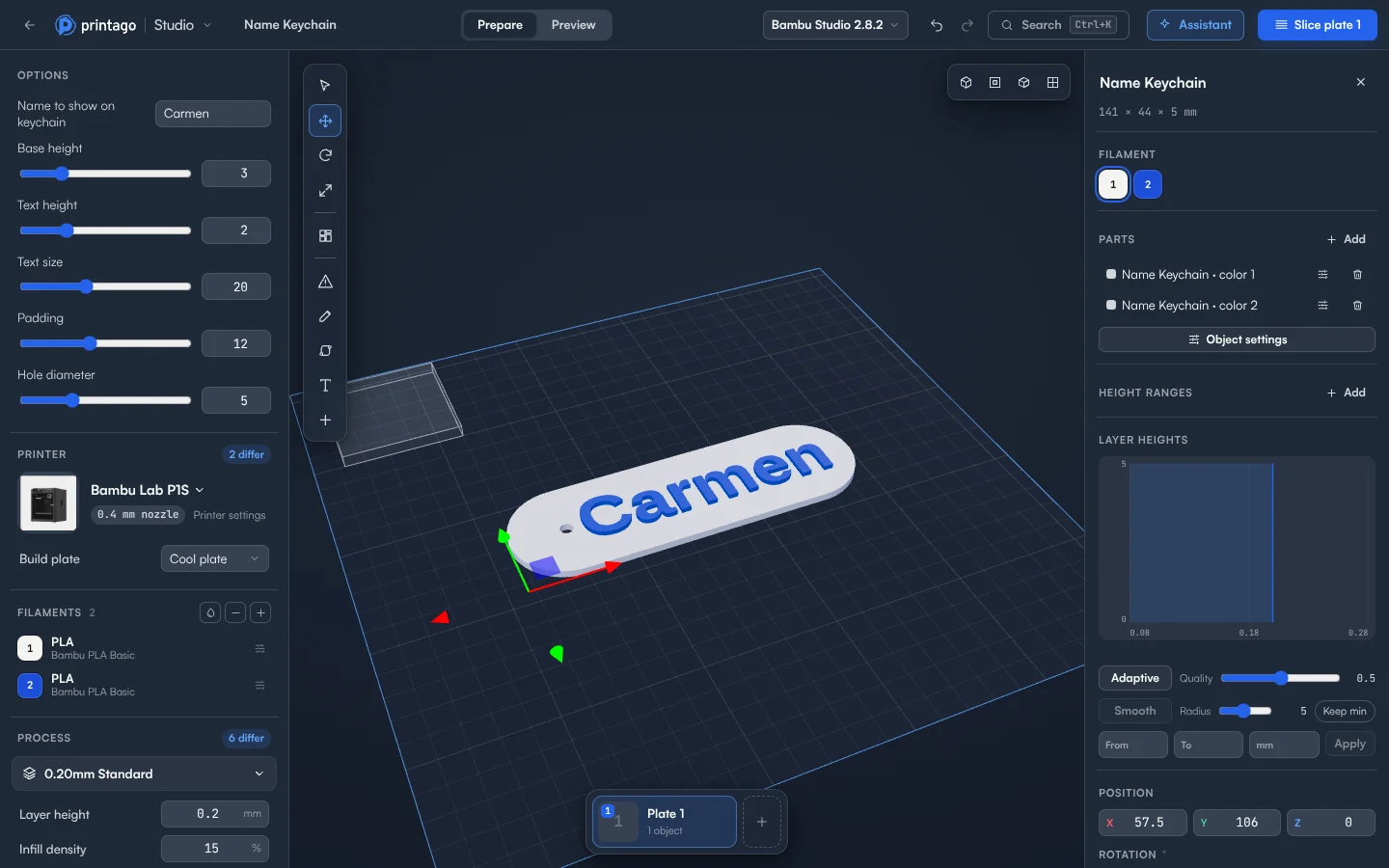
For parametric parts, Printago Studio shows the part's OpenSCAD options as text fields, sliders, switches and lists. Change the name on a keychain or the size of a bracket and the model updates in place, in every color the part uses. Slice it to see that a long name still fits and prints cleanly, then queue it or keep the new options on the part.
Look inside any G-code file
Someone sends you a G-code file and you need to know what's in it before it ties up a printer for six hours. Open a G-code or gcode.3mf part and Printago Studio shows its toolpaths layer by layer, with the print time and filament the file states. Nothing to install, no printer profile to set up first.
Works where your team works
Printago Studio runs in any modern browser: Windows, Mac and Linux, Chromebooks and iPads, and phones. On a phone the panels become sheets you swipe up, so you can check a plate from the shop floor.
That matters for teams. Your packing station, your night shift or a classroom of Chromebooks can open, check and queue a part without anyone installing a slicer or copying profiles from machine to machine.
Free, with nothing to install
Every organization gets 60 minutes of cloud slicing and rendering time a month for free, or 60 per production slot on a paid plan. That's the time the engine or OpenSCAD actually runs, shared across your team. Slicing & rendering in the File menu shows what you've used and when it resets.
Slicing a plate again with nothing changed costs nothing, and neither does rendering options a part has already rendered. Jobs sliced by your print queue don't count either: the cloud slicer handles those as it always has. If you need more, ask us about Studio Unlimited.
Start free or read how Printago Studio works in the docs.
Related
- Cloud slicer: every queued job sliced automatically for the printer it lands on
- Orca Slicer online and Bambu Studio online
- The Printago Studio assistant
- Parametric parts
- The best browser-based slicers
More Chromebook guides
Browse all slicer guides.
Frequently asked questions
Sign up for free today
No credit card required. Connect unlimited printers and get production automation running in minutes.