
AI Failure Detection and MCP
Every store can turn on AI failure detection for free until 2027. AI assistants like Claude and ChatGPT can now run your farm through MCP. Plus routing rules, multi-color and dual-nozzle plate merging, order data printed on parts, and a font library.
Catch failed prints while they're failing, free until 2027
A print that turns to spaghetti at 2 a.m. keeps going until someone looks. By morning you've lost the filament, the printer time and the order's ship date. Now any store can turn on AI Failure Detection, free on every plan until 2027.
Open Add-ons, choose AI Failure Detection, and click Activate for free. Then choose what it does under Settings → Cameras & AI. Fuse sends camera frames from each print sent from Printago to a hosted detector, run in partnership with OctoEverywhere. The detector follows the whole print, from the first layer to the end.
- Notify only sends an alert to your notification channels and the print keeps running.
- Pause when recommended also pauses the printer when the detector is confident. Fuse sends the pause over your local network, so it works even when your internet is down.
- Sensitivity sets how sure the detector must be before it warns you: Low, Medium or High.
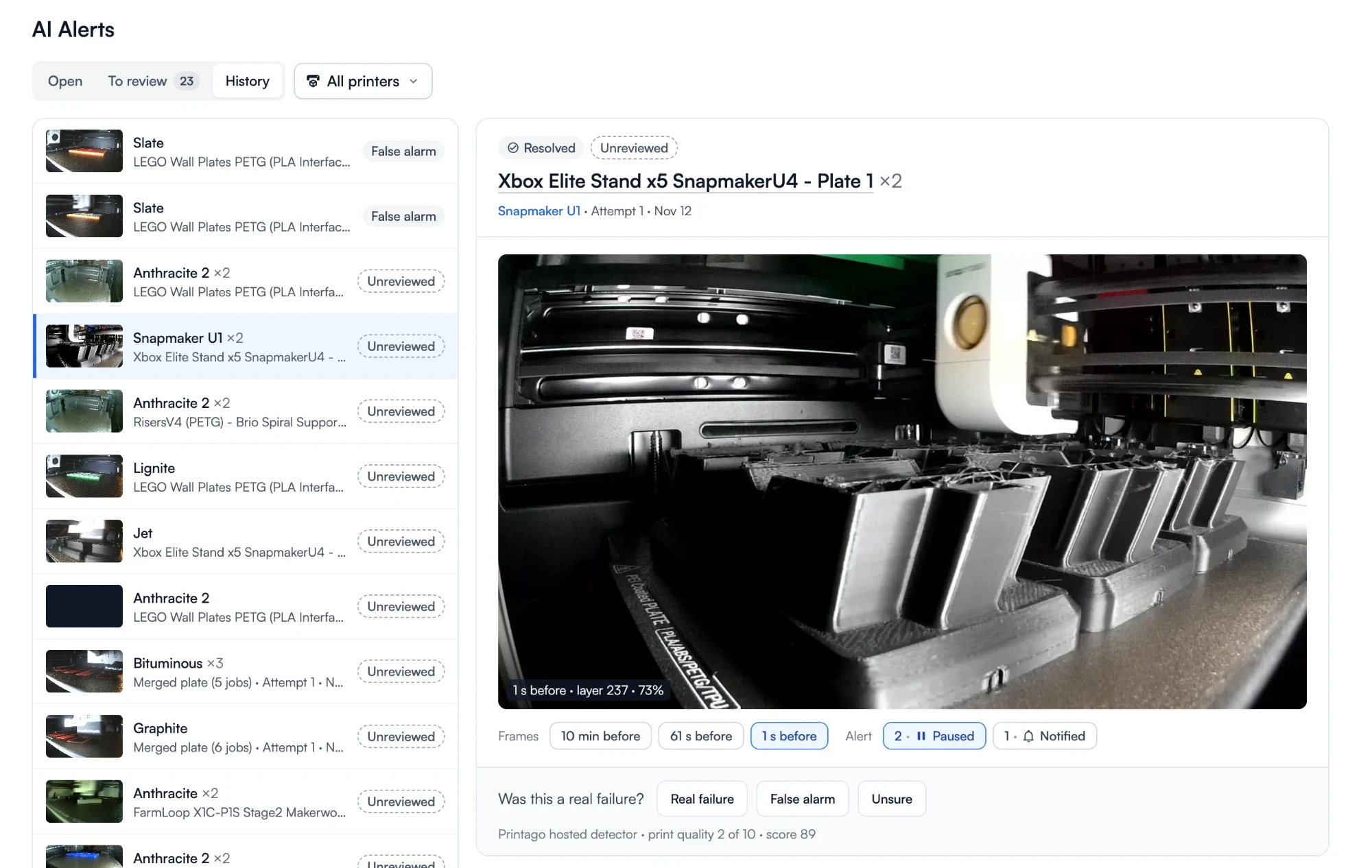
Alerts show up where you already look, and stay out of the way until they need you:
- Dashboard. A chip such as Paused · Review appears on the printer's card, and a count above the cards shows how many printers need review.
- Printer page. A strip above the tabs says what happened, like Paused by AI · 4 min ago, with Resume and Stop right next to it.
- Print job page. The alert appears as a marker on the Print Telemetry chart, at the moment it was raised.
- AI Alerts page. Under Printing → AI Alerts, every open alert across your farm is sorted by what needs doing first.
Each alert shows the camera frame that set it off and the frames just before it, so you can see the problem without walking to the printer. Repeats on the same print group into one alert. Answer Real failure or False alarm to keep a record of what happened.
You need printers connected through Fuse with cameras on. See AI failure detection, or the setup guide.
Run your farm from Claude, ChatGPT or Cursor
Checking which beds need clearing, queueing a rush job, or entering a phone order are each small tasks, but on a busy farm they keep someone at the dashboard all day. The Printago MCP server lets an AI assistant do them when you ask in plain language: "Which printers do I need to pull prints off?" or "Print three Benchys in red PLA and put them at the front of the queue."
Add https://mcp.printago.io/mcp as a connector in Claude, ChatGPT, Claude Code, Cursor or any client that supports MCP, then sign in. You choose the organization and whether the assistant can make changes or only view. It works within your role's permissions and can never touch API keys, members or billing. You can also find MCP in the Marketplace, under Farm management.
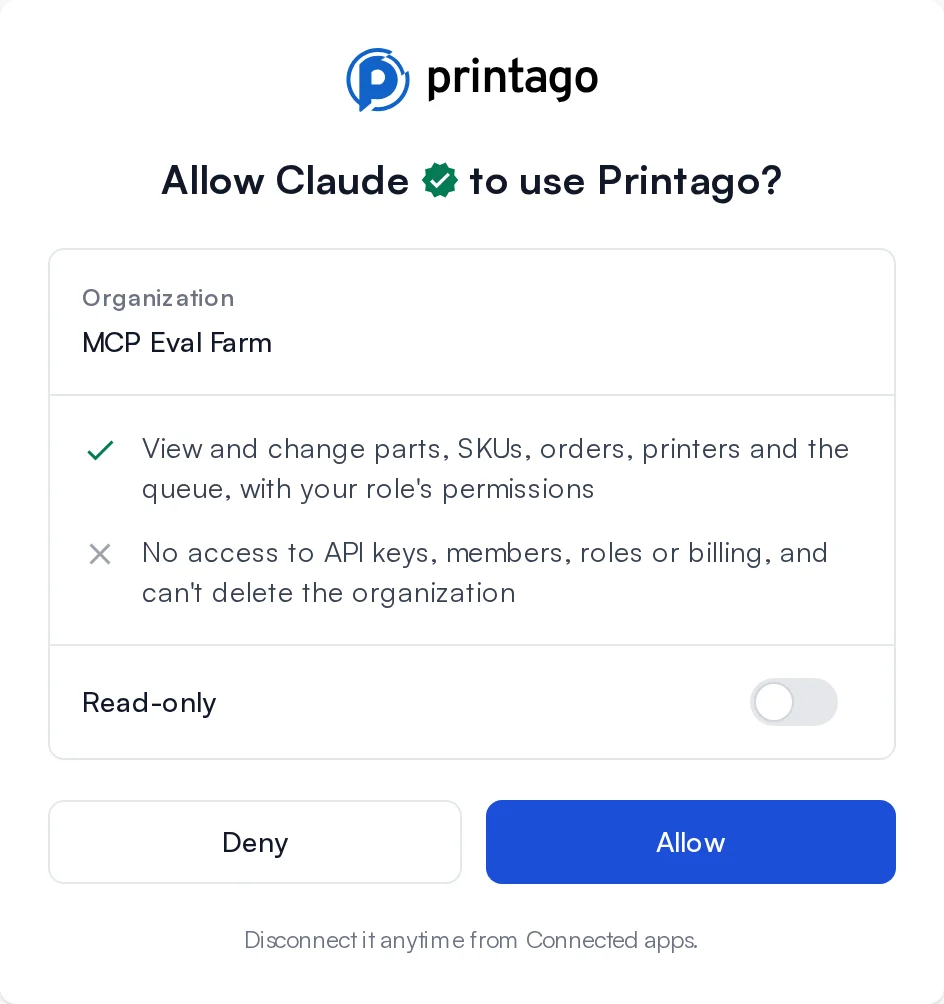
See the MCP server, or the setup guide.
Routing rules
Some jobs must never land on some printers. A part made for an auto-ejection plate belongs on the printers that have one. A food-safe printer shouldn't take anything else. Routing rules say so once, in a sentence: when a job looks like this, it can only run on printers that look like that. Printago checks every rule each time it matches a job to a printer.
Rules work from tags, custom fields, order source, SKU, nozzle size and more. Every organization has them. Open Settings → Queue → Routing rules, start from an example, and save a rule as Draft to try it before it goes live. The job's Printer Matching dialog shows which rule is keeping a job off a printer.
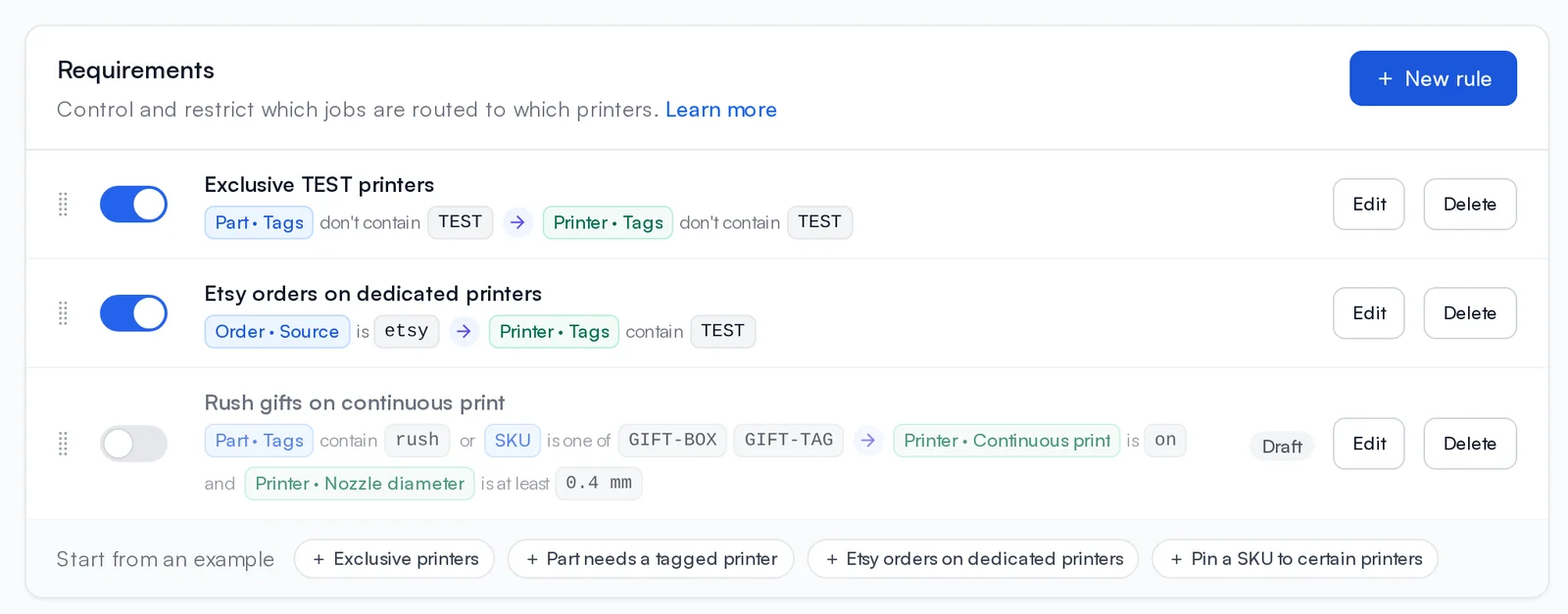
See the routing rules guide.
Plate merging for multi-color and dual-nozzle printers
Merged plates that print more than one filament now reserve room for the prime tower, sized for the filaments, plate height and slicer. On dual-nozzle printers (Bambu Lab H2D, H2D Pro, H2C and X2D), merged plates keep parts out of the edge strips that only one nozzle reaches, and the prime tower always sits where both nozzles reach. The merge preview and plate thumbnails show the tower and the one-nozzle strips.
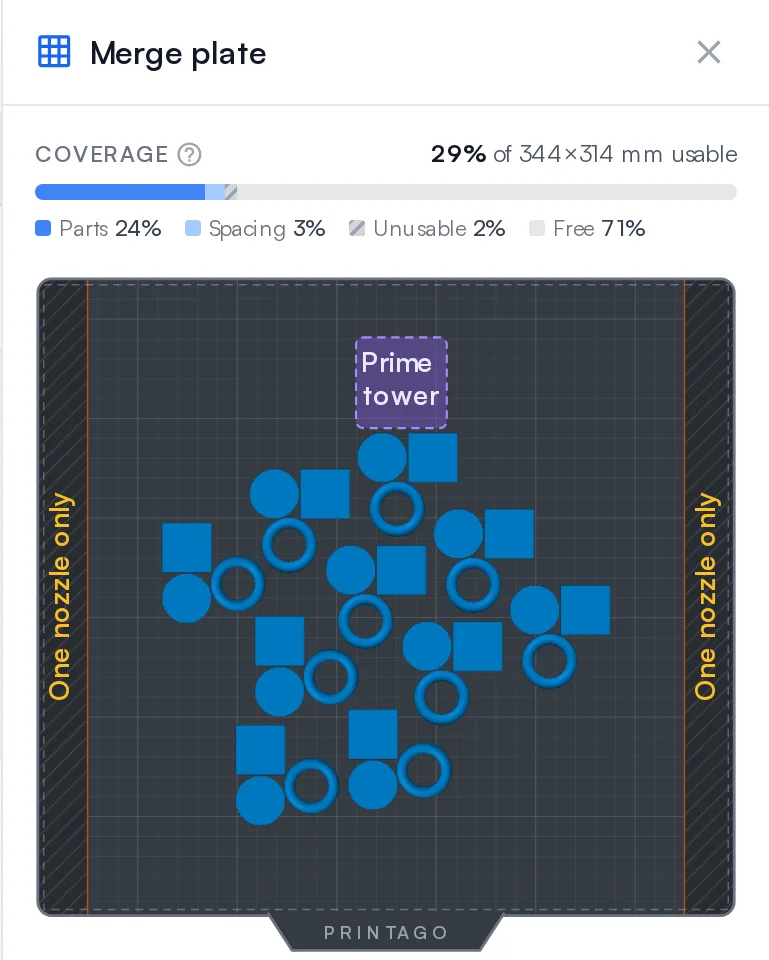
Two new settings under Plate Merging on each part, also in Bulk Edit:
- Allow automatic merging with other jobs. Turn it off for a part that has to print alone. You can still merge it by hand.
- Only with copies of this part. For a part tuned to print as a full plate of itself, or a batch you pack together.
See plate merging.
Print the order number on the part
When a plate of finished parts comes off the printer, someone has to work out which order each one belongs to. A SKU's text parameters can now print order data: Order number, Order date, Ship-by date, Shop, Item in order (like 2 of 3) or SKU. Custom format... combines fields and sets the date format. Click the link button next to a text parameter in Configure Linked Part to choose one. OpenSCAD and CadQuery string parameters work the same way.
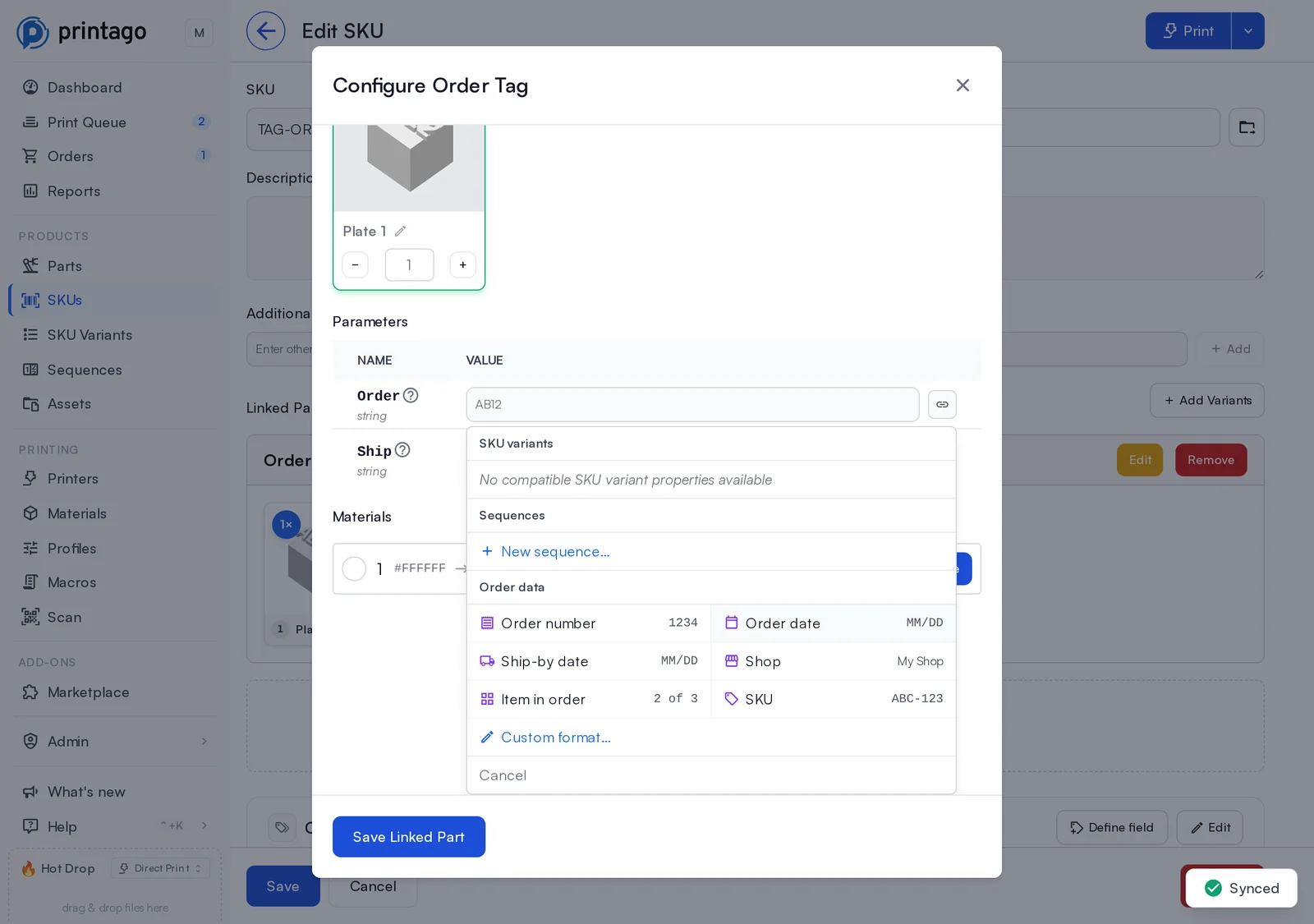
See printing order data on a part.
Your fonts, everywhere text prints
Personalized text now prints in the exact font you designed with. Add fonts from Google Fonts or upload your own under Products → Assets, including variable fonts. Every 3MF text placeholder that asks for one prints with it. A part's page flags any font Printago doesn't have, with Add font right there. Printago Studio's font menu lists your library first, then every available font.
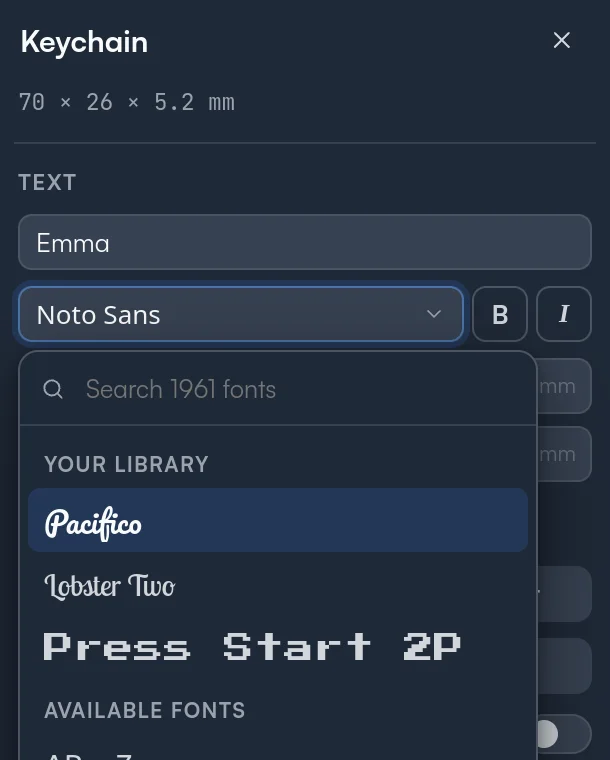
See Assets.
More improvements
- Pause, resume and stop from the printer page. During a print they sit in the quick actions row above the tabs, one click away on every tab.
- Bambu Studio 2.9.1 is now the default Bambu Studio version. Profile edits now reach the slicer exactly as Bambu Studio saves them.
- Open a job in Studio. A print job's G-code and merged 3MF open in Printago Studio. Download moved into a menu.
- Material groups in Studio. Add to Printago queue can let a filament print in any material from one of your groups.
- Your own Studio shortcuts. Keyboard shortcuts you change in Studio now follow you, not the whole store.
- Colored thumbnails for 3MFs saved in Bambu Studio 2.6 or newer. Jobs from pre-sliced gcode 3MFs show their plate thumbnail.
- FabMatic codes you hide now stay out of the printers list too, and a new Stop notifications for these codes switch silences them on every channel. A paused or failed printer always shows its codes.
- Getting Started checklist starts as a slim bar in the corner. Click it to open the list, or close it.
- Faster queue with big batches. A large batch of new jobs is assigned to printers much faster.
- Re-sliced jobs stay separate. Re-slicing a job for a different printer no longer affects other jobs that share its file.
- Fuse stays signed in through a slow connection, and a wrong clock on the PC no longer breaks sign-in.
- Accurate printer status. Printers no longer show Stale after your browser reconnects.
- Account deletion also removes you from our email and analytics. Our Sub-processors page lists every service provider we use.
Sign up for free today
No credit card required. Connect unlimited printers and get production automation running in minutes.