
MCP Server - Run Your Print Farm from Claude, ChatGPT or Cursor
How Much of the Day Goes to Small Farm Chores?
Connect an AI assistant to Printago with one sign-in and run your farm in plain language: see which beds need clearing, queue a rush job, enter a phone order, or find out why a job won't start.
Checking which printers need a bed clear, queueing a rush job, entering an order that came in by phone, working out why a job won't start. None of these take long, but on a busy farm they keep someone at the dashboard all day, clicking through screens to do something they could say in one sentence.
Printago is 3D print farm software that runs production from order to finished print. The Printago MCP server lets the AI assistant you already use do those chores for you. Connect Claude, ChatGPT, Claude Code or Cursor once, then ask:
- "Which printers do I need to pull prints off?"
- "Print three Benchys in red PLA and put them at the front of the queue."
- "The orange cube job is stuck. Why?"
- "Phone order from Dana Kim: two BRKT-01 and one CUBE-20, due the 20th. Enter it and get it printing."
- "We now sell the Benchy in red, black and green. Set up the color options."
The assistant works on your live store, as you.
How Do I Connect an AI Assistant to Printago?
Add this address to your assistant as a connector, then sign in when it asks:
https://mcp.printago.io/mcp
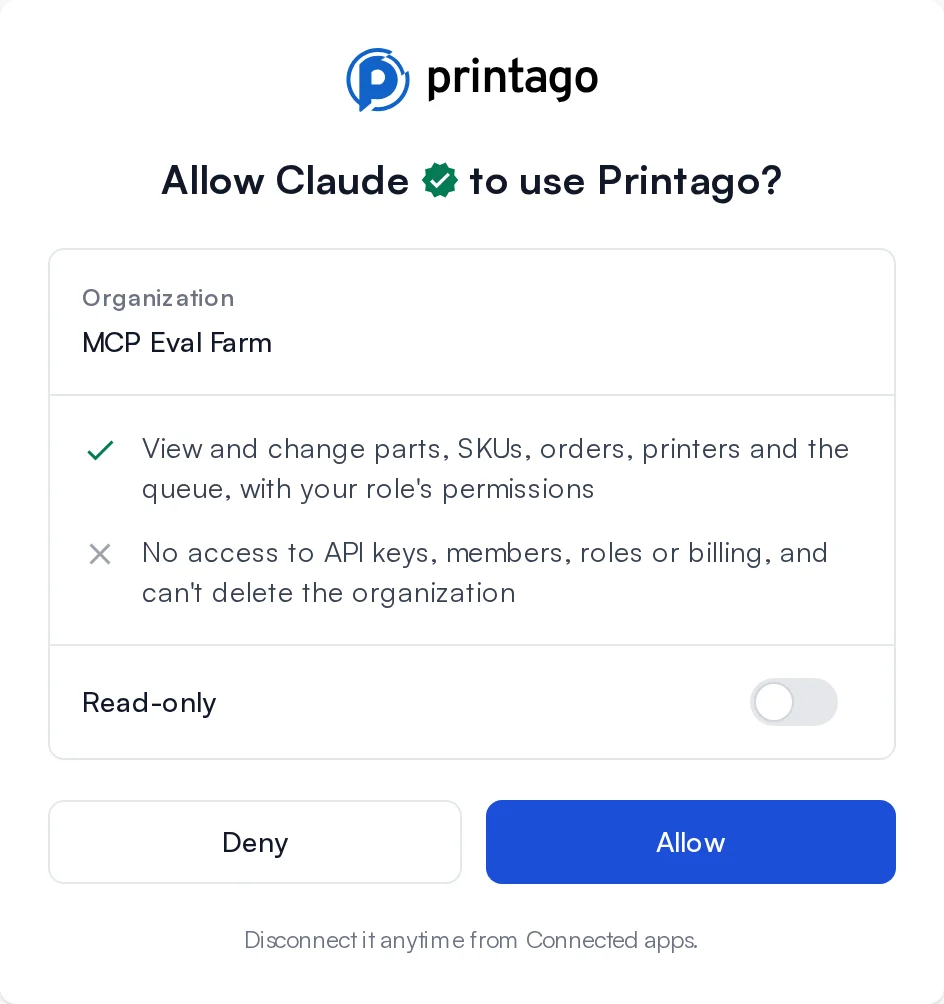
In Claude, open Settings > Connectors and choose Add custom connector. ChatGPT, Cursor, VS Code and any client that supports MCP sign-in take the same address. Signing in opens Printago in your browser: pick the organization, choose whether the assistant can make changes or only view, and click Allow. The assistant stays connected until you disconnect it.
You can also run the server on your own computer with an API key through the Printago CLI, which lets the assistant add parts from files on your disk. See the MCP server guide.
What Can It Do?
About thirty tools, each built around something you would actually ask for rather than a single API call:
- Farm overview: every printer and what it's doing, the queue, open orders, and what needs attention.
- Printers: status and loaded filament, marking a bed clear when you say it is, taking a printer out of rotation, tags, plate type, which filament is in which slot, pause, resume and stop, and a look at the camera.
- Queue: queue parts or SKUs with a quantity, material, priority or printer. Find out why a job is waiting and what would fix it. Cancel, retry or move a job to the front.
- Parts and SKUs: add a part from a download link or OpenSCAD the assistant writes, build a SKU from parts, and set up options such as Color so an order for
BENCHY-REDprints in red. - Orders: enter an order, send orders to print, fix a line item that matches no SKU, and pull new orders from your sales channels.
- Everything else: two general tools reach any endpoint of the Printago API, for reports, maintenance and integration settings.
Tools take the names you use: a printer name, a SKU code, an order number, "black PLA Basic". If a name could mean more than one thing, the assistant asks you which.
Is It Safe to Let an AI Run My Farm?
You decide how far it reaches:
- Your permissions, never more. The assistant has your role's permissions, checked on every request. If your role changes, so does what it can do.
- Read-only. Turn it on before you click Allow and the assistant can look but not change anything.
- Off limits. A connected assistant can never touch API keys, members, roles or billing, or delete the organization.
- Audit log. Every change it makes is logged as you, with the source Connected app.
- Disconnect any time. Connected apps under Admin lists every connected assistant and when it was last used.
Run the Farm from Wherever You Are
When the farm answers to a sentence, the person running it doesn't have to be at the dashboard. Enter a wholesale order from your phone between meetings, ask which printers are free before you quote a rush job, or let a part-timer queue reprints without learning every screen. The time that went to clicking goes back to selling and shipping.
Scripts, Terminals and Coding Agents: the Printago CLI
For automation you write yourself, or a coding agent like Claude Code, the Printago CLI wraps every endpoint of the Printago API in a single printago command. Install it with Homebrew, npm, or a one-line script on macOS, Linux or Windows, then sign in once.
- Structured output. Piped commands return clean JSON, so a script or an agent reads results directly.
- Self-describing. The CLI lists its own commands and the fields each one takes, so an agent rarely needs the API reference.
- Action hints. Ask what you can do with a printer or a job, and it answers with the exact commands that do it.
- Claude Code skill. The CLI ships as a skill, so Claude Code can run multi-step work like "requeue the failed jobs from order 1234" on its own.
printago mcp also starts the MCP server on your own machine with an API key, so the same assistant can add parts from files on your disk. See the CLI documentation.
Frequently asked questions
See also
Sign up for free today
No credit card required. Connect unlimited printers and get production automation running in minutes.