
How to Add Supports in Bambu Studio
June 19, 2026
Turn on supports in Bambu Studio, choose normal vs tree, add them manually, and print supports in a different material so they peel off cleanly.
To add supports in Bambu Studio, enable support in the process settings, choose a type, and slice. The details that actually matter are the support type, the threshold angle, and how easily the supports come off afterward.
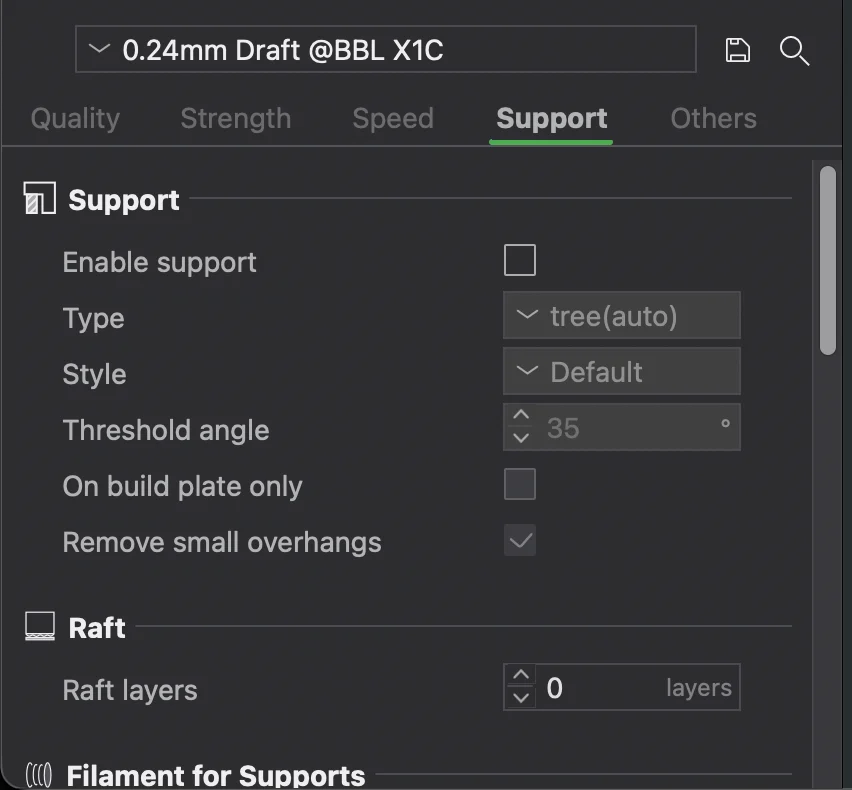
Enable automatic supports
In the process settings, open the Support section and turn on support. Then:
- Type: normal supports are dependable for big flat overhangs; tree supports use less material and peel cleaner on figures and curves.
- Threshold angle: anything steeper than this gets supported. Lower it to support only extreme overhangs, raise it to support more.
This is the same model as the OrcaSlicer-family support settings, since Bambu Studio and OrcaSlicer share an engine.
Add supports manually
For control over specific spots, use the Support Painting tool: paint enforcers where you want supports added and blockers where you want them suppressed. This is the counterpart to the support blocker workflow and lets you keep automatic supports while overriding the few areas that matter.
Supports in a different material
On a multi-material setup, you can assign the support interface (the layer that touches the model) or the whole support to a different filament. Use a dedicated support or release material and the supports peel off cleanly with almost no scarring. This needs an AMS or manual swaps for the support filament, and it interacts with color and filament assignment.
Make supports easier to remove
- Increase the top z-distance / interface gap so supports do not fuse to the model.
- Prefer tree supports where the geometry allows.
- Use a different interface material if you have one.
A larger gap trades a slightly rougher overhang underside for much easier removal.
Why this matters for a print farm
Support removal is hand labor, and in production it is often the hidden cost that eats margins. Reorienting parts to need fewer supports, and standardizing support settings that come off cleanly, pays back on every print.
Printago keeps support settings in each part's profile and slices consistently in the cloud with Bambu Studio or OrcaSlicer, so the support strategy you dial in is applied the same way across the queue. See print farm slicing.
More Bambu Studio guides
Read the Bambu Studio in the cloud, or browse all slicer guides.
Frequently asked questions
Sign up for free today
No credit card required. Connect unlimited printers and get production automation running in minutes.