
How to Add Texture in Bambu Studio
June 19, 2026
Add surface texture in Bambu Studio with fuzzy skin for an all-over finish, or emboss an image or SVG onto a face for a custom texture. Both methods explained.
There are two kinds of "texture" in Bambu Studio. Fuzzy skin gives a whole surface an even, matte texture, and embossing raises or recesses a specific image or logo onto a face. Pick based on whether you want an all-over finish or a defined pattern.
All-over texture: fuzzy skin
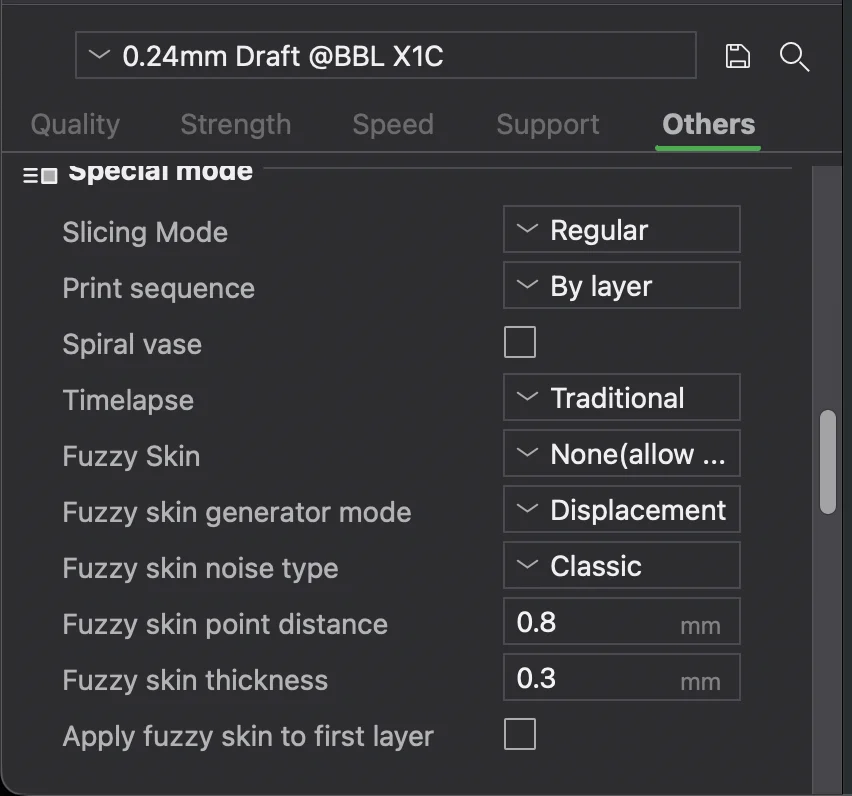
Fuzzy skin is the fast answer to "make this less glossy." It jitters the outer wall slightly so the surface prints with a fine, even texture that hides layer lines and feels matte and grippy.
- In the process settings, find Fuzzy Skin (in the quality/other settings).
- Turn it on and choose where it applies: outer walls only, or walls and top surface.
- Tune the point distance and thickness to make the texture finer or coarser.
This is ideal for enclosures, handles, and anything you want to feel less plasticky.
Custom texture: emboss an image or SVG
For a logo, pattern, or text instead of an all-over finish:
- Use the text or SVG tool to place the shape on a face of the model.
- Set it to emboss (raise) or recess it into the surface, and set the depth.
This gives crisp, defined texture where you want it. For full photographic relief, a height-map model made in CAD or a dedicated tool and imported as geometry will look better than anything done in the slicer. (Adding text pairs with changing the color of that text for a two-tone look.)
Why this matters for a print farm
Texture choices are part of a product's finish, and in production you want them baked into the part definition so every copy comes out identical, not re-applied by hand each time someone slices it.
Printago keeps each part's settings with the part and slices in the cloud with Bambu Studio or OrcaSlicer, so a textured finish is reproduced consistently across the whole queue. For the wider production workflow, see how to set up a 3D print farm.
More Bambu Studio guides
Read the Bambu Studio in the cloud, or browse all slicer guides.
Frequently asked questions
Sign up for free today
No credit card required. Connect unlimited printers and get production automation running in minutes.