
Thumbnail Styles, 3D Model Preview & STEP Parts
Pick the look of every thumbnail in your library, spin any 3MF project in a real 3D preview, and upload STEP files that are ready to print.
Pick your thumbnail style
Printago renders the pictures of your parts, plates, builds and print jobs, and now you choose how it draws them. Settings > Account > General > Thumbnails has both styles side by side, rendered from the same sample plate, so you can compare before you save.
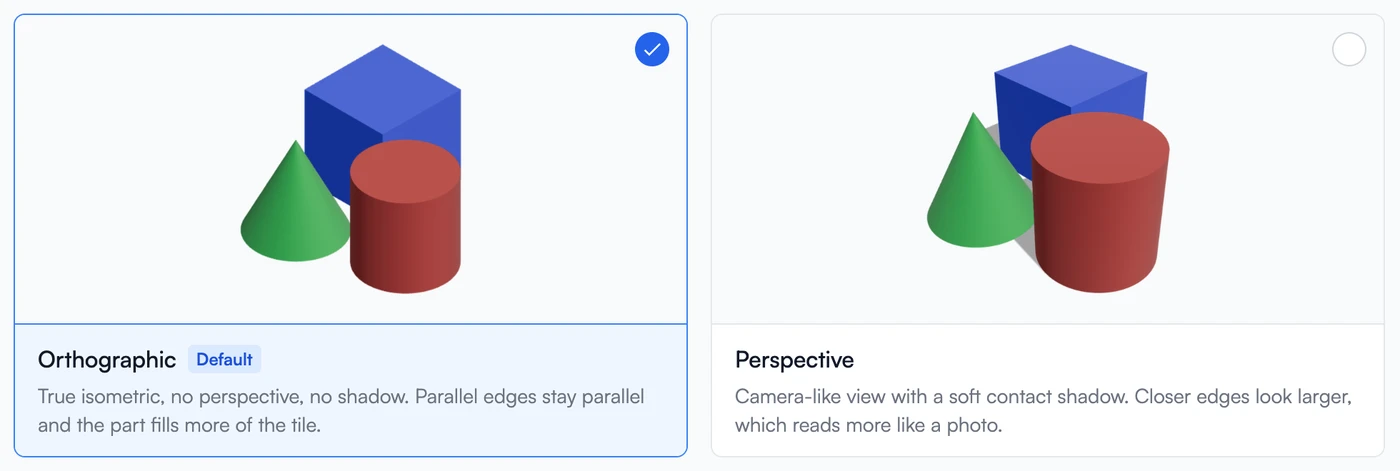
Orthographic is the new default: a true isometric view, the projection CAD tools default to. Parallel edges stay parallel, two copies of the same feature are the same size wherever they sit on the plate, and with no shadow to leave room for, the part fills more of its tile. Perspective is the camera-like look, with a soft contact shadow underneath, for anyone who preferred it.
The style applies to everything rendered from the moment you save: new parts, new uploads, new builds, newly queued jobs. Thumbnails you already have keep their current look until something re-renders them, so a large library will show both styles side by side for a while after a switch.
A real 3D preview, now for 3MF projects
Clicking a thumbnail in the queue, on a build, or on a printer opens an interactive 3D preview. Until now it could only read STL files, so the multi-plate 3MF projects most farms actually print had nothing to spin. The preview reads 3MF too now, and it knows what it is looking at.
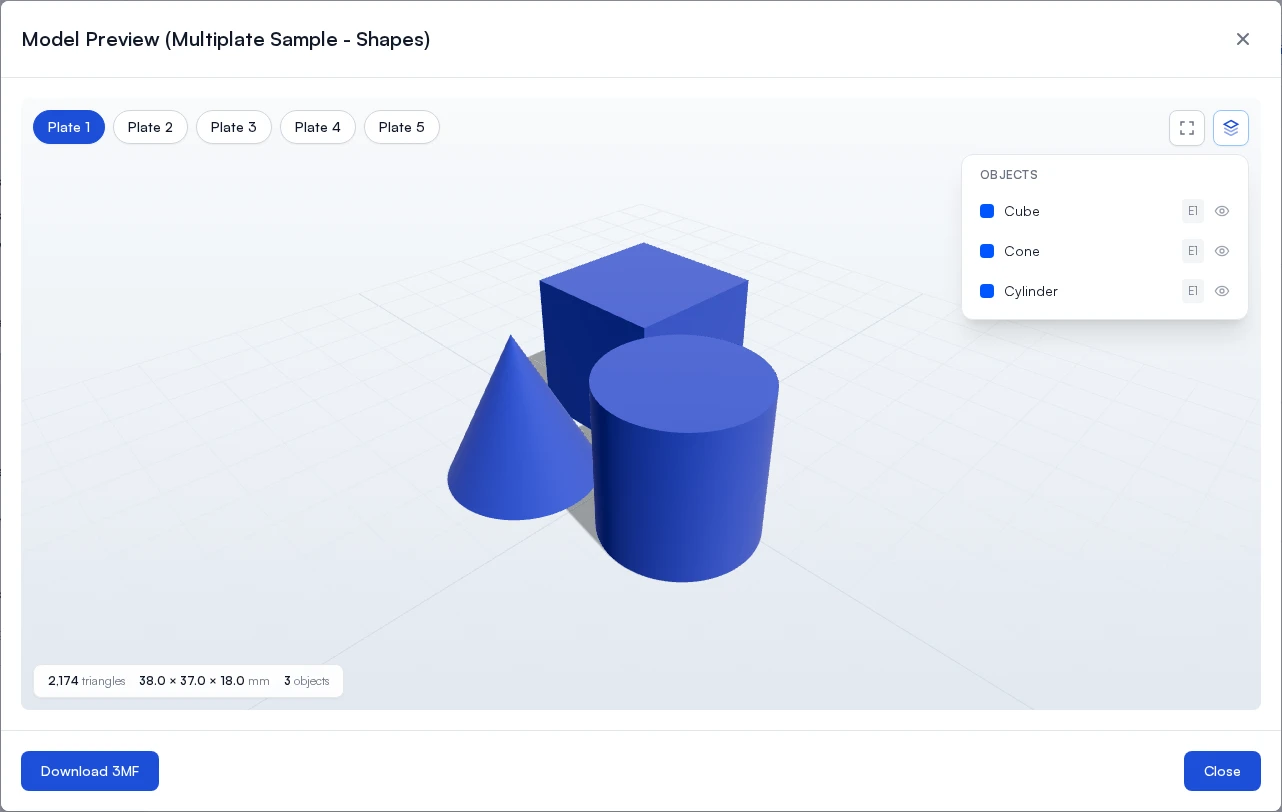
A 3MF project can hold a dozen plates, and a print job prints exactly one of them. Open the preview from a job and it opens on that job's plate, named in the bar along the bottom, so you are looking at what that printer is about to build. Open the same file from the part and you get a button for every plate in the project.
Each object is drawn in the filament assigned to it, the same colors the thumbnail uses, so a multi-material plate reads at a glance instead of arriving as one gray blob. The objects panel lists everything on the plate with its color, the filament slot it prints from, and an eye icon to hide it: useful for checking a part buried in the middle of a packed plate, or confirming a merged plate holds the mix you expected. The stats bar gives you the triangle count, the model's dimensions, and how many objects are on the plate.
STEP files are prepared for you
STEP describes exact mathematical surfaces, and something has to turn those into the triangle mesh a slicer prints from. Printago now does that conversion when you upload the part and keeps the result, so you no longer have to export an STL yourself.
What follows from that: a STEP part shows no picture for the first moments after upload, and when the preview appears it is ready to slice and print. Print time and material estimates arrive with it. Replacing the file re-runs the conversion and clears the old estimates, so you are never shown figures from the revision you replaced. A part you uploaded before this shipped is converted the first time you use it, once, and the original STEP file is always what you get back when you download the part or open it in Orca Slicer.
If a file cannot be converted, the part now says why instead of failing quietly. That usually means there is no solid geometry in it, such as a drawing or a surface-only export, and re-exporting it as a solid model fixes it.
Additional Updates
- Parts record their print time and filament estimate again. The step that saved them was failing on every run, for every part type, so nothing was being stored. New uploads record it, and an existing part picks one up when you reprocess it from the part page.
- Fixed: a queued job could show the part's default colors instead of the filaments it was actually assigned, and a correctly colored thumbnail could revert to the default one while another job of the same part finished rendering.
- Fixed: queuing the same part in the same color a second time left its jobs showing the plain plate picture. The repeat now reuses the first render, which is instant, instead of falling back.
- Fixed: a job could get stuck in "Sending to printer", re-sending the same file over and over. The watchdog now waits out a large file's upload instead of interrupting it, backs off between retries, and when a printer will not take the job it fails the job with a reason and holds that printer back rather than handing it the same job forever.
- Printago Fuse now spreads camera snapshots across the capture interval instead of firing every camera at once, which smooths out the CPU and network spikes on the machine running Fuse.
- GCODE Macros are now available in every store. See GCODE Macros for what they do.
Sign up for free today
No credit card required. Connect unlimited printers and get production automation running in minutes.