
How to Open a 3MF File on a Chromebook
November 2, 2026
Open a 3MF file on a Chromebook in your browser, with its plates, objects, colors and settings intact. Change it, slice it, and download it again.
To open a 3MF file on a Chromebook, load it into a slicer that runs in your browser, such as Printago Studio, and it comes up with its plates, objects, colors and settings. A 3MF is usually a slicer project. Bambu Studio and OrcaSlicer publish Windows, macOS and Linux builds but no ChromeOS app, and many managed Chromebooks disable the Linux environment that could run one.
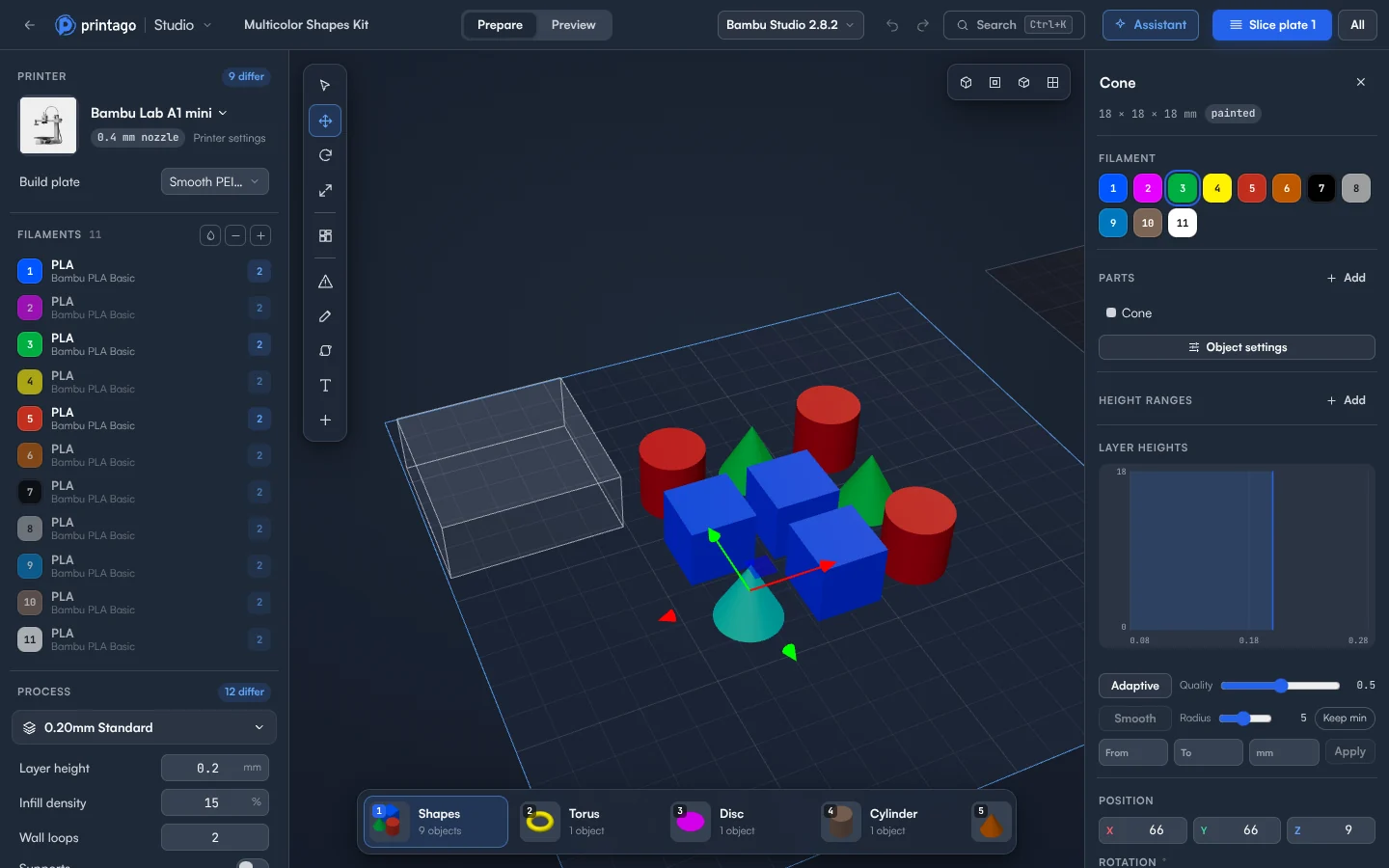
Open the project
- Sign in to Printago and open Printago Studio from the sidebar.
- Choose Open a local file and pick the
.3mf. With a project already open, use File > Open… or press Ctrl+O. A 3MF replaces the open project, and if you have unsaved changes you're asked first. - Look along the plate strip at the bottom. It has one card per plate. Click a card to make that plate active, or press [ and ] to step through them. All plates in the top-right of the 3D view shows every plate at once.
- Click an object in the 3D view. The right panel shows its filament, parts, position and size. An object painted in several colors shows a painted tag.
- Look for a chip such as 9 differ next to Printer or Process. It counts the settings this project changes from the profile. Click it to see them.
A sliced .gcode.3mf opens differently: it goes straight into Preview. See how to view a G-code file.
If the 3MF is already in Printago
Go to Parts, open the part, and click Open in Studio next to the part file. The address shows the organization and the part, so you can bookmark it and come straight back.
Change it and keep the change
- File > Download .3mf saves the project to your Chromebook.
- File > Save to Printago replaces the part's file with the project. The part keeps its name and settings.
- File > Save as new part in Printago… creates a separate part.
Opening and looking at a project is one thing. Slicing it is what draws on your allowance: 60 minutes of cloud slicing and rendering time a month free, and more on a paid plan. Jobs sliced by your print queue don't count.
What if the file came from a desktop slicer?
A project 3MF and a sliced 3MF carry different things. Our guide to getting a 3MF from Bambu Studio explains the difference. Whichever you have, you can slice it or send it to your printer from the same tab.
Printago is 3D print farm software that runs production from order to finished print. Being able to open a project on any computer means a fix doesn't wait for the one machine with a slicer on it. The docs list every part type that opens.
Create a free Printago account and open your 3MF.
More Chromebook guides
Read the Printago Studio, or browse all slicer guides.
Frequently asked questions
Sign up for free today
No credit card required. Connect unlimited printers and get production automation running in minutes.