
How to Use OrcaSlicer on a Chromebook
November 2, 2026
OrcaSlicer has no ChromeOS app. Slice with its real engine in your browser: pick any printer it knows, tune the settings, and read the flow and layer time.
OrcaSlicer has no ChromeOS app, so to use it on a Chromebook you run its real engine in your browser through Printago Studio. Its official builds cover Windows, macOS and Linux. A personal Chromebook could try the Linux build in ChromeOS's Linux environment, but plenty of managed Chromebooks have that switched off.
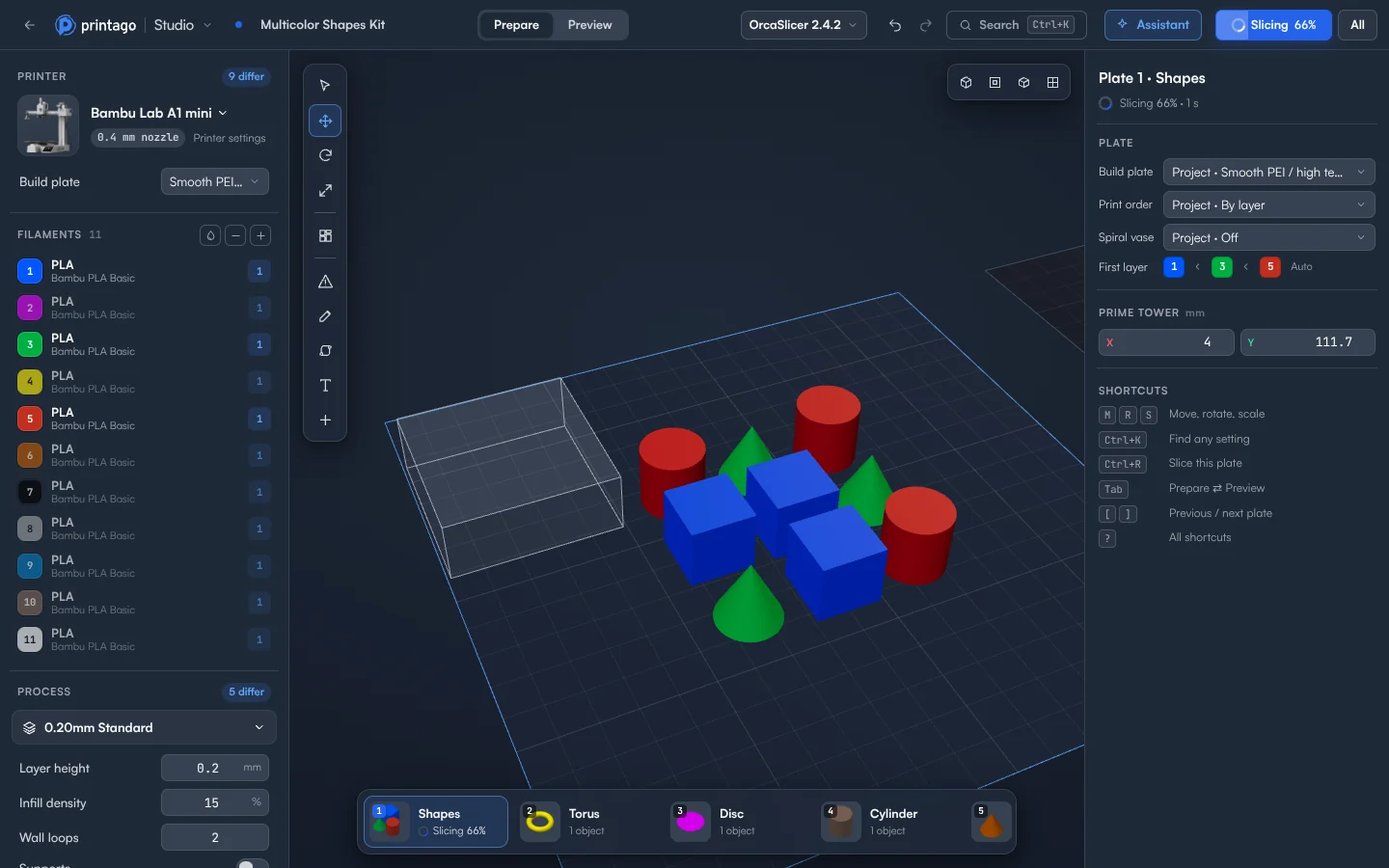
Printago Studio has its own screen rather than OrcaSlicer's window. What runs behind it when you slice is the real, unmodified OrcaSlicer engine.
Set up your printer
- Sign in to Printago and open Printago Studio from the sidebar.
- In the top bar, look at the slicing engine and its version. Choose OrcaSlicer there.
- Click the printer's picture or name. Choose a printer lists Your Printago profiles first, then every printer the engine knows, by brand. Type to search.
- Set the Build plate, which sets the bed temperatures your filament profiles use for that plate.
- Open Printer settings to see every setting of the profile, such as retraction and custom G-code.
Choosing a different printer resets your changes to printer settings. A message tells you how many, with an Undo button.
Tune and slice
- Open All process settings. Choose Basic, Standard or Expert to set how many settings show, and turn on Changed only to see what differs from the profile.
- For one object, select it and use Object settings. For a band of its height, use Height ranges.
- Click Slice plate 1, or press Ctrl+R.
Read the result like a tuner
Under Color by in Preview, go past Feature:
- Flow shows how much plastic the nozzle pushes per second, in mm³/s. Compare it with your filament's maximum volumetric speed to find where a print runs at its limit.
- Layer time shows how long each layer takes, so short layers on small parts show up before they curl or sag.
- Speed, Fan and Temperature show the nozzle speed, the part cooling fan and the nozzle temperature along the path.
To stop at a layer for a magnet or a nut, click + under the layer slider and choose Pause, then Slice again. Our OrcaSlicer pause guide covers why you'd want one.
Your profiles and projects
Export a bundle from OrcaSlicer on another computer, then use Import Profiles under Printing > Profiles. Keep one limit in mind: text made in OrcaSlicer is shown and kept, but can only be edited in OrcaSlicer.
Slicing and rendering time is metered: 60 minutes a month free, and more on a paid plan. Jobs sliced by your print queue don't count.
Printago is 3D print farm software that runs production from order to finished print. OrcaSlicer in Printago slices those jobs too. When your plate looks right, send it to your printer. The docs cover the rest.
Create a free Printago account and slice with OrcaSlicer from your Chromebook.
More Chromebook guides
Read the Printago Studio, or browse all slicer guides.
Frequently asked questions
Sign up for free today
No credit card required. Connect unlimited printers and get production automation running in minutes.