
How to View a G-code File on a Chromebook
November 2, 2026
View a G-code file on a Chromebook without installing anything. See the toolpaths layer by layer, with the print time and filament the file states.
To view a G-code file on a Chromebook, open it in a browser-based slicer such as Printago Studio, which draws the toolpaths layer by layer. The usual way to check G-code is a desktop slicer, but those don't install on most Chromebooks, and many managed school machines block the Linux environment you'd need for a workaround.
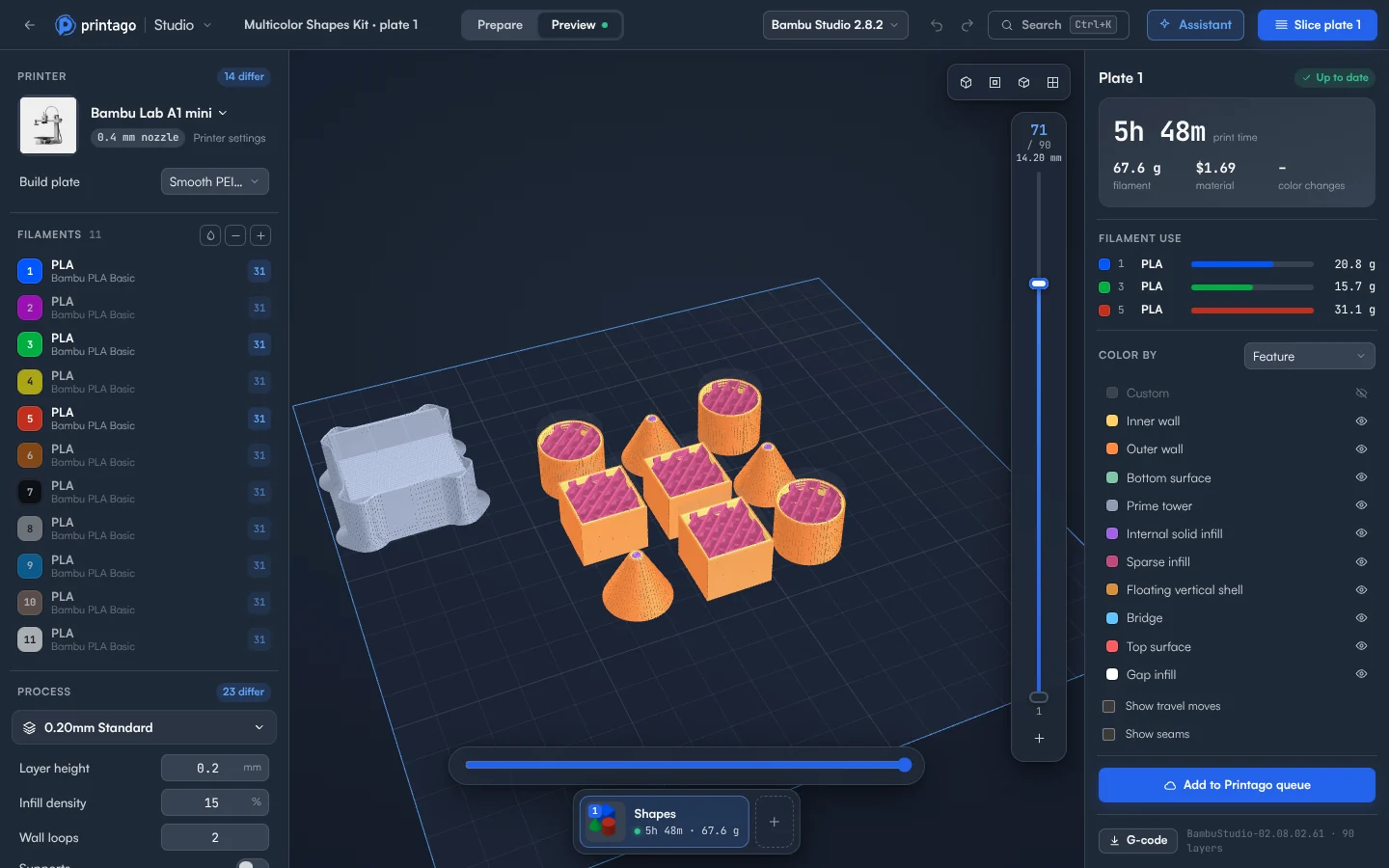
Open and read the file
- Sign in to Printago and open Printago Studio from the sidebar.
- Choose Open a local file, or use File > Open… if a project is already open. You can also drag the file from the Files app onto the 3D view. Pick a
.gcodeor.gcode.3mffile. - The file opens straight into Preview. The printer is the one the file was sliced for, when Printago Studio knows it. Otherwise the plate is sized from the file.
- In the right panel, read Print time and Filament. These are the figures the file states.
- Drag the top handle of the slider on the right to step down through the layers. Press ↑ and ↓ to move one layer, or L to see only the top layer.
- Under Color by, choose Feature to see walls, infill and supports, or Filament to check which color prints where. Click a feature to hide it, for example to see the infill without the walls.
- Turn on Show travel moves to add the moves where the nozzle travels without printing.
Plain G-code or gcode.3mf?
A plain .gcode file has only toolpaths, so there's nothing to arrange or slice again. Prepare is greyed out, and File > Download G-code gets the file back out.
A .gcode.3mf holds each plate's G-code. If it also includes its models, you can switch to Prepare, change something and slice again. The plate shows Changed until you do.
Does viewing use my slicing and rendering time?
You get 60 minutes of cloud slicing and rendering time a month free, and more on a paid plan. That time runs only while the engine runs, and looking at a file doesn't start it. Jobs sliced by your print queue don't count either.
Printing the file
A G-code file from your Chromebook can only be viewed and downloaded. To print it, add it to Printago as a part, then send it to your printer from there. A G-code part goes into the queue as it is, without slicing again.
That check is worth a minute. The file name can't tell you what's in the file, and a bad one ties up a printer. Printago is 3D print farm software that runs production from order to finished print. The check you just did sits next to the queue that prints the file. See the docs on sliced files or the full Chromebook slicing guide.
Create a free Printago account and open your G-code file.
More Chromebook guides
Read the Printago Studio, or browse all slicer guides.
Frequently asked questions
Sign up for free today
No credit card required. Connect unlimited printers and get production automation running in minutes.