
WooCommerce Integration
Your WordPress store takes the order. Your printers take it from there.
A WooCommerce store is yours end to end, which also means the order handling is yours: reading the order email, finding the file, queueing the print. Connect the store to Printago and paid orders arrive within seconds of checkout, matched to your SKUs.
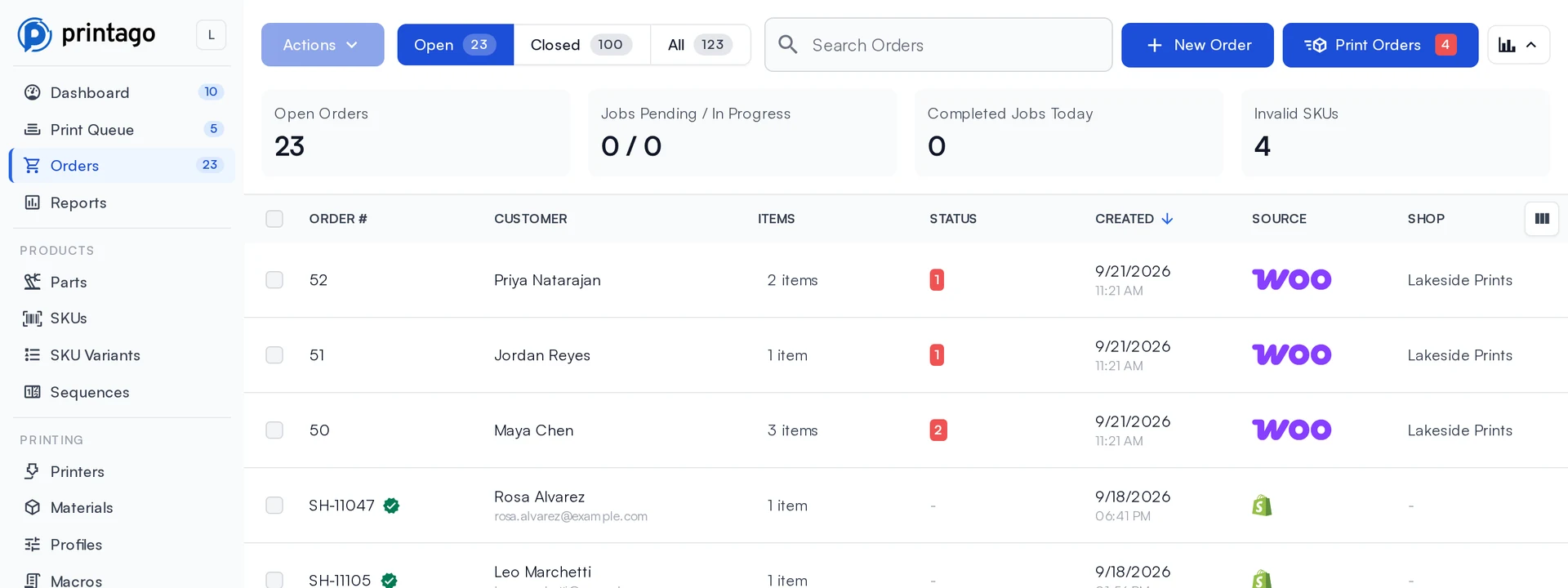
How the WooCommerce integration works
Three steps from a WooCommerce checkout to a job on a printer. No plugin to maintain on your WordPress site.
Approve Printago on your site
Enter your store address and approve Printago on the WooCommerce screen that opens. If your host blocks that screen, paste a pair of REST API keys instead.
Match your SKUs
Simple and variable products match by SKU, so a product sold in several colors lands on the right Printago SKU with its options.
Orders queue themselves
Turn on auto-print and each paid order is queued, sliced in the cloud and routed to a printer with the right material.
Matching
Variable products land on the right SKU
A WooCommerce product with a dozen variations is still one SKU in Printago with options. Each order item resolves to the SKU and the options the buyer chose, so the color and size on the receipt are the color and size that print.
Simple and variable products
Both match by SKU. Variation attributes come across as the selected options.
Ignored variant names
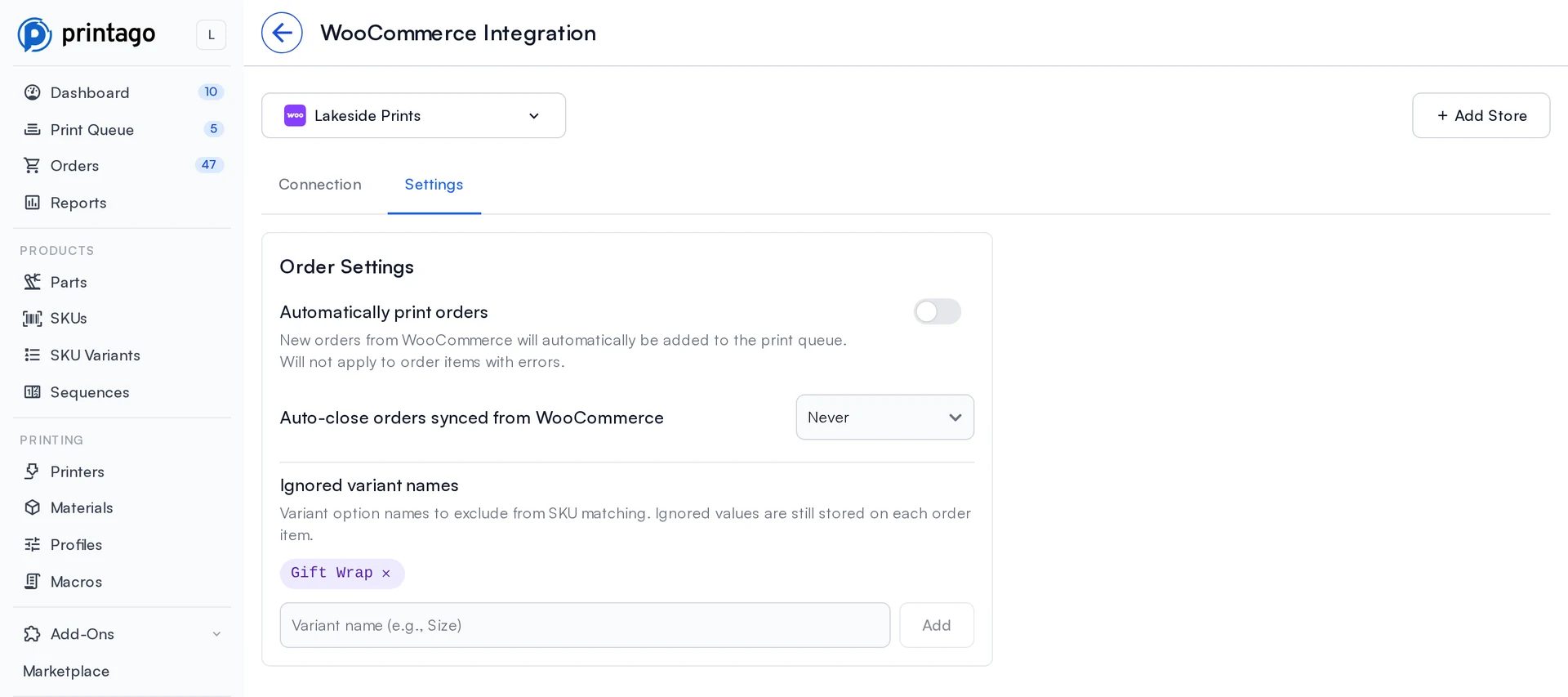
Gift wrap and other options that do not change the part stay out of matching, the same setting Etsy and Shopify use.
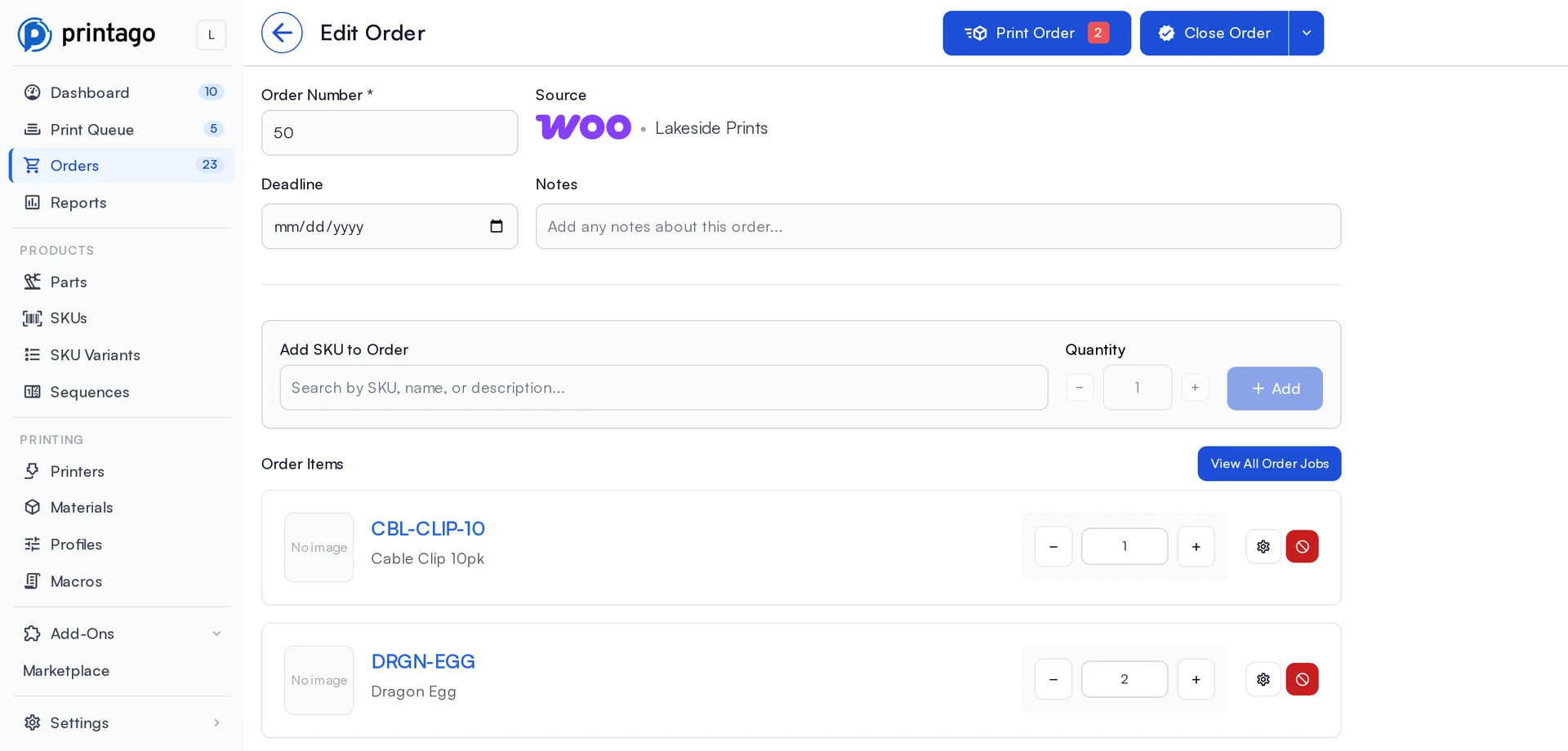
In sync
Orders stay in step with the store
Cancel or refund an order in WooCommerce and it is cancelled in Printago. Mark one completed and Printago closes it too, if you want it to. The Settings tab holds each of those choices per store.
A backup for flaky hosts
Some WordPress hosts delay or drop notifications, so a backup check runs every 3 hours and Sync Orders checks right now.
A link you can see
The Connection tab shows when your store last reached Printago, so a quiet connection is easy to spot.
WooCommerce specifics
Made for stores you host yourself
Self-hosted stores vary: different hosts, different security plugins, more than one site. The connection is built for that.
No password shared
You approve Printago on your own site. Printago never sees your WordPress password.
REST API key fallback
If a host or security plugin blocks the approval screen, create a key pair in WooCommerce and paste it in.
As many stores as you run
Each store appears in the orders list Shop column and filter beside your other channels.
Standard requirements
https, WooCommerce 3.5 or newer, and permalinks set to anything other than Plain.
How do WooCommerce orders get into Printago?
You connect your WooCommerce store once. From then on WooCommerce tells Printago about each order, and Printago matches it to your SKUs and adds it to the same Orders page as your other channels.
- How you connect
- Approve Printago on your own WooCommerce site, or paste REST API keys
- When orders import
- Paid orders, within seconds of checkout
- Backup check
- Every 3 hours, plus Sync Orders on demand
- Matching
- SKU on simple and variable products, with variation options
- Cancelled or refunded in WooCommerce
- Cancelled in Printago
- Completed in WooCommerce
- Closed in Printago, if you choose
- Stores per Printago store
- As many as you run
- Requirements
- https, WooCommerce 3.5+, permalinks not set to Plain
- Cost
- Free add-on on a Commercial plan
Every step, with screenshots, is in the WooCommerce integration guide. Plans are on the pricing page.
What it lets you take on
Grow the store you own, not your order inbox
Every variation you add to a WooCommerce product is another thing to remember at the printer. When variations resolve to SKUs on their own, you can offer more colors, sizes and materials per product, and run a second or third store, with the same hands.
Good to know before you connect
- Your store must be reachable over https.
- WooCommerce 3.5 or newer, with permalinks set to anything other than Plain.
- Hosts that drop notifications rely on the 3-hour backup check, so an order can take longer to appear there.
What Printago does after the WooCommerce order arrives
Printago is 3D print farm software that runs production from order to finished print. Once a WooCommerce order is in, the cloud slicer prepares the file, Gutenbed routes each job to a printer with the right material loaded, and Fuse, the local agent, talks to the printers. It works the same for three printers and for three hundred.
Selling somewhere else too?
All sales channel integrations Release notes: WooCommerce OrdersSKU VariantsSelling from home
WooCommerce integration questions
WooCommerce is a registered trademark of WooCommerce, Inc. Printago is not endorsed or certified by WooCommerce.
Sign up for free today
No credit card required. Connect unlimited printers and get production automation running in minutes.